
QuicKey – The quick tab switcher EN
fwextensions · Firefox
Add keyboard shortcuts to switch tabs with a Quicksilver-style search or a most recently used menu
截图
简介
Add keyboard shortcuts to switch tabs with a Quicksilver-style search or a most recently used menu. No mouse needed!
• Press ALT-Q (CTRL-Q on macOS)
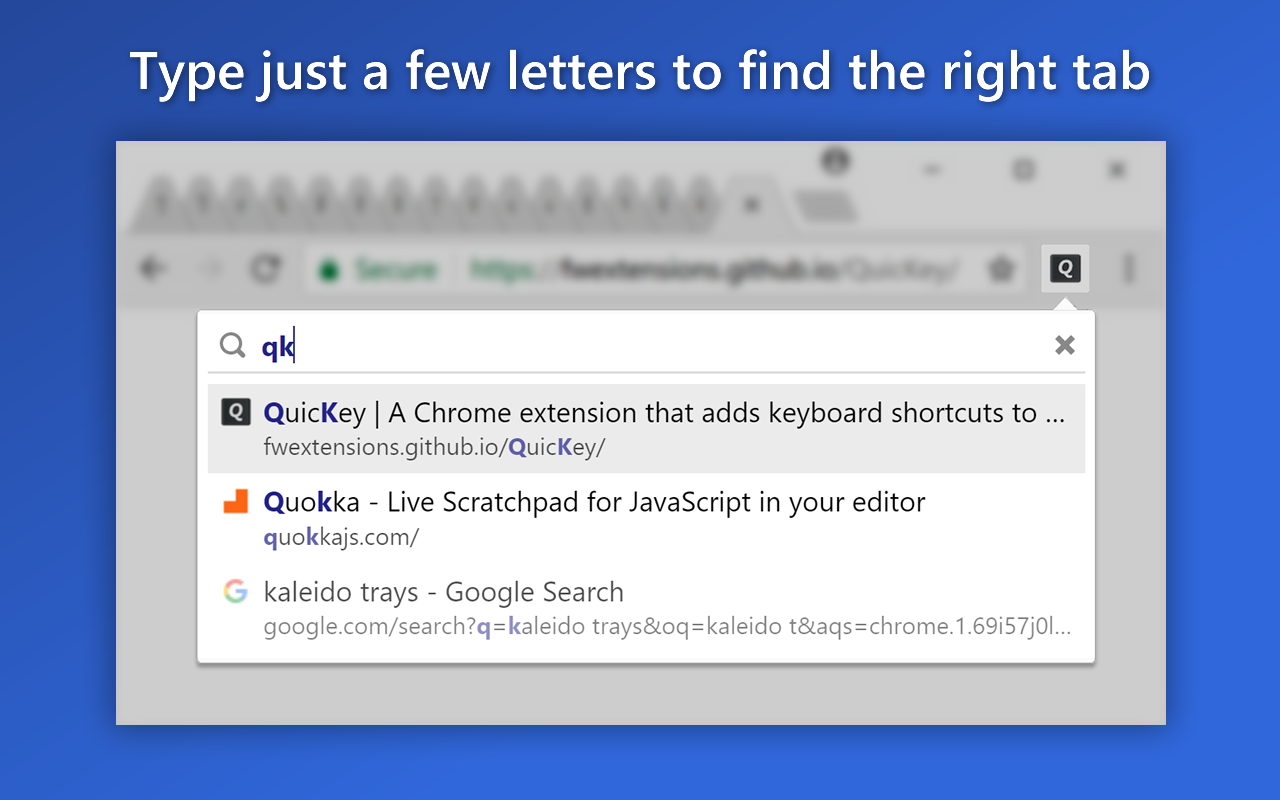
• Type a few letters
• Press ENTER to switch to the selected tab
★ Switch between the most recently used tabs
➤ NOTE: When first installed, QuicKey doesn't know which tabs have been
recently used, but as you use the browser, tabs will get added to the
most recently used (MRU) list.
Opening QuicKey displays a list of the last 50 tabs you've visited, in order of recency. Click a tab to switch to it, or use one of the keyboard shortcuts below to navigate the recently used tab history:
➤ To switch between the two most recent tabs:
• Press ALT-Z (CTRL-Z on macOS).
OR:
• Quickly double-press ALT-Q (CTRL-Q on macOS).
➤ To navigate farther back in the MRU list:
• Press ALT-A (CTRL-A on macOS) once to switch to the previous tab.
The QuicKey icon will invert for .75 seconds.
• Press ALT-A while the icon is inverted to switch to older tabs, once
for each tab.
• Press ALT-S to move to newer tabs.
• Pause to let the icon revert to normal.
• Press ALT-A again to switch back to the tab you initially started on.
➤ To pick a recent tab from the MRU list:
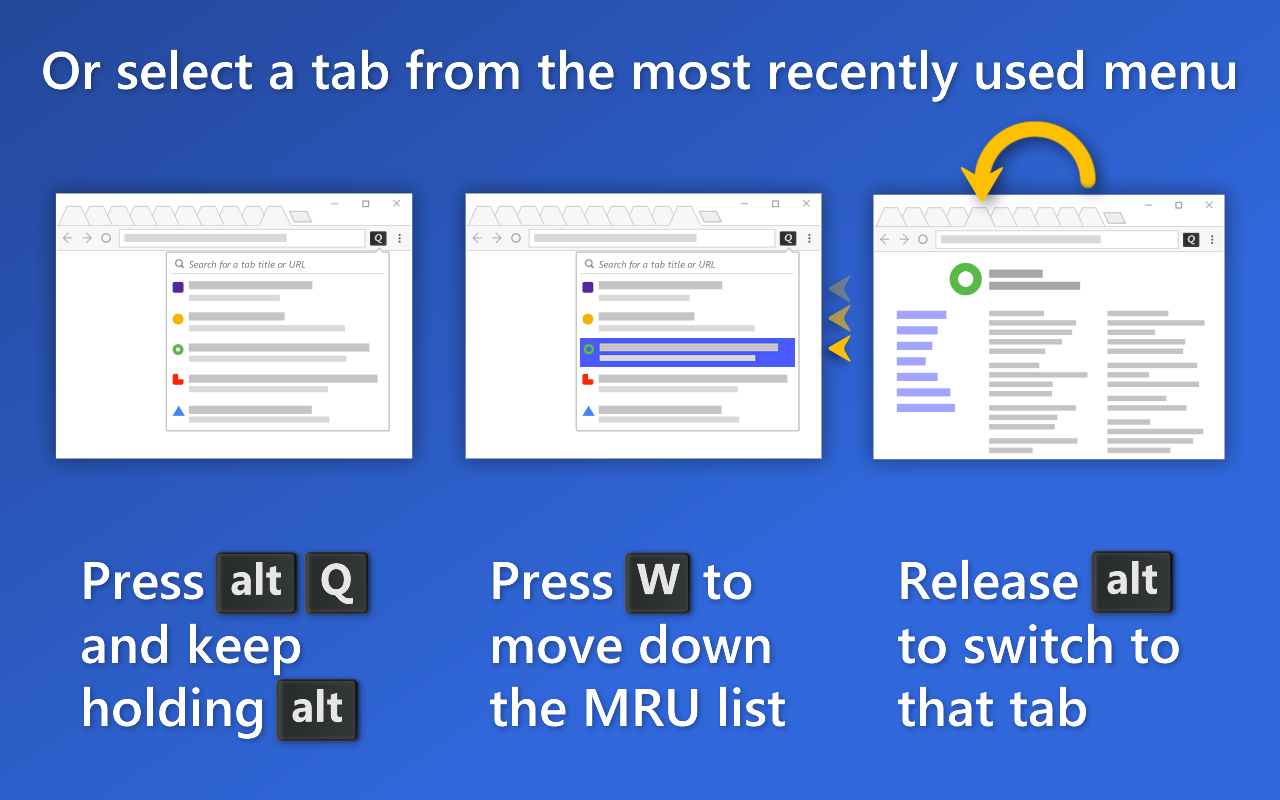
• Press the shortcut but keep holding the ALT key (CTRL key on macOS).
• Press W or ↓ to move down through the list of recent tabs.
• Press SHIFT-W or ↑ to move up.
• Release ALT to switch to the selected tab.
• You can also highlight an item with the mouse, then release ALT to
go to that tab.
Which shortcuts to use is up to you. Double-pressing ALT-Q is nice because there's just one shortcut to remember, while ALT-Z lets you switch between the two most recently used tabs very rapidly. (You can also double-click the QuicKey icon to toggle between the most recent tabs.)
ALT-A lets you navigate to even older tabs, though the timing can sometimes be finicky.
Selecting from the MRU menu by holding down the ALT key provides the closest experience to a typical ALT-TAB menu, but you need to use W instead of TAB to navigate while the menu is open.
You can change any of these shortcuts by clicking the gear icon in the menu or by right-clicking the QuicKey icon and selecting Options. Then scroll down and click "Change browser shortcuts". Look for the "Switch to the previous/next tab" shortcuts.
If you enable the option to show the number of open tabs on the QuicKey icon, the badge containing that number will change color while you navigate to older tabs, rather than the icon inverting.
★ Search for a tab quickly
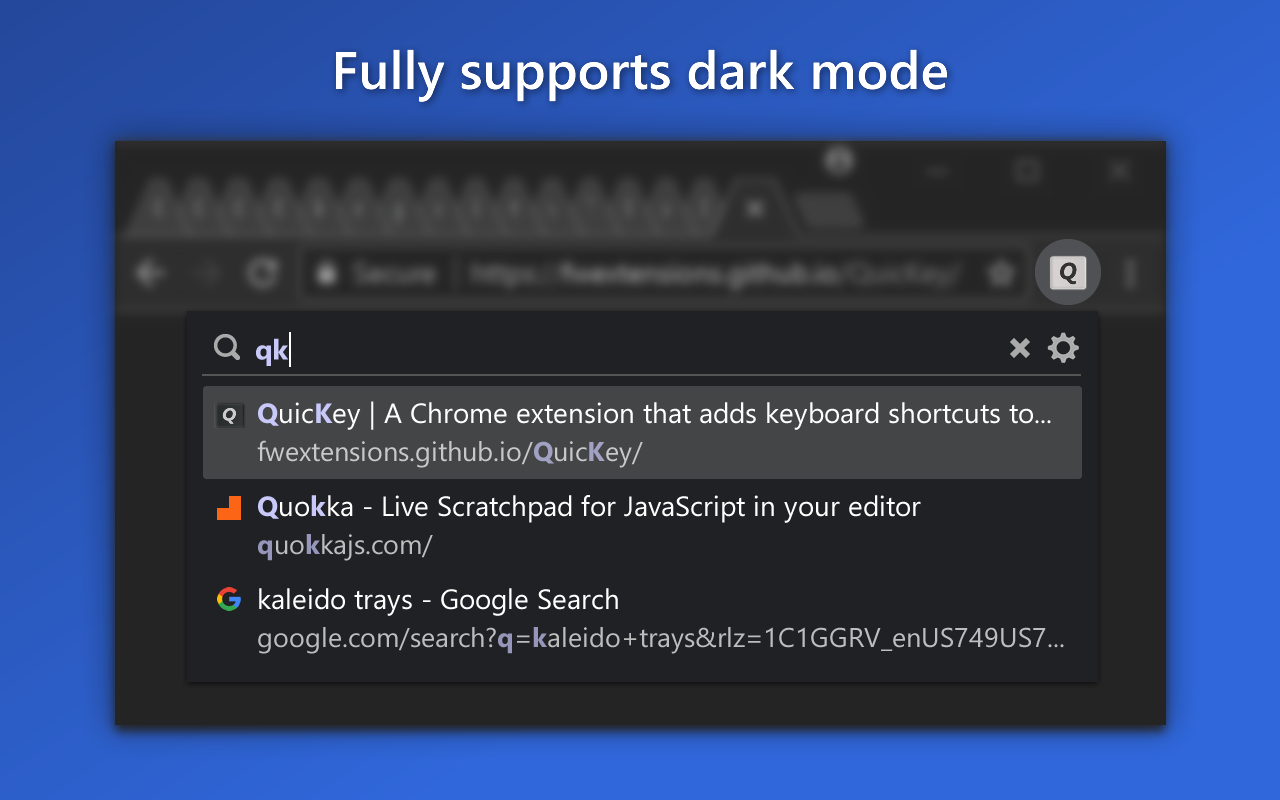
Unlike other tab switchers, QuicKey uses a Quicksilver-style search algorithm to rank the results, where contiguous matches at the beginning of words are higher in the list, as are matches against capital letters. So you only have to type a few letters to quickly find the right tab.
Use keyboard shortcuts to navigate the list:
• ENTER: switch to the selected tab
• ↓, SPACE or CTRL-N/J: move down the list
• ↑, SHIFT-SPACE or CTRL-P/K: move up the list
• PG DN: page down the list
• PG UP: page up the list
• END: go to the bottom of the list
• HOME: go to the top of the list
• ESC: close the menu
Recently used tabs get a slight boost in the search results ranking, so getting back to a tab you were just using should require typing fewer letters.
★ Customize shortcuts and other options
To customize how QuicKey behaves, click the gear icon in the menu, or right-click its icon on the toolbar and select Options. There you can:
• Customize keyboard shortcuts
• Hide closed tabs from the search results
• Limit navigating recent tabs or searching to the current browser window
• Mark tabs in other browser windows with an icon
• Show the number of open tabs
• Use pinyin to search for Chinese characters
If you change the keyboard shortcut for showing the QuicKey menu to something other than the default ALT-Q or if you have a non-US keyboard, you'll probably want to also change the key that's used to navigate down the list of recently used tabs (which defaults to W). For instance, if you change the menu shortcut to ALT-Z, you might want to change the navigation key to X, which is right next door. To change it, go to the Options page, click the "Select the next tab" keyboard shortcut picker, and press X.
When new settings have been added to QuicKey, the gear icon will display a red dot to let you know.
★ Limit navigation to the current browser window
If you have multiple browser windows open, you may want to navigate among only the recent tabs that are in the current window. To enable this behavior, open the Options page and select "Limit recent tabs to the current browser window". Pressing the shortcuts for "Switch instantly between the two most recent tabs" or "Switch to the previous tab" will then switch only between recent tabs in the current window.
You can also limit searching for tabs to the current browser window.
★ Close and reopen tabs
To close the selected tab, press CTRL-ALT-W (CMD-CTRL-W on macOS, CTRL-ALT-W on Linux). Or hover over a tab and click the X button on the right side of the menu.
When you open QuicKey, the 25 most recently closed tabs are listed below the recent tabs and shown in a faded state with a clock icon. They are also returned when you type a query, though their rank in the list of results is lower than open tabs. Click a closed tab to reopen it in its original location and with all of its browsing history intact.
If you don't want any closed tabs to be shown, open the QuicKey options page and uncheck "Include recently closed tabs in the search results". You can also remove the selected closed tab from the browser's history by pressing CTRL-W (CMD-CTRL-W on macOS) or by clicking its X button on the right side of the menu.
★ Move tabs
You can move tabs to the left or right of the current tab, making it easy to pull tabs from other windows into the curre…
QuicKey – The quick tab switcher 是做什么的
QuicKey – The quick tab switcher 是一款面向 Firefox 的书签管理类扩展,主要用来整理书签、查重、批量导入导出。官方对它的介绍是:Add keyboard shortcuts to switch tabs with a Quicksilver-style search or a most recently used menu在Firefox 附加组件商店(AMO)上,它当前版本 1.8.0,评分 4.33(6 人评价),约 161 名用户。
适合什么人用
从功能定位看,QuicKey – The quick tab switcher 更适合收藏了大量网页、需要定期整理的用户。如果你平时只是偶尔遇到相关需求,用浏览器自带功能也能凑合;但如果这件事每天都发生,装一个专门处理它的扩展通常比手动操作省事得多。
怎么安装 QuicKey – The quick tab switcher
- 打开Firefox 附加组件商店(AMO)上的官方页面;
- 点「添加到浏览器」并确认权限提示;
- 装好后在扩展列表里固定图标,方便随时开关。
本站只做索引与介绍,安装包来自官方商店。如果商店页面提示当前地区不可用,说明该扩展未在你所在区域上架。
常见问题
QuicKey – The quick tab switcher 是免费的吗?
QuicKey – The quick tab switcher 在Firefox 附加组件商店(AMO)免费提供下载。它是浏览器扩展,装上就能直接用,不需要注册账号。
QuicKey – The quick tab switcher 安全吗?
它只申请了 0 项权限,范围比较克制,没有申请「读取所有网站数据」这种大权限。
QuicKey – The quick tab switcher 支持哪些浏览器?
当前收录的版本来自Firefox 附加组件商店(AMO),适用于 Firefox。同一个扩展在其他商店可能有对应版本,但功能与版本号不一定相同。
怎么卸载 QuicKey – The quick tab switcher?
在扩展管理页找到 QuicKey – The quick tab switcher,点移除即可。它在本地保存的设置会一起清掉,不会残留数据。
权限清单 来自 manifest.json 原文
接口权限 5
bookmarkshistorysessionsstoragetabs