
Print Edit WE EN
DW-dev · Firefox
Edit the contents of a web page prior to printing or saving. Elements in the web page can be edited, formatted, hidden or deleted. Unwanted content, such as adverts and sidebars, can easily be removed.
<all_urls>),意味着它可以读取你在任意站点的页面内容,包括已登录的页面。这是许多扩展正常工作的必要条件,但也值得你确认来源可信。
截图
简介
CHANGES
Version 29.7
• Fixes problem that caused browser context menu to show when right-clicking to show the 'Inspect' panel.
• New option to show/hide the 'Save As PDF' setup panel when saving page using Save > Save As PDF.
OVERVIEW
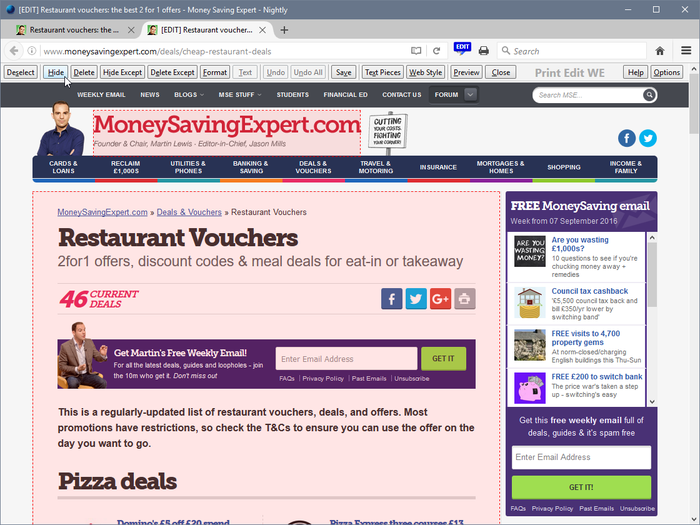
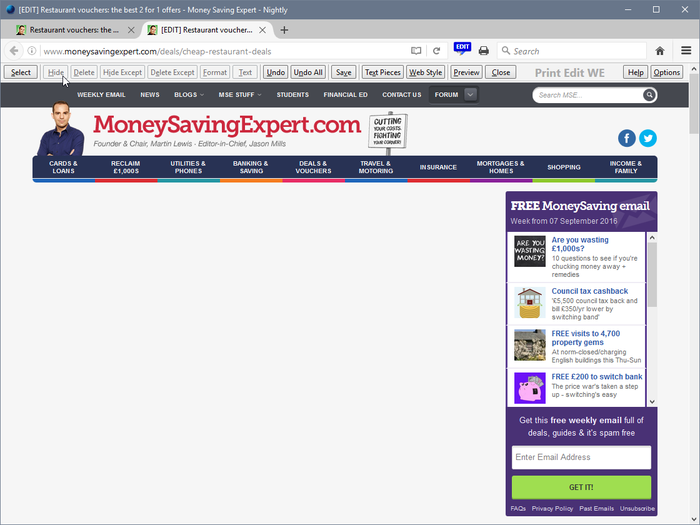
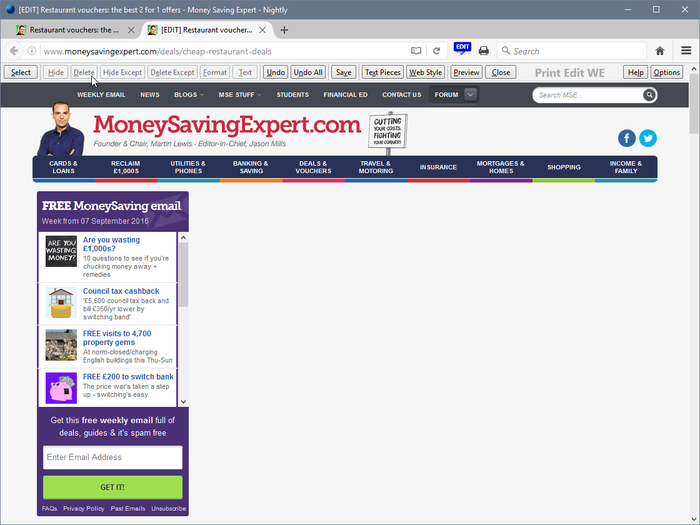
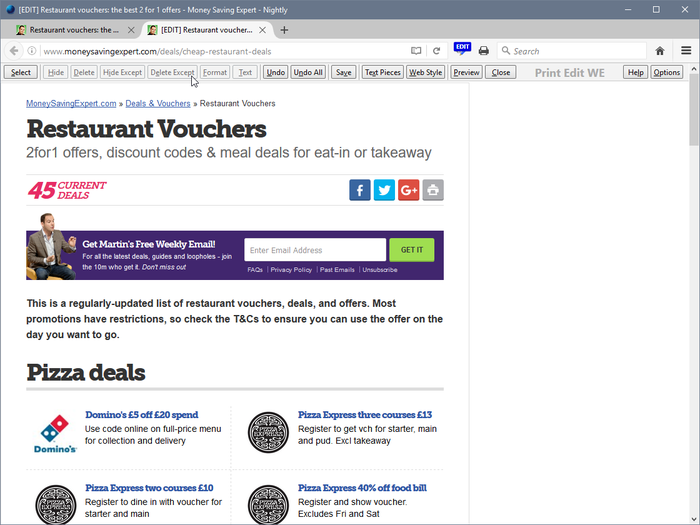
Print Edit WE provides facilities to edit the contents of a web page prior to printing or saving as HTML or PDF. Elements in the web page can be formatted, hidden or deleted and text can be edited or inserted. Unwanted content, such as adverts and sidebars, can easily be removed.
Note, to use the Save As HTML feature, the Save Page WE extension (version 14.0 or later) must be installed and enabled.
BASIC OPERATION
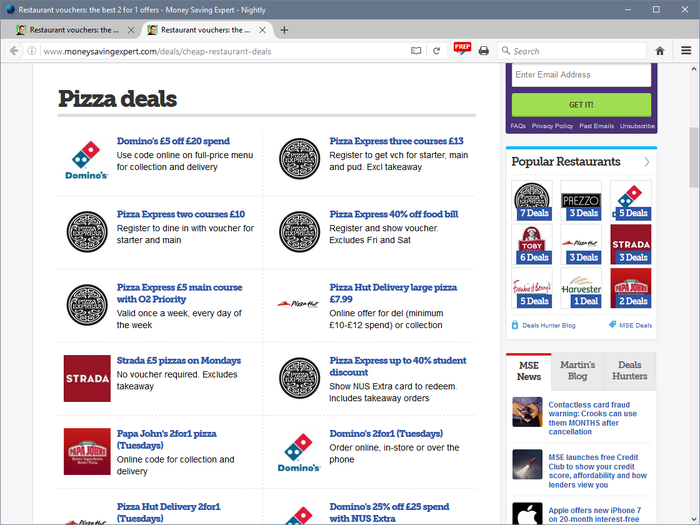
To start editing the page, click on the Print Edit WE button on the main toolbar, or select Print Edit WE > Start Editing on the context menu. A blue 'EDIT' (editing) badge will appear on the button.
The 'Web Style' feature is disabled by default, so that the page displayed looks similar to how the page would look if printed normally. When the 'Web Style' feature is enabled, the page displayed will look similar to how the page looks during normal browsing.
The 'Text Pieces' feature is disabled by default, so that only whole blocks of text can be selected. When the 'Text Pieces' feature is enabled, individual pieces of text can be selected and edited and line breaks are displayed.
The 'View More' feature is disabled by default, so that only elements that are normally visible are displayed. When the 'View More' feature is enabled, elements that are normally invisible are also displayed and can be selected and edited.
An edited web page can be saved as a single HTML file, which can be viewed or re-edited using Firefox or Chrome. An edited web page can also be saved as a PDF file.
Click the 'Preview' button to see how the edited web page will look when printed. Close the preview window to return to editing.
There are options to:
• default to enabling display with View More at start.
• default to enabling selection of Text Pieces at start.
• default to enabling display with Web Style at start.
• automatically delete graphics at start.
• change visibility of link URLs (show or hide).
• automatically close Print Edit WE after exiting Preview.
• not ask the user about saving edits when closing an edited web page.
• ask the user about leaving an edited web page only if the edits are not saved.
OPTIONS PAGE
The Print Edit WE Options page can be accessed as follows:
• Firefox - On the menu bar select Tools > Add-ons (or press Ctrl+Shift+A), select the Extensions tab, and then click on the Options button.
• Chrome - Right-click on the toolbar button, and then select Options.
TOOLBAR BUTTON
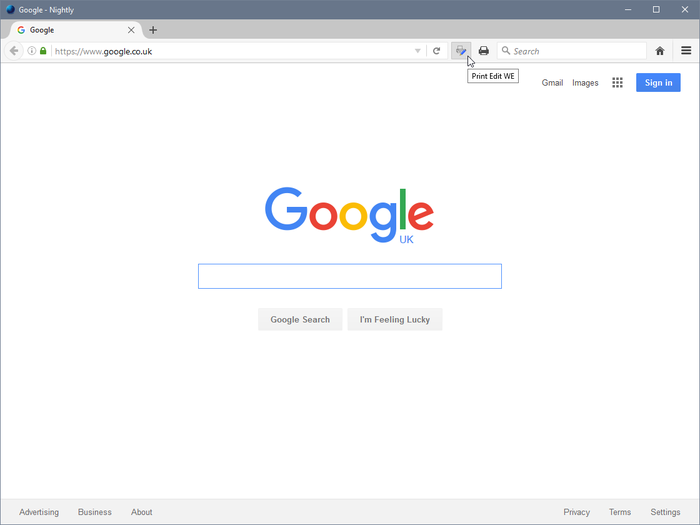
After installation of Print Edit WE, there will be a new grey and blue 'printer-pencil' button on the main toolbar.
If Print Edit WE cannot be used with the current page, the toolbar button will be disabled (greyed-out).
To start editing the page, click on the Print Edit WE toolbar button and a blue editing 'Edit' (editing) badge will appear.
To suspend editing, click on the Print Edit WE toolbar button again, and a red 'Sus' (suspended) badge will appear. To resume editing, click on the Print Edit WE toolbar button again.
There is an option to double-click on the toolbar button to close editing.
CONTEXT MENU & BUTTON MENU
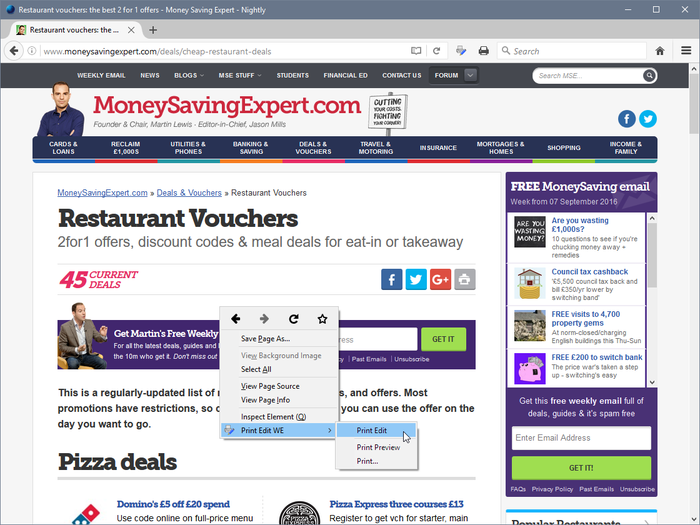
To start editing the page, right-click on the page contents to open the context menu, select the Print Edit WE sub-menu, and then select the 'Start Editing' menu item.
To suspend or resume editing of the page, right-click on the page contents to open the context menu, select the Print Edit WE sub-menu, and then select the 'Suspend Editing' or 'Resume Editing' menu item.
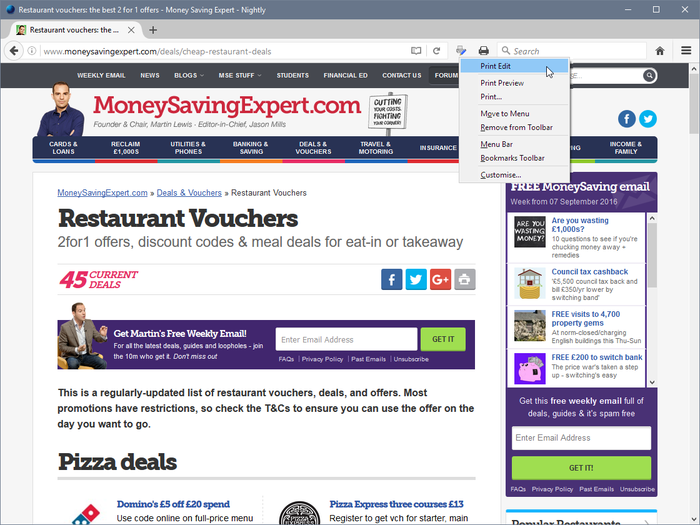
As an alternative to using the context menu, right-click on the Print Edit WE toolbar button and use the button menu.
There is an option to show/hide the Print Edit WE submenu item on the context menu.
PRINT EDIT WE TOOLBAR
The buttons available on the Print Edit WE toolbar are:
• Select - select all or graphic or page-break elements, or re-select elements from previous command.
• Deselect - deselect all currently selected elements.
• Hide - hide currently selected elements.
• Delete - delete currently selected elements.
• Hide Except - hide all elements except those currently selected.
• Delete Except - delete all elements except those currently selected, with varying restrictions.
• Format - apply format properties to currently selected elements.
• Text - edit a text piece or insert new text before or after element.
• Undo - undo the action of previous edit command.
• Undo All - undo the actions of all previous edit commands.
• Save - save web page as a single HTML or PDF file.
• Text Pieces - allow selection and editing of individual text pieces.
• View More - view invisible elements in the page.
• Web Style - alternately remove or apply CSS print stylesheets.
• Preview - open the Print Preview window.
• Close - finish editing.
• Tools - access to the Fix Page Breaks features and to the Options dialog.
• Help - show the Help panel.
The Delete Except button has three menu items:
• Restricted - higher level elements retain their size and relative position.
• Without Float - higher level elements retain their size and relative position, but cannot float right.
• Unrestricted - higher level elements are resized and repositioned freely, but cannot float right.
In this context, “higher level elements” means the ancestors (parent, grandparent, etc) of the currently selected elements.
KEYBOARD SHORTCUTS
To initiate Print Edit, press Alt+P. To initiate Print Preview when not editing a web page, press Alt+Shift+P. These shortcuts can be reconfigured in the Shortcuts tab of the Print Edit WE Options page.
Each button or menu item on the Print Edit WE toolbar has a keyboard shortcut, which is the letter that is underlined in the name of the button or menu item.
The other keyboard shortcuts are:
• ] - deselect all elements.
• [ - select previous…
Print Edit WE 是做什么的
Print Edit WE 是一款面向 Firefox 的外观主题类扩展,主要用来更换浏览器配色、给网页加深色模式、调整界面观感。官方对它的介绍是:Edit the contents of a web page prior to printing or saving. Elements in the web page can be edited, formatted, hidden or deleted. Unwanted content, such as adverts and sidebars, can easily be removed.在Firefox 附加组件商店(AMO)上,它当前版本 29.7,评分 4.15(473 人评价),约 40,354 名用户。
适合什么人用
从功能定位看,Print Edit WE 更适合长时间对着屏幕、希望降低眼睛负担的用户。如果你平时只是偶尔遇到相关需求,用浏览器自带功能也能凑合;但如果这件事每天都发生,装一个专门处理它的扩展通常比手动操作省事得多。需要注意的是它作用于所有网站,装上后建议先观察一两天,确认不影响常用站点的正常使用。
怎么安装 Print Edit WE
- 打开Firefox 附加组件商店(AMO)上的官方页面;
- 点「添加到浏览器」并确认权限提示;
- 装好后在扩展列表里固定图标,方便随时开关。
本站只做索引与介绍,安装包来自官方商店。如果商店页面提示当前地区不可用,说明该扩展未在你所在区域上架。
常见问题
Print Edit WE 是免费的吗?
Print Edit WE 在Firefox 附加组件商店(AMO)免费提供下载。它是浏览器扩展,装上就能直接用,不需要注册账号。
Print Edit WE 安全吗?
它只申请了 0 项权限,范围比较克制,没有申请「读取所有网站数据」这种大权限。
Print Edit WE 支持哪些浏览器?
当前收录的版本来自Firefox 附加组件商店(AMO),适用于 Firefox。同一个扩展在其他商店可能有对应版本,但功能与版本号不一定相同。
怎么卸载 Print Edit WE?
在扩展管理页找到 Print Edit WE,点移除即可。它在本地保存的设置会一起清掉,不会残留数据。
权限清单 来自 manifest.json 原文
站点访问 1
<all_urls>
接口权限 7
contextMenusnotificationsstoragetabswebNavigationwebRequestwebRequestBlocking