
 Zoom Extension
Recommended, support Firefox 4…
Firefox

Zoom Page WE EN
DW-dev · Firefox
Zoom web pages (either per-site or per-tab) using full-page zoom, text-only zoom and minimum font size. Fit-to-width zooming can be applied to pages automatically. Fit-to-window scaling can be applied to small images.
3.8/5
519 人评分
1.8万用户
v19.13当前版本
权限提示
该扩展申请访问所有网站(
<all_urls>),意味着它可以读取你在任意站点的页面内容,包括已登录的页面。这是许多扩展正常工作的必要条件,但也值得你确认来源可信。
截图
简介
CHANGES
Version 19.13
• Improvements to popup panel.
• Minor bug fixes.
OVERVIEW
Zoom Page WE provides facilities to zoom a web page (either per-site or per-tab) using full-page zoom, text-only zoom and minimum font size. AutoFit (fit-to-width) zoom can be applied manually or automatically. Small images can be scaled to fit the browser window. Please see the 'Zoom Mode', 'Zoom Type' and 'Image Scaling' sections for more details.
Zoom Page WE is implemented using the new WebExtensions API and is available for both Firefox and Chrome with identical functions and user interfaces.
IMPORTANT NOTES
Firefox 75 to Firefox 94
If using Firefox 75 to Firefox 94, before disabling or removing Zoom Page WE, follow these steps to restore Firefox's normal zoom behaviour:
• Open the Zoom Page WE Options dialog.
• Set the 'Zoom Mode' to 'Per-Site'.
• Enable the 'Let browser manage per-site full zoom' option.
• Click on the 'Save' button.
Firefox 74 or earlier
If using Firefox 74 or earlier, the 'browser.zoom.siteSpecific' preference must be manually set in Firefox's 'about:config' page. If the 'Let browser manage per-site full zoom' option is enabled, then 'browser.zoom.siteSpecific' must be set to true, otherwise 'browser.zoom.siteSpecific' must be set to false.
Touch Pad/Screen
When using a touch pad or touch screen with Zoom Page WE, unexpected zooming or jittering may occur. In this case, the 'Use Zoom Levels for Ctrl+Wheel & Pinch zooming' option should be disabled.
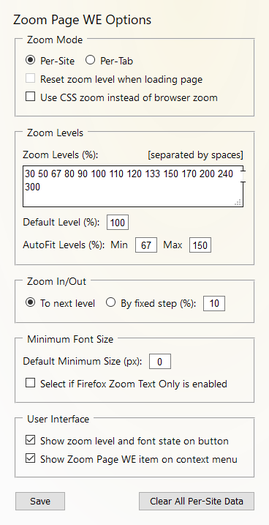
OPTIONS PAGE
The Save Page WE Options page can be accessed as follows:
• Firefox - Right-click on the toolbar button, select Manage Extension, click on the ••• button and select Options.
• Chrome - Right-click on the toolbar button, and then select Options.
TOOLBAR BUTTON
After installation of Zoom Page WE, there will be a new icon on the main toolbar with a blue badge showing the current zoom level.
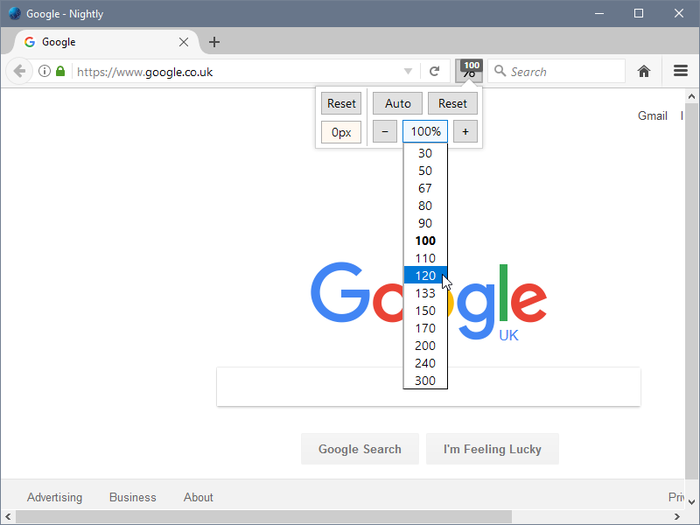
To change the zoom level for a page, click on the Zoom Page WE toolbar button to show the popup panel, then click on one of the six buttons on the right side of the popup panel:
• Zoom Type - toggles the zoom type between Full zoom and Text zoom.
• Zoom Level (%) - shows a drop-down menu from which a specific zoom level can be selected.
• Zoom In (+) - increases the zoom level to the next defined zoom level or by a fixed zoom step.
• Zoom Out (-) - reduces the zoom level to the next defined zoom level or by a fixed zoom step.
• Zoom Autofit - adjusts the zoom level so the page contents fit the width of the browser window.
• Zoom Reset - applies the defined default zoom type and default zoom level.
Note, Ctrl+Click on the Zoom Reset button sets the default full/text zoom level to the currently applied zoom level.
To change the minimum font size for a page, click on the Zoom Page WE toolbar button to show the popup panel, then click on one of the two buttons on the left side of the popup panel:
• Font Minimum Size (px) - shows a drop-down from which a specific minimum font size can be selected.
• Font Reset - applies the defined default minimum font size.
Note, Ctrl+Click on the Font Reset button sets the default font size to the currently applied font size.
There are options to:
• show the full or text zoom level on the button.
• show zoom, minimum font size and subsite states on the button.
CONTEXT MENU & BUTTON MENU
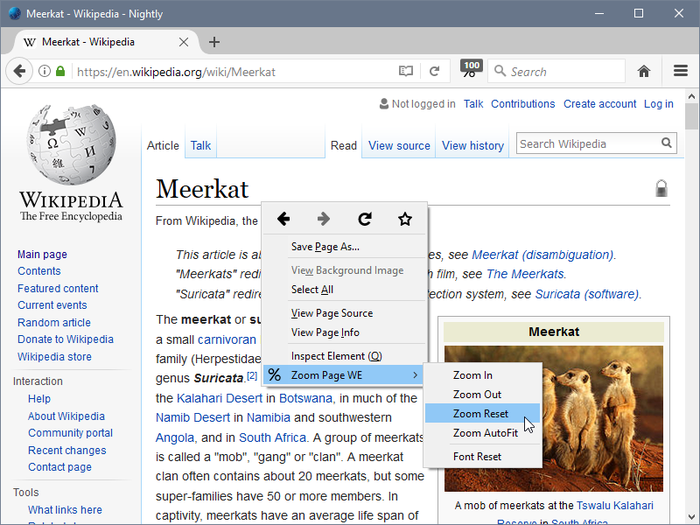
To change the zoom level of a page, right-click on the page contents to open the context menu, select the 'Zoom Page WE' sub-menu, and then select one of the menu items.
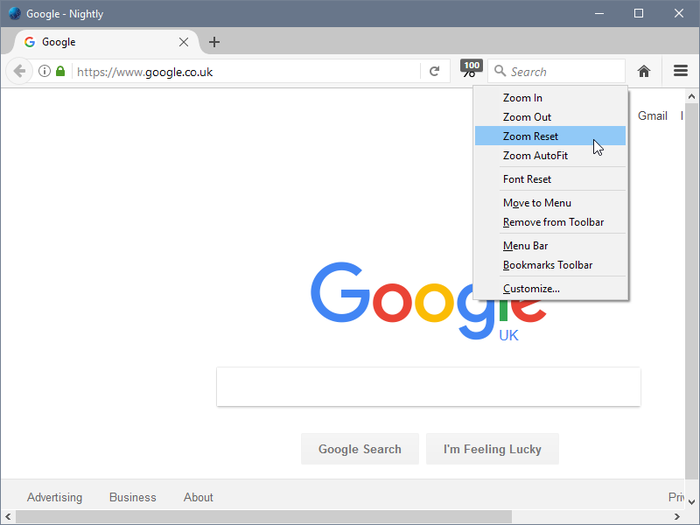
Alternatively, right-click on the Zoom Page WE toolbar button to open the button menu, and then select one of the menu items.
The available menu items are:
• Zoom In
• Zoom Out
• Zoom Reset
• Zoom Type
• Zoom AutoFit
• Font Reset
These menu items have the same effect as the similarly named buttons on the toolbar button popup panel.
There is an option to show/hide the Zoom Page WE submenu on the context menu.
There is an option to make small adjustments to the zoom level by pressing the 'Shift' key at the same time as clicking 'Zoom In' or 'Zoom Out'.
KEYBOARD SHORTCUTS
To open the toolbar button popup panel, press Alt+Z. This shortcut can be reconfigured in the Shortcuts tab of the Zoom Page WE Options page.
To change the zoom level of a page, press one of these five keyboard shortcuts:
• Zoom In - Ctrl+Plus
• Zoom Out - Ctrl+Minus
• Zoom Reset - Ctrl+0
• Zoom Type - Ctrl+9
• Zoom AutoFit - Ctrl+8
• Font Reset - Ctrl+7
These keyboard shortcuts have the same effect as the similarly named buttons on the toolbar button popup panel.
There is an option to enable/disable the Ctrl+7, Ctrl+8 and Ctrl+9 keyboard shortcuts.
There is an option to make small adjustments to the zoom level by pressing the 'Shift' key at the same time as pressing 'Ctrl+Plus' or 'Ctrl+Minus'.
MOUSE WHEEL
To change the zoom level of a page, when the mouse is over the page contents, hold down the 'Ctrl' key (or hold down the right mouse button) and rotate the mouse wheel.
To change the zoom level of a page, when the mouse is over the right-side of the toolbar button popup panel, simply rotate the mouse wheel.
To change the minimum font size of a page, when the mouse is over the left-side of the toolbar button popup panel, simply rotate the mouse wheel.
There is an option to enable/disable using Zoom Page WE's Zoom Levels (instead of Firefox's 10% steps or smooth zooming) for 'Ctrl+Wheel' zooming and 'Pinch' zooming.
There is an option to enable/disable Right-Button+Wheel zooming.
There is an option to make small adjustments to the zoom level by pressing the 'Shift' key at the same time as using 'Ctrl+Wheel'.
ZOOM MODE
There is an option to set the 'Zoom Mode' as either 'Per-Site' or 'Per-Tab'.
'Per-Site' zoom is also known as 'site-specific' zoom. 'Per-Tab' zoom is always independent in each tab.
'Per-Site' zoom can be made more specific by allowing the definition of subsites and the application of per-subsite zoom.
…
Zoom Page WE 是做什么的
Zoom Page WE 是一款面向 Firefox 的外观主题类扩展,主要用来更换浏览器配色、给网页加深色模式、调整界面观感。官方对它的介绍是:Zoom web pages (either per-site or per-tab) using full-page zoom, text-only zoom and minimum font size. Fit-to-width zooming can be applied to pages automatically. Fit-to-window scaling can be applied to small images.在Firefox 附加组件商店(AMO)上,它当前版本 19.13,评分 3.81(519 人评价),约 17,977 名用户。
适合什么人用
从功能定位看,Zoom Page WE 更适合长时间对着屏幕、希望降低眼睛负担的用户。如果你平时只是偶尔遇到相关需求,用浏览器自带功能也能凑合;但如果这件事每天都发生,装一个专门处理它的扩展通常比手动操作省事得多。需要注意的是它作用于所有网站,装上后建议先观察一两天,确认不影响常用站点的正常使用。
怎么安装 Zoom Page WE
- 打开Firefox 附加组件商店(AMO)上的官方页面;
- 点「添加到浏览器」并确认权限提示;
- 装好后在扩展列表里固定图标,方便随时开关。
本站只做索引与介绍,安装包来自官方商店。如果商店页面提示当前地区不可用,说明该扩展未在你所在区域上架。
常见问题
Zoom Page WE 是免费的吗?
Zoom Page WE 在Firefox 附加组件商店(AMO)免费提供下载。它是浏览器扩展,装上就能直接用,不需要注册账号。
Zoom Page WE 安全吗?
它只申请了 0 项权限,范围比较克制,没有申请「读取所有网站数据」这种大权限。
Zoom Page WE 支持哪些浏览器?
当前收录的版本来自Firefox 附加组件商店(AMO),适用于 Firefox。同一个扩展在其他商店可能有对应版本,但功能与版本号不一定相同。
怎么卸载 Zoom Page WE?
在扩展管理页找到 Zoom Page WE,点移除即可。它在本地保存的设置会一起清掉,不会残留数据。
权限清单 来自 manifest.json 原文
站点访问 3
file:///*http://*/*https://*/*
接口权限 6
browserSettingscontextMenusnotificationsstoragetabswebNavigation
标签 点标签看同类扩展
Zoom Extension
Recommended, support Firefox 4…
Firefox
 关灯看视频
观看视频时调暗页面,仿佛置身电影院
Firefox
 Zoom Image
As though the mouse wheel rota…
Firefox
 Zoom for Firefox
使用缩放按钮以放大\/缩小页面内容,令阅读更加舒适。
Firefox
 AI 双语字幕&网页沉浸翻译 — Trancy 语言学习
Trancy 不仅提供对 YouTube, Udemy, D…
Firefox
 Full Screen for Firefox
Go full screen with one click …
Firefox
 Fixed Zoom
Extension that sets a custom d…
Firefox
 Zoom Recording Downloader
Download zoom recordings from …
Firefox