
Simple mass downloader EN
George Prec · Firefox
A simple but powerful mass downloader. Download links from multiple tabs at once, from the clipboard or selected text on web pages. Advanced filtering or multi-renaming options. User-defined automatic download folders.
<all_urls>),意味着它可以读取你在任意站点的页面内容,包括已登录的页面。这是许多扩展正常工作的必要条件,但也值得你确认来源可信。
截图

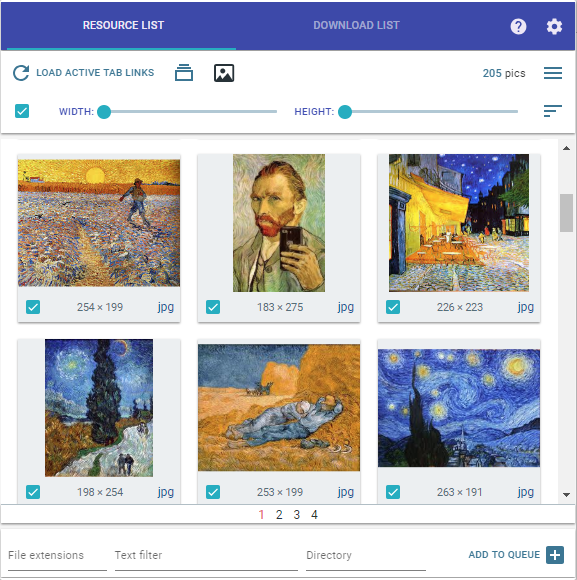

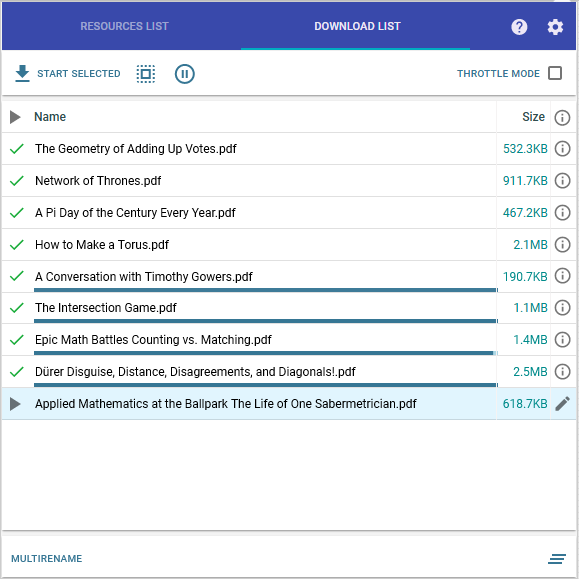


简介
This is a very light and unobtrusive Firefox add-on (no annoying sounds or animations; only minimal notifications).
MAIN FEATURES:
- The links may be extracted from multiple open tabs, clipboard, or from selected text on web pages.
- Advanced filtering / mass renaming capabilities using various name masks.
- For images there is a special thumbnails view where items may be ordered by the size descending order or filtered by width/height.
- User-defined Automatic Folders where downloads can be automatically directed based on custom rules.
- User-defined Favorite Folders, easily accessible when the user writes a custom download directory.
- Flexible download management, the user can:
a) pause, resume, open downloaded files etc. (usual features)
b) set server limits
WARNINGS
- The extension is still in early development, so bug reports or suggestions are welcomed.
- Development is mainly done in Windows, with limited testing in Linux (latest Ubuntu). Unfortunately, I have no way to test the extension on MacOS!
- This extension is a generalist file downloader: for some very specific types it may be better to use other, more specialized extensions (video downloaders, for example).
- The extension doesn't work in private browsing mode.
- The user defined folders are only relative to default browser's download directory; this is a general web extensions security limitation.
FREQUENTLY ASKED QUESTIONS
Question 1. How to use this extension?
Answer Say for example you have opened a web page with many pdf resources. The most basic workflow it to open the extension popup (via the browser toolbar icon) and click there the Load page links button. This usually fills the resources list with all sort of links, not only the desired pdfs. So the next step is to filter this list, such that only desired pdfs stays here. Write pdf in the extensions text field. Now only pdf type resources show in the list. If the list is still too large (you want only smaller subset) you may continue the filtering process indicating some relevant terms in the next text filter field. Finally, you check desired items individually or all at once and start immediate downloading using the corresponding button (on right bottom corner).
The downloading items are now visible in the downloads tab of the popup; you can manage this list in the usual manner (pause, resume, open or remove individual items etc)
Question 2. How about other alternative workflows?
Answer The general idea of the extension is to collect links to the resources list (with optional filtering) and finally to add checked items to the download queue. The collecting stage has many variations:
- using the web page context-menu: you can right-click individual links from the web page or a larger selected text region
- using the special tabs dialog; here you can collect links from active tab| all tabs| right tabs|left tabs and even decide if the collected links must be immediately downloaded or if the associated tabs must be finally closed.
- add links from the clipboard text using a dedicated menu (note that this clipboard text must have every url on a separate line)
Question 3. The resource list has too many links and I find it difficult to recognize the wanted ones!
Answer By default, the resource list displays the estimated filenames of the collected links. These names are usually different from those displayed on the web page. There are many possible strategies here:
- If the desired items are images, it may be better to use the thumbnails view (there is a special toggle button for this). Here the images can be sorted by descending order or filtered by width/height.
- If you know the file extensions of the desired items, you can use this info for the extensions filter box.
- Sometimes it may be better to select a text zone on the web page (including relevant links) and use the context menu to extract only links from this selected text range.
- More generally, it's important to know that every item has some textual info associated to it. This info comes from the web attributes of that item, more precisely
- the url (the link address) visible on the status bar when you hover the link (on the web page)
- the filename, usually included in the url
- the link text (as you see on the web page)
- the title text from the tooltip you see when hovering the link (on the web page)
- the alt text (alternative text, usually associated with images)
You can use all this available info to identify some specific words/terms associated with your desired items. Next, you must input this terms in the text filter box using an easy syntax, for example,url:word_1 text: word_2 title:word_3. Or simpler,all: wordif you are not sure where the word comes from.
- Every item in the resource list can be right-clicked and this will reveal an informative popup will all info known for that item.
Question 4. How to set a custom download directory?
Answer On the resource list tab, there is a directory input field. Here the user can set a download directory. A new folder is written in the form aaa/bbb/.../zzz. For example Docs or Docs/Math/Algebra. Please note that every such directory is defined only relative to the default download directory (this is a web extensions security limitation), so you can define only subdirectories of this main directory. Another thing you can do is to use the general browser settings to change the location of this default download directory.
Also, the user can prepare a custom favorite folde…
Simple mass downloader 是做什么的
Simple mass downloader 是一款面向 Firefox 的下载管理类扩展,主要用来接管浏览器下载、批量抓取资源、加速大文件。官方对它的介绍是:A simple but powerful mass downloader. Download links from multiple tabs at once, from the clipboard or selected text on web pages. Advanced filtering or multi-renaming options. User-defined automatic download folders.在Firefox 附加组件商店(AMO)上,它当前版本 0.802resigned1,评分 4.5(137 人评价),约 10,302 名用户。
适合什么人用
从功能定位看,Simple mass downloader 更适合经常下载视频、素材或整站资源的用户。如果你平时只是偶尔遇到相关需求,用浏览器自带功能也能凑合;但如果这件事每天都发生,装一个专门处理它的扩展通常比手动操作省事得多。需要注意的是它作用于所有网站,装上后建议先观察一两天,确认不影响常用站点的正常使用。
怎么安装 Simple mass downloader
- 打开Firefox 附加组件商店(AMO)上的官方页面;
- 点「添加到浏览器」并确认权限提示;
- 装好后在扩展列表里固定图标,方便随时开关。
本站只做索引与介绍,安装包来自官方商店。如果商店页面提示当前地区不可用,说明该扩展未在你所在区域上架。
常见问题
Simple mass downloader 是免费的吗?
Simple mass downloader 在Firefox 附加组件商店(AMO)免费提供下载。它是浏览器扩展,装上就能直接用,不需要注册账号。
Simple mass downloader 安全吗?
它只申请了 0 项权限,范围比较克制,没有申请「读取所有网站数据」这种大权限。
Simple mass downloader 支持哪些浏览器?
当前收录的版本来自Firefox 附加组件商店(AMO),适用于 Firefox。同一个扩展在其他商店可能有对应版本,但功能与版本号不一定相同。
怎么卸载 Simple mass downloader?
在扩展管理页找到 Simple mass downloader,点移除即可。它在本地保存的设置会一起清掉,不会残留数据。
权限清单 来自 manifest.json 原文
站点访问 2
*://*/*<all_urls>
接口权限 9
activeTabclipboardReadcontextMenusdownloadsdownloads.openstoragetabsunlimitedStoragewebNavigation