
Select Tabs EN
Lionel Wong · Firefox
A swiss-army tool for doing one thing well: select multiple related tabs in the current window.
截图
简介
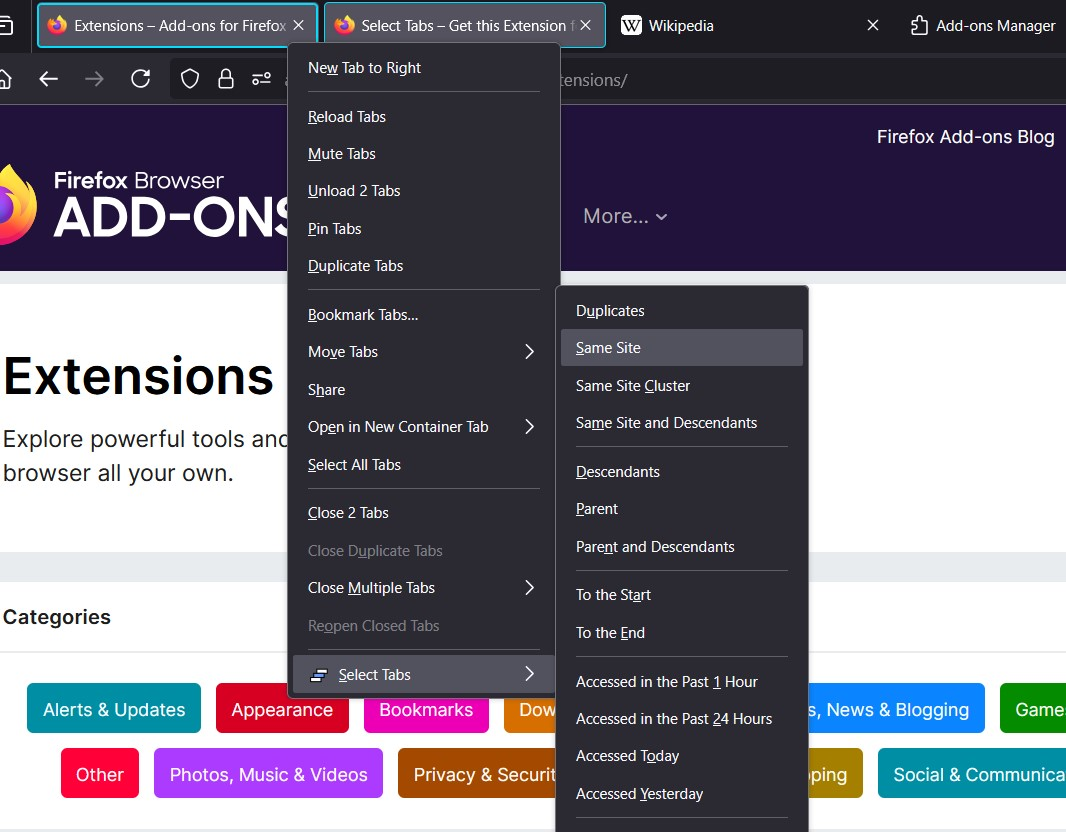
Provides commands to select multiple tabs in various ways. Available via pop-up panel, context menu (a.k.a. right-click menu) items and keyboard shortcuts.
📜 Full list of commands are as follows.
Note:
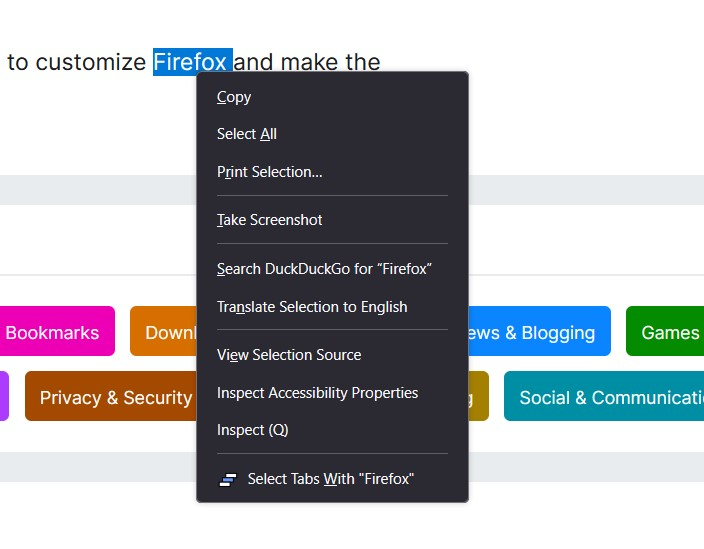
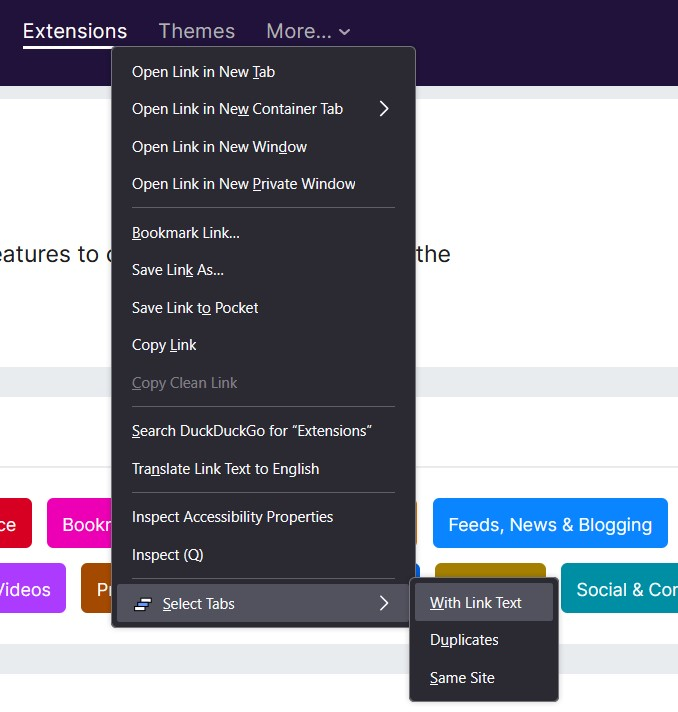
- All commands are available in the pop-up panel, in the context menu when right-clicking a tab (a.k.a. the target tab), and as keyboard shortcuts, unless otherwise specified. A few are also or only available in context menus from right-clicking a link or text selection.
- Commands via pop-up panel and keyboard shortcuts act on the active tab when a target tab is expected.
- This list uses horizontal-oriented command names and descriptions (using "left/right"). Some commands present vertical-oriented names (using "up/down" or "above/below") when the browser's vertical tabs setting is on.
URL-based:
- Duplicates — Select tabs sharing the same url as the target tab or link. (Also available in the link context menu)
- Same Site — Select all tabs sharing the same website domain and subdomain as the target tab or link. Note for example, www.wikipedia.org and en.wikipedia.org have different subdomains and would not be selected together. (Also available in the link context menu)
- Same Site Cluster — Select only the cluster of neighbouring same site tabs around the target tab.
- Same Site and Descendants — Select same site tabs, and all their descendants regardless of website.
Tab Tree:
- Descendants — Select the target tab and its descendants i.e. its child tabs, and their children, and so on. A child tab is a tab that was opened from the target tab.
- Parent — Select the tab that the target tab was opened from, if it exists.
- Parent and Descendants (Family) — Select the target tab's parent and all its descendants (including the target tab). If there is no parent, select the target tab and its descendants.
- Siblings — Select the target tab and its siblings (tabs with a common parent). If the target tab has no parent, all parentless tabs end up selected.
- Siblings and Descendants — Select the target tab, its siblings, and all their descendants. If the target tab has no parent, all tabs end up selected.
Membership:
- Same Tab Group — If the target tab is part of a tab group, select all its members.
- Same Container — If the target tab is a container tab, select all tabs of the same container.
Directional:
- To the Start/End — Select the target tab and all tabs to its left/right.
- Add Left/Right — Add to the current selection a tab to its left/right.
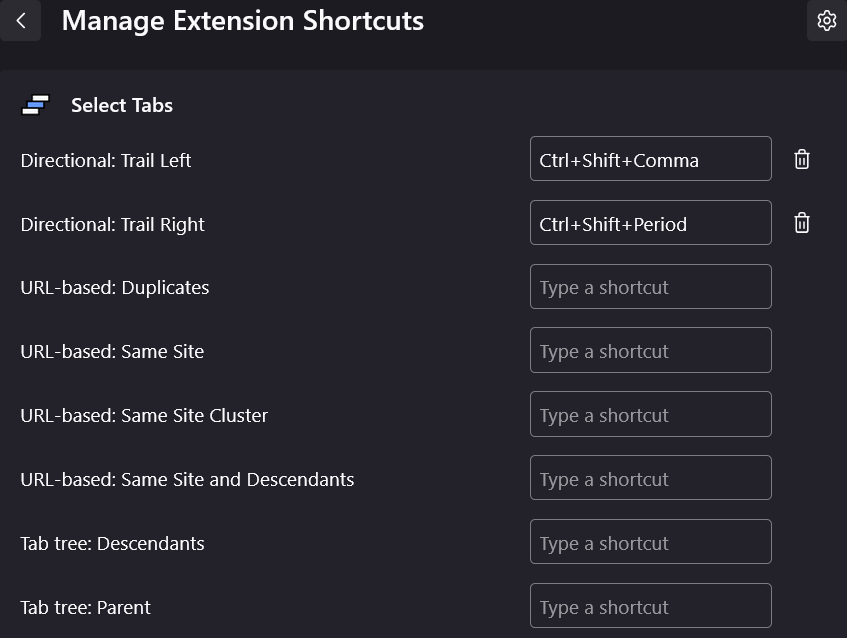
- Trail Left/Right — Switch to the left/right of the active tab. If the active tab is the rightmost/leftmost end of the current multi-tab selection, the selection shrinks by one tab. Otherwise if possible, it grows by one tab, leaving a selection "trail".
Temporal:
- Accessed in the Past 5 Minutes — Select tabs opened or viewed in the past 5 minutes.
- Accessed in the Past 1 Hour — Select tabs opened or viewed in the past hour.
- Accessed in the Past 24 Hours — Select tabs opened or viewed in the past 24 hours.
- Accessed Today — Select tabs opened or viewed today (since midnight).
- Accessed Yesterday — Select tabs opened or last viewed yesterday (excludes any viewed today).
Selection:
- All — Select all tabs.
- Clear Selection — Deselect all tabs that are not the active tab.
- Invert Selection — Deselect selected tabs and select all other tabs.
- Selection Cluster — Deselect all but the cluster of consecutively selected tabs around the target tab.
- Undo Last Command — Restore the previous selection.
Switch in Selection:
- Switch to Here — While maintaining the current selection, switch to the target tab. (Only available the tab context menu)
- Cycle Forward/Backward — While maintaining the current selection, switch to the nearest selected tab on the active tab's right/left. If the active tab is the rightmost/leftmost end of the selection, switch to the opposite end.
Text Search:
- Link Text in Title or URL — Select tabs with a title or url containing the target link text. (Only available in the link context menu)
- Selected Text in Title or URL — Select tabs with a title or url containing the selected text. (Only available in the text selection context menu)
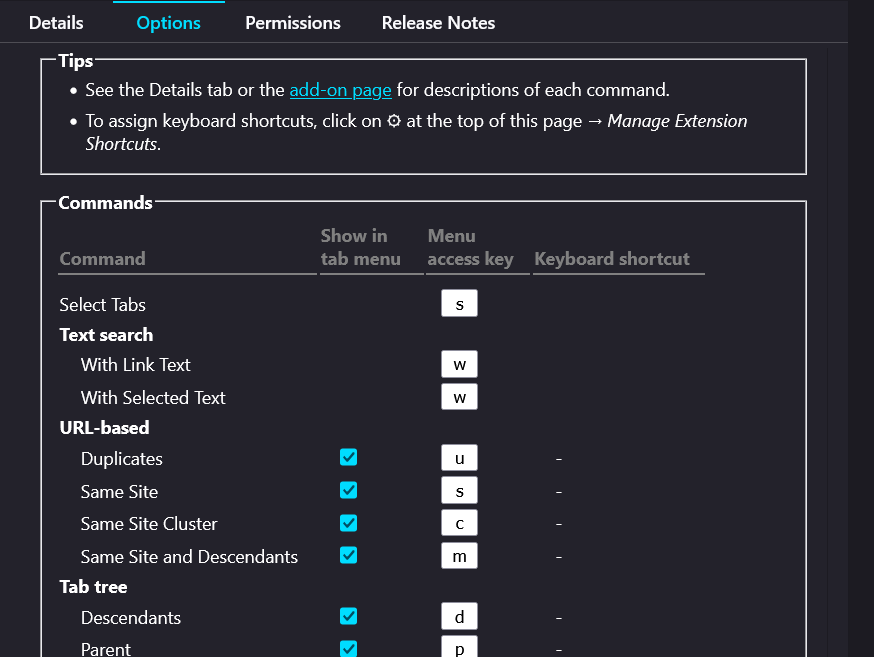
✂️ You can toggle individual commands in the tab context menu on/off, allowing you to prune the menu to your liking. (For example: Add, Trail, Cycle, Clear, etc. are likely more useful as keyboard shortcuts than menu commands, so feel free to toggle them off.)
⚡ If your OS supports menu access keys (i.e. Windows and Linux), tapping a menu item's indicated letter is a quick way to choose it via keyboard. Also customisable! And also see "Context menu related" tips below.
⚡ Regardless of OS, commands in the pop-up panel can be p…
Select Tabs 是做什么的
Select Tabs 是一款面向 Firefox 的搜索增强类扩展,主要用来补充搜索结果、切换搜索引擎、过滤无效结果。官方对它的介绍是:A swiss-army tool for doing one thing well: select multiple related tabs in the current window.在Firefox 附加组件商店(AMO)上,它当前版本 6.0.2,评分 4.78(9 人评价),约 246 名用户。
适合什么人用
从功能定位看,Select Tabs 更适合每天大量搜索、希望结果更干净准确的用户。如果你平时只是偶尔遇到相关需求,用浏览器自带功能也能凑合;但如果这件事每天都发生,装一个专门处理它的扩展通常比手动操作省事得多。
怎么安装 Select Tabs
- 打开Firefox 附加组件商店(AMO)上的官方页面;
- 点「添加到浏览器」并确认权限提示;
- 装好后在扩展列表里固定图标,方便随时开关。
本站只做索引与介绍,安装包来自官方商店。如果商店页面提示当前地区不可用,说明该扩展未在你所在区域上架。
常见问题
Select Tabs 是免费的吗?
Select Tabs 在Firefox 附加组件商店(AMO)免费提供下载。它是浏览器扩展,装上就能直接用,不需要注册账号。
Select Tabs 安全吗?
它只申请了 0 项权限,范围比较克制,没有申请「读取所有网站数据」这种大权限。
Select Tabs 支持哪些浏览器?
当前收录的版本来自Firefox 附加组件商店(AMO),适用于 Firefox。同一个扩展在其他商店可能有对应版本,但功能与版本号不一定相同。
怎么卸载 Select Tabs?
在扩展管理页找到 Select Tabs,点移除即可。它在本地保存的设置会一起清掉,不会残留数据。
权限清单 来自 manifest.json 原文
接口权限 4
browserSettingsmenusstoragetabs