
Nimbus Screen Capture: Screenshot, Edit, Annotate EN
Nimbus Web · Firefox
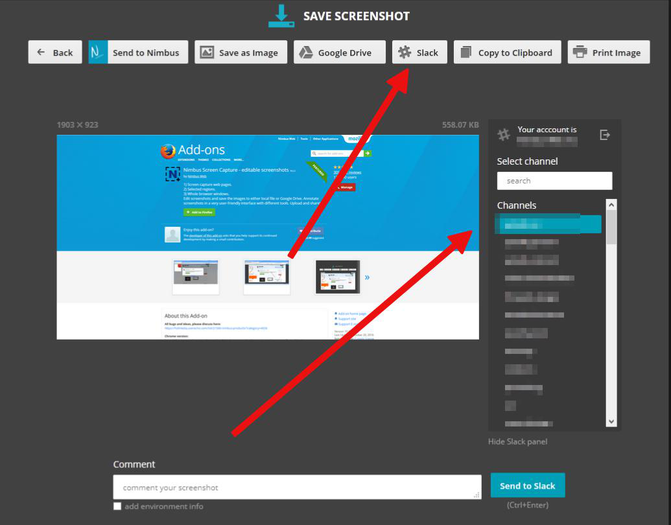
★ Used by Several Million users on different platforms ★ 1) Screen capture web pages 2) Selected regions 3) Whole browser window 4) Slack upload Edit screenshots. Save images as local files or Google Drive. Tools for Annotation. Upload and share
<all_urls>),意味着它可以读取你在任意站点的页面内容,包括已登录的页面。这是许多扩展正常工作的必要条件,但也值得你确认来源可信。
截图
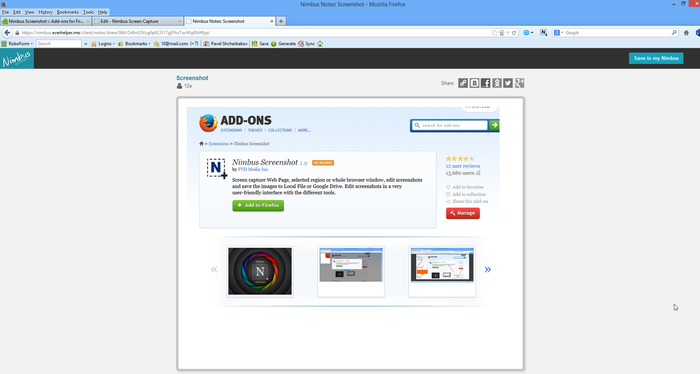
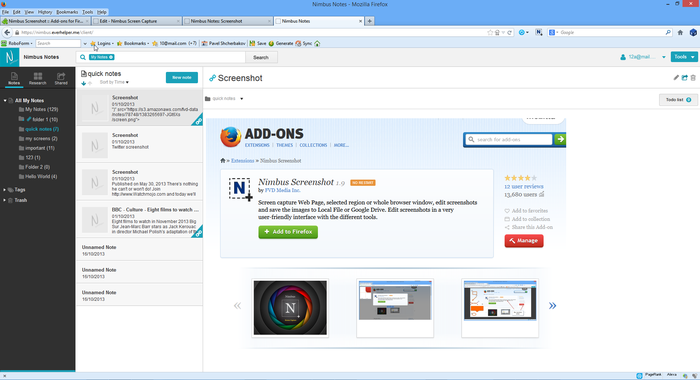
简介
Chrome version:
https://chrome.google.com/webstore/detail/nimbus-screenshot/bpconcjcammlapcogcnnelfmaeghhagj/
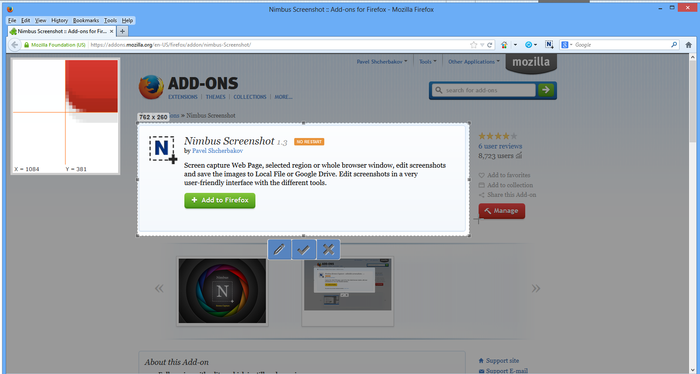
✔ Screen capture whole or partial screenshots
✔ Supports scrolling when capturing screenshots from web pages.
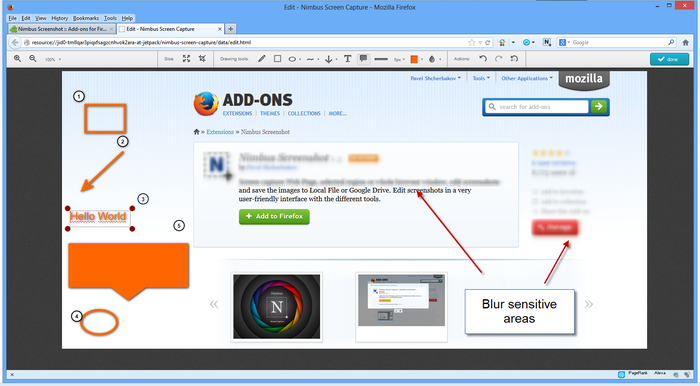
✔ Edit and annotate screenshots
✔ Quickly Upload and Share screenshots and screencasts
📷 Capture screenshots
▸ Capture the entire web page, or a specific section of it
▸ Supports scrolling when capturing screenshots from web pages
▸ Capture the entire browser window
▸ Capture a screenshot of another program
▸ Quickly capture a section of the webpage
▸ On a blank canvas, create your own simple drawing or model
▸ You can add own watermark on screenshot (Premium)
✄ Edit your screenshots
▸ Add graphics and text boxes to your screenshot
▸ Resize and crop
▸ Add arrows and stickers
▸ Highlight text
▸ Blur certain sections to hide sensitive information
▸ Add watermarks (premium)
🚀 Share your screenshots
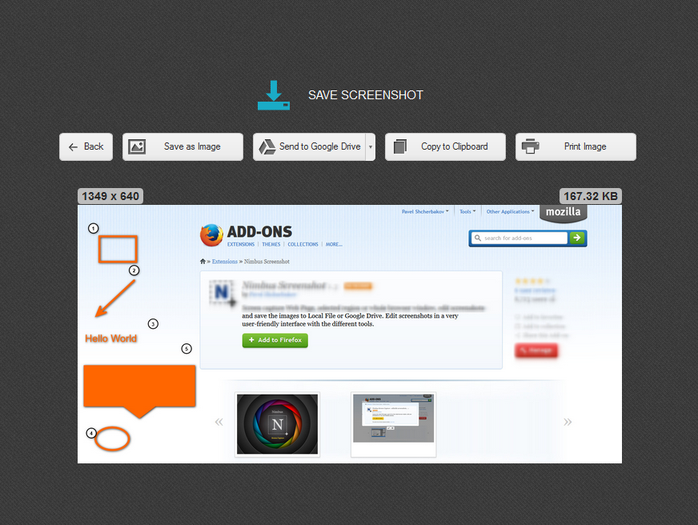
▸ Save screenshots in JPG and PNG
▸ Save to Nimbus Note
▸ Send screenshots to Slack
▸ Upload screenshots to Google Drive, and Google Classroom
▸ Upload screenshots to Dropbox (Premium)
▸ Save screenshots to a PDF
▸ Add comments to your screenshots and screencasts
3 easy ways to capture a screenshot
1) Click a small icon in your address bar.
2) Right-click and choose an item from the context menu.
3) Use custom hot keys that you configure in Nimbus Screenshot settings.
Nimbus Screenshot supports horizontal scrolling.
Privacy:
https://nimbus.everhelper.me/privacy.php
To save screenshots to Nimbus Note, the user must create a Nimbus Note account. To that end the user must enter an email address and create a password. The email and the password will be stored on the server and will be used to identify the user. Nimbus Note employees do NOT have access to user data.
When saving screenshots to Nimbus Note, the system data (OS version) and the browser data (browser version) are also sent. This data is used exclusively for statistics and not transmitted to a third party.
When creating screenshots, the link to the site is also saved. This is used to generate a screenshot name, for example site-com-date.jpg
Nimbus Screen Capture: Screenshot, Edit, Annotate 是做什么的
Nimbus Screen Capture: Screenshot, Edit, Annotate 是一款面向 Firefox 的资讯订阅类扩展,主要用来订阅 RSS、聚合新闻、跟踪博客更新。官方对它的介绍是:★ Used by Several Million users on different platforms ★ 1) Screen capture web pages 2) Selected regions 3) Whole browser window 4) Slack upload Edit screenshots. Save images as local files or Google Drive. Tools for Annotation. Upload and share在Firefox 附加组件商店(AMO)上,它当前版本 15.6.9,评分 3.87(596 人评价),约 30,711 名用户。
适合什么人用
从功能定位看,Nimbus Screen Capture: Screenshot, Edit, Annotate 更适合想摆脱算法推荐、自己掌控信息源的用户。如果你平时只是偶尔遇到相关需求,用浏览器自带功能也能凑合;但如果这件事每天都发生,装一个专门处理它的扩展通常比手动操作省事得多。需要注意的是它作用于所有网站,装上后建议先观察一两天,确认不影响常用站点的正常使用。
怎么安装 Nimbus Screen Capture: Screenshot, Edit, Annotate
- 打开Firefox 附加组件商店(AMO)上的官方页面;
- 点「添加到浏览器」并确认权限提示;
- 装好后在扩展列表里固定图标,方便随时开关。
本站只做索引与介绍,安装包来自官方商店。如果商店页面提示当前地区不可用,说明该扩展未在你所在区域上架。
常见问题
Nimbus Screen Capture: Screenshot, Edit, Annotate 是免费的吗?
Nimbus Screen Capture: Screenshot, Edit, Annotate 在Firefox 附加组件商店(AMO)免费提供下载。它是浏览器扩展,装上就能直接用,不需要注册账号。
Nimbus Screen Capture: Screenshot, Edit, Annotate 安全吗?
它只申请了 0 项权限,范围比较克制,没有申请「读取所有网站数据」这种大权限。
Nimbus Screen Capture: Screenshot, Edit, Annotate 支持哪些浏览器?
当前收录的版本来自Firefox 附加组件商店(AMO),适用于 Firefox。同一个扩展在其他商店可能有对应版本,但功能与版本号不一定相同。
怎么卸载 Nimbus Screen Capture: Screenshot, Edit, Annotate?
在扩展管理页找到 Nimbus Screen Capture: Screenshot, Edit, Annotate,点移除即可。它在本地保存的设置会一起清掉,不会残留数据。
权限清单 来自 manifest.json 原文
站点访问 1
<all_urls>
接口权限 9
activeTabclipboardReadclipboardWritecontextMenusdownloadsnotificationsstoragetabsunlimitedStorage