
Website Blocker – Parental Control EN
WebsiteBlocker · EEdge MV3
Block distracting websites, manage screen time, boost productivity, and protect children with parental controls.
<all_urls>),意味着它可以读取你在任意站点的页面内容,包括已登录的页面。这是许多扩展正常工作的必要条件,但也值得你确认来源可信。
截图

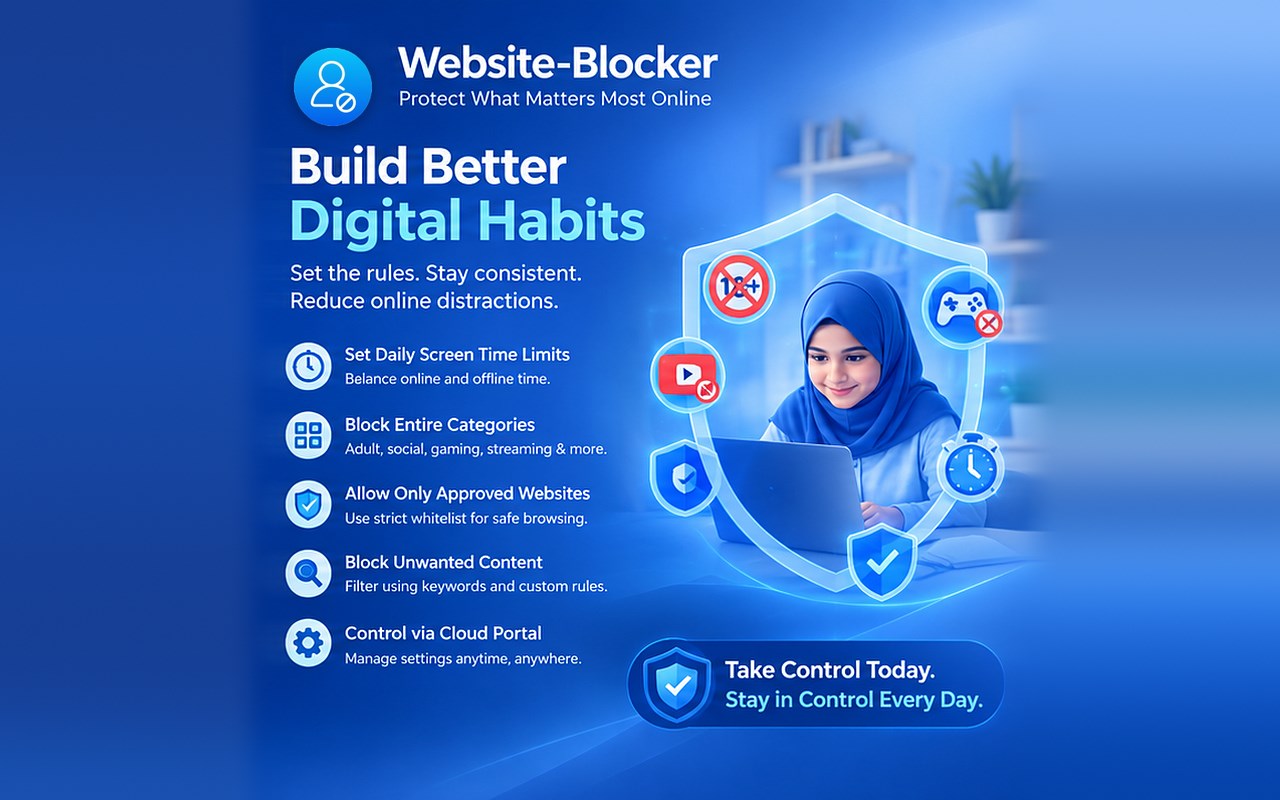
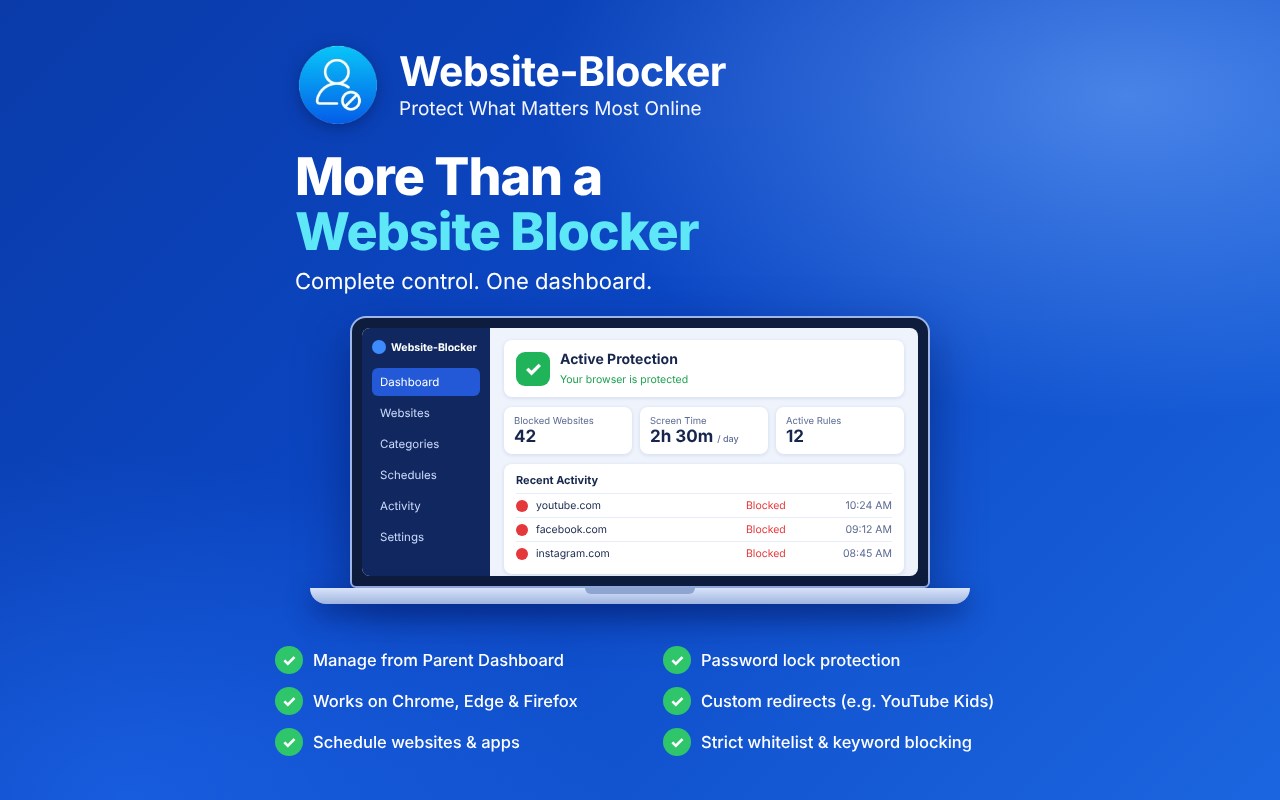
简介
🛡️ Your Privacy Comes First — Always
At Website Blocker, your privacy is our highest priority.
Website Blocker for Microsoft Edge is a privacy-first parental control website blocker for kids, families, and professionals. It uses only the permissions required to block websites — nothing more. All content filtering, block by category, screen time control, and blocking happen locally on your device, ensuring your browsing activity is never tracked, collected, stored, or shared.
✔ No data leaves your browser
✔ No analytics
✔ No hidden tracking
Your online activity stays 100% private and secure, making Website Blocker ideal for internet safety, child safety, and family protection.
🌐 Take Control of Your Browsing — Safely & Effortlessly
Website Blocker for Microsoft Edge is a powerful parental website blocker, productivity tool, and parental control extension designed to help you:
✔ Stay focused and productive
✔ Improve time management and digital well-being
✔ Protect children with strong parental control
✔ Block websites by category for faster setup and stronger protection
✔ Enable kids safe browsing and family-friendly internet use
Whether you're a parent managing screen time or a professional eliminating distractions, Website Blocker adapts to your needs with simple yet powerful controls.
👨👩👧 Website Blocker & Parental Control for Kids and Families
Looking for a website blocker for kids, a child website blocker, or the best parental control extension for Microsoft Edge?
Website Blocker is the trusted parental control website blocker helping families:
✔ Block harmful or inappropriate websites
✔ Block websites by category — social media, streaming, gaming, adult content, and more
✔ Enable screen time control using timers and schedules
✔ Protect children with an advanced adult content blocker
✔ Encourage healthy digital habits
✔ Support safe browsing for kids and responsible internet use
Designed for parents who want real control, peace of mind, and family protection without complicated setup. Also works as a website blocker for kids on laptop — no technical skills required.
🔒 Key Features Built for Focus, Safety & Control
✅ Instant Website Blocking — Block distracting or harmful websites in one click
📂 Block by Category — Quickly block entire categories like adult content, social media, streaming, or gaming
🔒 Strict Whitelist Mode — Allow only approved websites and block everything else, giving you maximum control over what can be accessed
🔤 Keyword Blocking — Automatically block any website containing specific words or phrases in the URL, keeping browsing safe without manually listing every site
⏰ Screen Time Control & Timer Management — Set custom time limits for kids, work focus, or study sessions
📅 Smart Scheduling — Create daily, weekly, or recurring schedules for school, work, or bedtime
🔑 Password Protection — Prevent children or others from changing your blocking rules
🔗 Custom Redirect Blocked Sites — Redirect blocked websites to motivational pages or safe alternatives
☁️ Remote Website Management & Cloud Sync (Premium) — Manage settings remotely and sync securely across devices
💻 Clean & User-Friendly Interface — Fast setup with no technical experience required
🚀 Boost Productivity, Focus & Deep Work
Website Blocker is not just a parental control extension — it's also a powerful productivity tool.
It works as a focus blocker and distraction blocker, helping you:
✔ Maintain strong work focus and study focus
✔ Improve time management
✔ Reduce distractions
✔ Block distracting categories instantly
✔ Support deep work and healthier screen habits
Ideal for students, professionals, remote workers, and families.
⭐ Upgrade to Premium — Unlock Advanced Control
Choose from Bronze, Silver, or Gold plans and unlock advanced parental control website blocker features:
⭐ Advanced website blocking rules
⭐ Automated recurring schedules
⭐ Block websites by category
⭐ Strict whitelist mode for maximum access control
⭐ Keyword-based blocking for smarter content filtering
⭐ Remote website management
⭐ Secure cross-device cloud sync
⭐ Priority customer support
Perfect for parents needing stronger content filtering and professionals who want full browsing control.
🔐 Secure, Family-Friendly & Lightweight
🔐 Privacy-Safe — No data collection or tracking
💾 Local Processing Only — Everything stays on your device
👨👩👧 Family-Friendly — Safe for kids & parents
⚡ Lightweight & Fast — Minimal system resource usage
☁️ Encrypted Cloud Sync (Premium)
🔒 Password-Protected Settings
💯 Trusted by productivity-focused users and parents on Microsoft Edge.
🌟 Stay Focused. Stay Protected. Stay in Control.
Install the best parental control website blocker for Microsoft Edge today and enjoy:
✔ Kids safe browsing with a trusted child website blocker
✔ Strong parental control extension features built for families
✔ Website blocker for kids on laptop with no complicated setup
✔ Block by category for faster setup and stronger protection
✔ Strict whitelist and keyword blocking for smarter, deeper protection
✔ Improved digital well-being and distraction-free productivity
👉 Take control of your online experience — securely, safely, and effortlessly.
Website Blocker – Parental Control 是做什么的
Website Blocker – Parental Control 是一款面向 Edge 的效率工具类扩展,主要用来管住注意力、屏蔽干扰站点、记录时间。官方对它的介绍是:Block distracting websites, manage screen time, boost productivity, and protect children with parental controls.在微软 Edge 加载项商店上,它当前版本 1.8.2,评分 5(1 人评价),约 176 名用户。
适合什么人用
从功能定位看,Website Blocker – Parental Control 更适合想专注工作学习、减少无效刷网页的用户。如果你平时只是偶尔遇到相关需求,用浏览器自带功能也能凑合;但如果这件事每天都发生,装一个专门处理它的扩展通常比手动操作省事得多。需要注意的是它作用于所有网站,装上后建议先观察一两天,确认不影响常用站点的正常使用。
怎么安装 Website Blocker – Parental Control
- 打开微软 Edge 加载项商店上的官方页面;
- 点「添加到浏览器」并确认权限提示;
- 装好后在扩展列表里固定图标,方便随时开关。
本站只做索引与介绍,安装包来自官方商店。如果商店页面提示当前地区不可用,说明该扩展未在你所在区域上架。
常见问题
Website Blocker – Parental Control 是免费的吗?
Website Blocker – Parental Control 在微软 Edge 加载项商店免费提供下载。它是浏览器扩展,装上就能直接用,不需要注册账号。
Website Blocker – Parental Control 安全吗?
它只申请了 0 项权限,范围比较克制,没有申请「读取所有网站数据」这种大权限。
Website Blocker – Parental Control 支持哪些浏览器?
当前收录的版本来自微软 Edge 加载项商店,适用于 Edge。同一个扩展在其他商店可能有对应版本,但功能与版本号不一定相同。
怎么卸载 Website Blocker – Parental Control?
在扩展管理页找到 Website Blocker – Parental Control,点移除即可。它在本地保存的设置会一起清掉,不会残留数据。
权限清单 来自 manifest.json 原文
站点访问(可选) 1
https://*/*
接口权限 4
alarmsstoragetabswindows
其他商店也有这款
同一款扩展在不同浏览器下的版本,权限与更新节奏可能不同
