
Webrender PDF EN
nextwaveweb · EEdge MV3
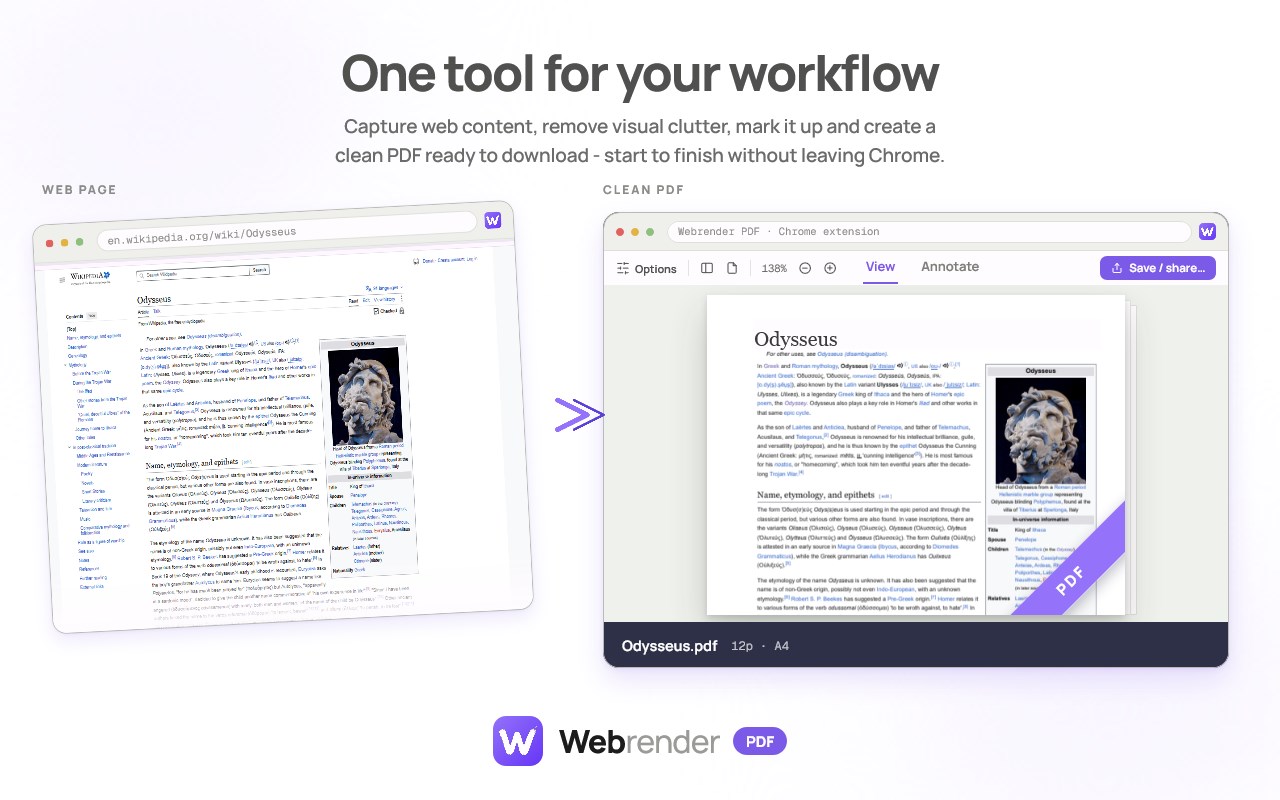
Turn the page you’re reading into a clean PDF with real text — framed, decluttered and marked up, all inside your browser.
<all_urls>),意味着它可以读取你在任意站点的页面内容,包括已登录的页面。这是许多扩展正常工作的必要条件,但也值得你确认来源可信。
截图
简介
Capture any web page as a clean PDF. Frame what you need, block what you don't, annotate/mark-up then download ready to print.
Printing a web page usually gives you something you didn't want: ten pages of navigation, ad slots, cookie banners and cut-off text.
Webrender gives you the page you actually meant to keep.
Open the extension on any page, choose what to capture, and save it as a clean, readable PDF. Everything happens in your browser.
What you can do
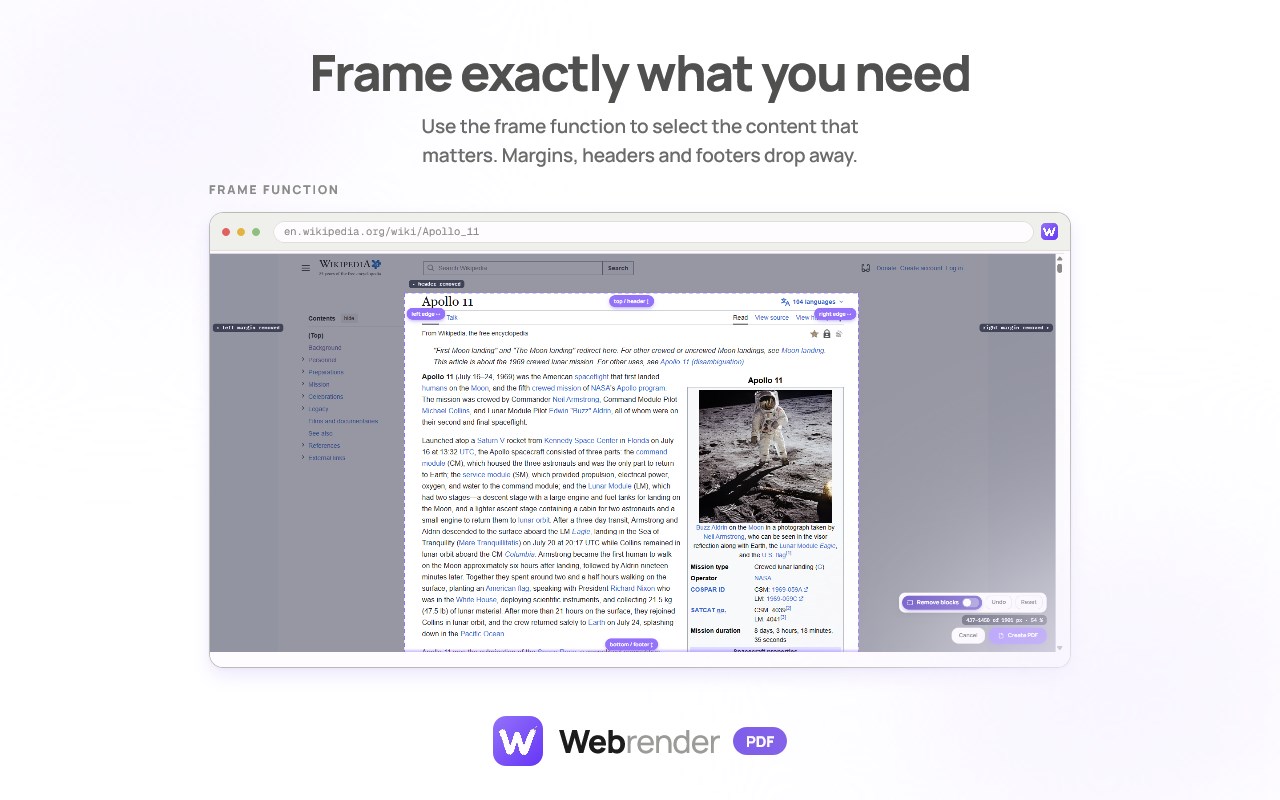
Frame the content that matters. Drag a selection around the article, table or section you want. Headers, footers and margins drop away.
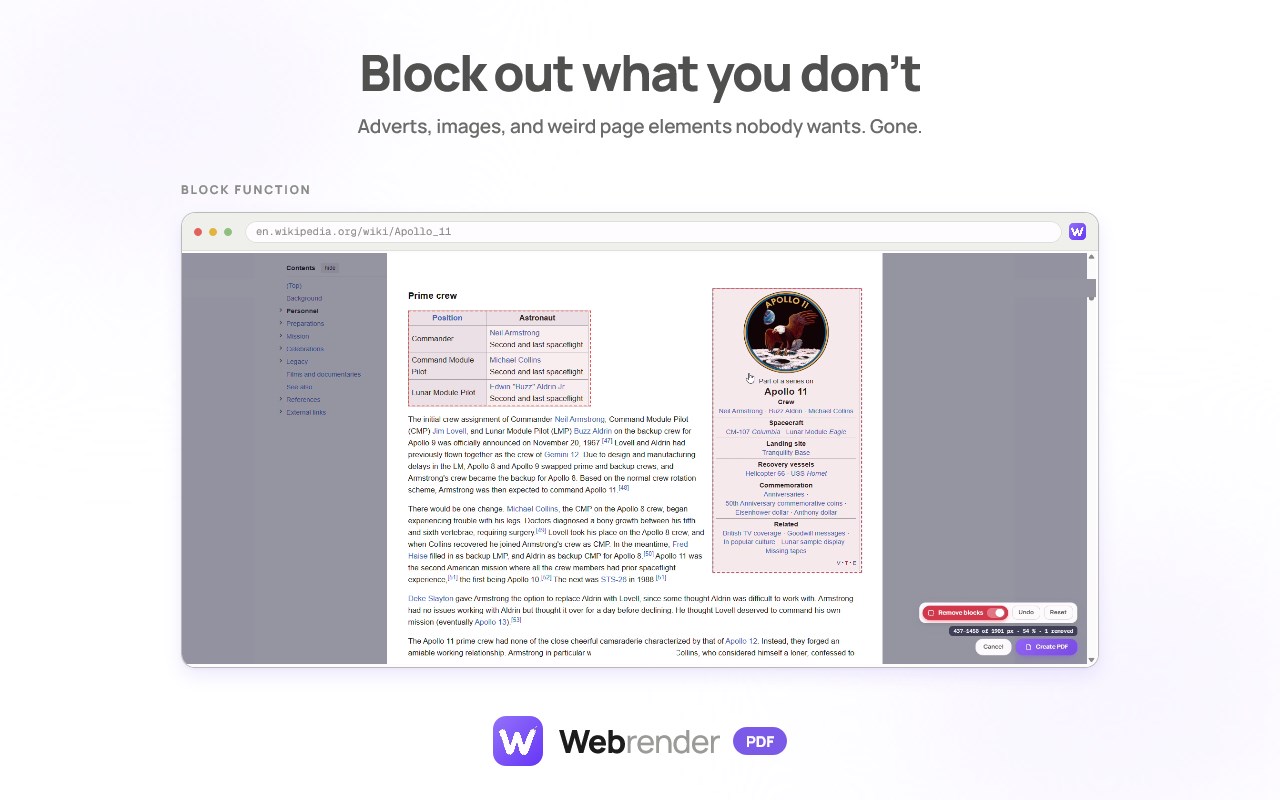
Block what you don't want. Click ads, pop-ups, images or sidebars to remove them before capture.
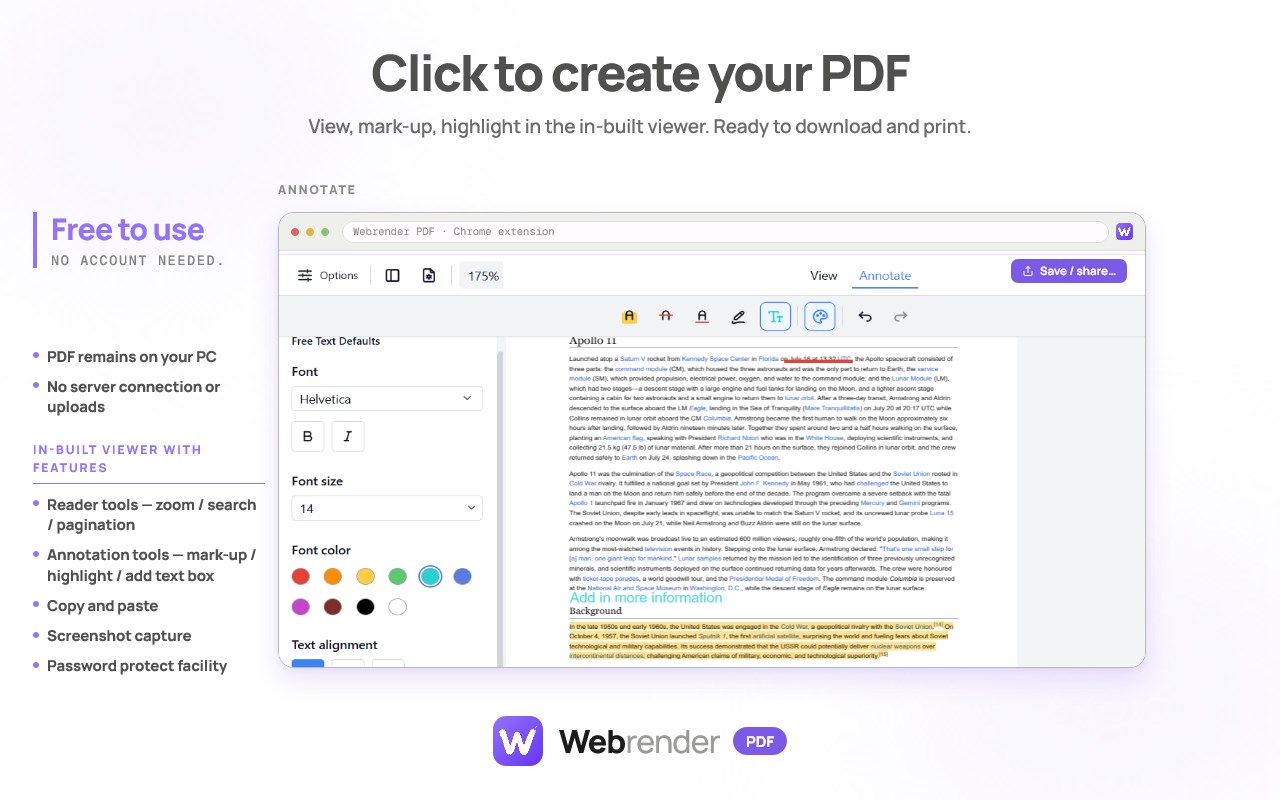
Annotate in the built-in viewer. Highlight, add text boxes, draw and mark up your PDF without leaving the browser.
Reading tools.
Search and zoom. Pagination. Find text across the pages. Copy and paste text to other documents.
Add a password.
Take a screenshot.
Finished? Download to your PC ready to view in your chosen PDF viewer or go straight to print.
GOOD TO KNOW
Pages are rendered locally in your browser. Webrender does not collect your browsing history and does not require an account.
FREE TO USE
No account needed.
ONE TOOL FOR YOUR WORKLOW>
1. Frame and Block — two tools to choose exactly what goes in
2. Capture — a clean PDF with real, selectable text
3. Mark up — highlight, underline, strike through, draw, add notes
4. Keep — download it, print it, or send it to your library
No converter, no annotation app. No account, and nothing leaves your browser unless you send it.
✍️ Mark it up like paper
Every capture opens in Webrender’s viewer, ready to work on.
Highlight — select a line and the highlight sits on the actual words, not on a rectangle over a picture.
Underline and strike through — the same, on real text.
Pen — draw in the margins, circle what matters, sketch a note.
Notes — add a note where you need it.
Trim — take the header and footer off every page in one go, before you start.
Undo and redo — as you’d expect.
Your marks are written into the PDF itself as standard markup, not into a side file or a locked format.
🎯 Two capture tools: Frame and Block
The page is captured exactly as you see it — signed in, your settings, your screen. Two tools decide what goes in, and between them they handle almost any page:
Frame — the big cut. Four lines appear on the page; drag them around the article and leave the header, the footer and the sidebars outside. Most pages need nothing more.
Block — the fine cut. Switch it on and click anything inside the frame you don’t want: an advert, a pull-quote, a related-articles box, a cookie banner. ↑ takes the whole section, Ctrl+Z puts one back, Restore all starts again.
Then choose your margins — none, small, normal or large — and press Capture. The PDF is that frame on every page, exactly as it looks on screen.
📖 Text that stays text
Saving a page usually means one of two bad options: a picture you can’t select or search, or the text torn out of its page with the pictures dropped and the layout gone. Webrender PDF gives you both halves at once — the page as it was, and text that behaves like text. That’s what makes the marking up worth anything: a highlight on real words is a highlight you can find again.
Use it for -
A long read to mark up before a seminar. A clean copy of a source with your own notes on it. A recipe without the life story and the comments. A page you’re signed in to — it captures what your browser shows, so a page behind a login is just a page. One page from a long internal wiki, marked up for the person who needs it. Home educators, students. knowledge workers, anyone who wants to render the web their way.
Screenshots show the Wikipedia article "Hummingbird" (en.wikipedia.org/wiki/Hummingbird) by Wikipedia contributors, CC BY-SA 4.0, with the photo "Trinidad and Tobago hummingbirds composite" by Charles J. Sharp, from Wikimedia Commons, CC BY-SA 4.0. The screenshots are shared under the same licence.
Webrender PDF 是做什么的
Webrender PDF 是一款面向 Edge 的效率工具类扩展,主要用来管住注意力、屏蔽干扰站点、记录时间。官方对它的介绍是:Turn the page you’re reading into a clean PDF with real text — framed, decluttered and marked up, all inside your browser.在微软 Edge 加载项商店上,它当前版本 1.0.1,约 1 名用户。
适合什么人用
从功能定位看,Webrender PDF 更适合想专注工作学习、减少无效刷网页的用户。如果你平时只是偶尔遇到相关需求,用浏览器自带功能也能凑合;但如果这件事每天都发生,装一个专门处理它的扩展通常比手动操作省事得多。需要注意的是它作用于所有网站,装上后建议先观察一两天,确认不影响常用站点的正常使用。
怎么安装 Webrender PDF
- 打开微软 Edge 加载项商店上的官方页面;
- 点「添加到浏览器」并确认权限提示;
- 装好后在扩展列表里固定图标,方便随时开关。
本站只做索引与介绍,安装包来自官方商店。如果商店页面提示当前地区不可用,说明该扩展未在你所在区域上架。
常见问题
Webrender PDF 是免费的吗?
Webrender PDF 在微软 Edge 加载项商店免费提供下载。它是浏览器扩展,装上就能直接用,不需要注册账号。
Webrender PDF 安全吗?
它只申请了 0 项权限,范围比较克制,没有申请「读取所有网站数据」这种大权限。
Webrender PDF 支持哪些浏览器?
当前收录的版本来自微软 Edge 加载项商店,适用于 Edge。同一个扩展在其他商店可能有对应版本,但功能与版本号不一定相同。
怎么卸载 Webrender PDF?
在扩展管理页找到 Webrender PDF,点移除即可。它在本地保存的设置会一起清掉,不会残留数据。
权限清单 来自 manifest.json 原文
站点访问(可选) 1
<all_urls>
接口权限 5
activeTabcookiesdebuggerscriptingstorage