Webpage to PDF EN
NFTPowerTool.com · EEdge MV3
Save or convert any webpage to PDF in one click — full page, article, or element export, plus margins, print-style options and more.
<all_urls>),意味着它可以读取你在任意站点的页面内容,包括已登录的页面。这是许多扩展正常工作的必要条件,但也值得你确认来源可信。
截图
简介
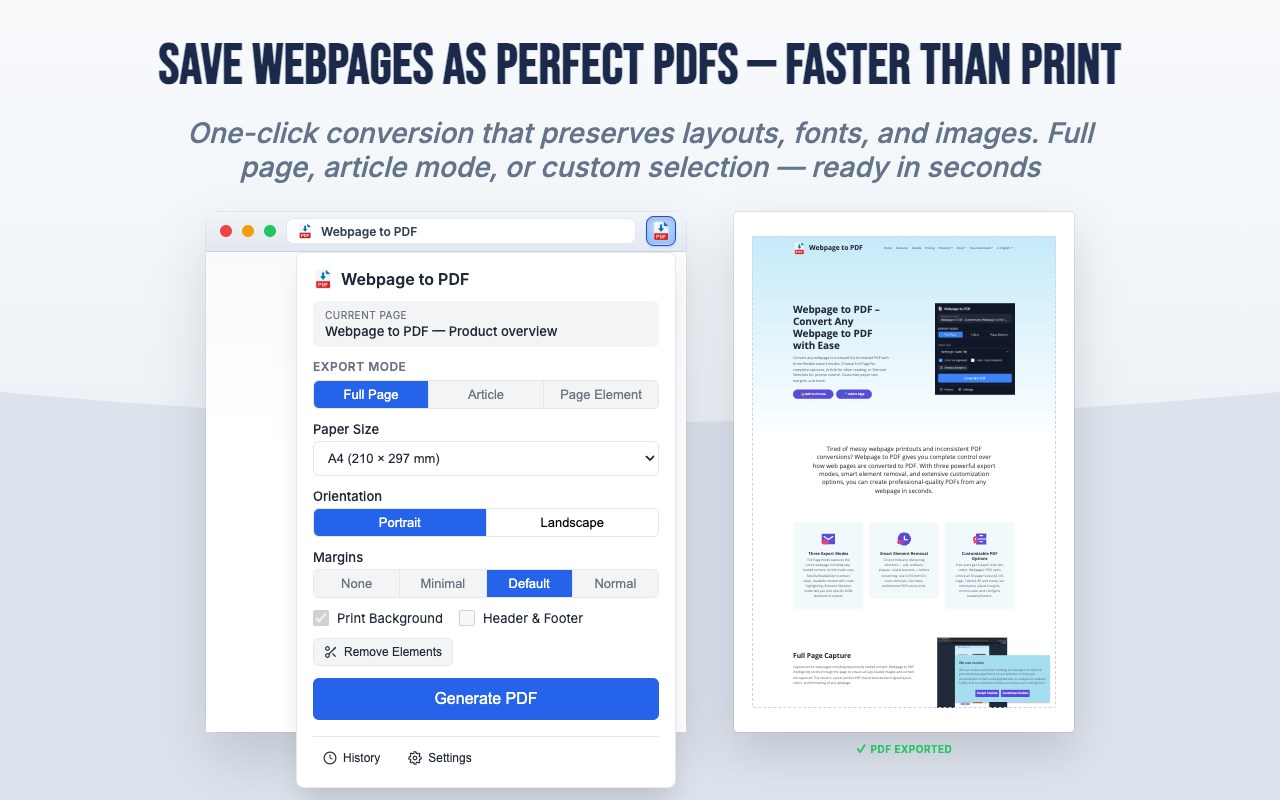
📄 Webpage to PDF turns the page you’re viewing into a clean, high‑quality PDF — with powerful export modes and print controls, right inside Chrome.
🚀 Convenience first: start from the toolbar icon and export the current tab in one click (after optional tweaks). No separate desktop app and no copy‑paste-into-Word workflow — everything stays in Edge.
💡 Whether you need a full-page capture, a reader-friendly article export, or only a specific section of a page, Webpage to PDF helps you get a predictable, shareable document in seconds.
✨ KEY FEATURES
⚡ One-click PDF generation (core convenience)
Open the toolbar popup, confirm Export mode and options if you like, then Generate PDF — that’s the everyday flow. The extension works on the page you’re already viewing; progress is shown step by step so you always know what’s happening.
📑 Flexible export modes
- Full Page — capture long pages with sensible pagination
- Article — extract main content for a cleaner reading PDF
- Page Element — pick a specific element to export
⚙️ Fine-grained PDF options
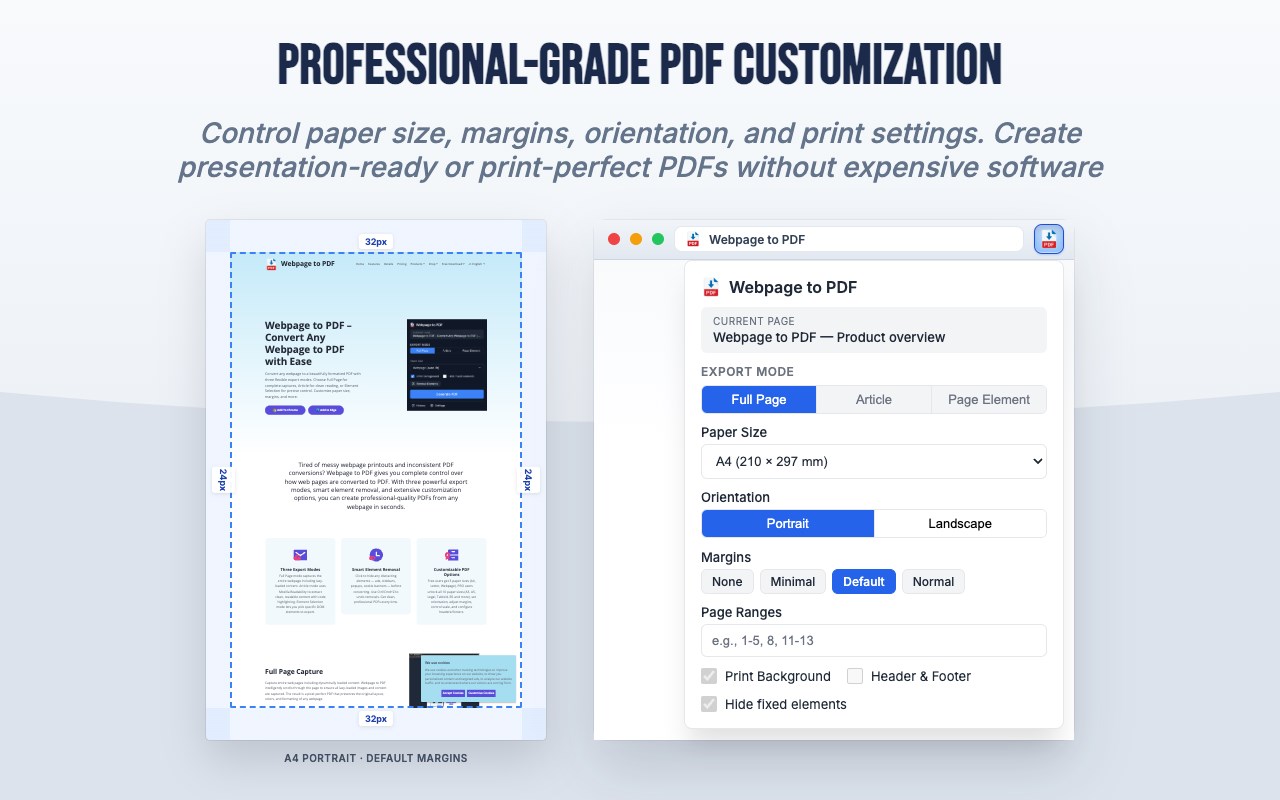
Control paper size, orientation, scale, margins, background printing, header/footer, page ranges, CSS page size preferences, and more — so your PDF matches how you want it to look on paper or on screen.
✂️ Edit before you export
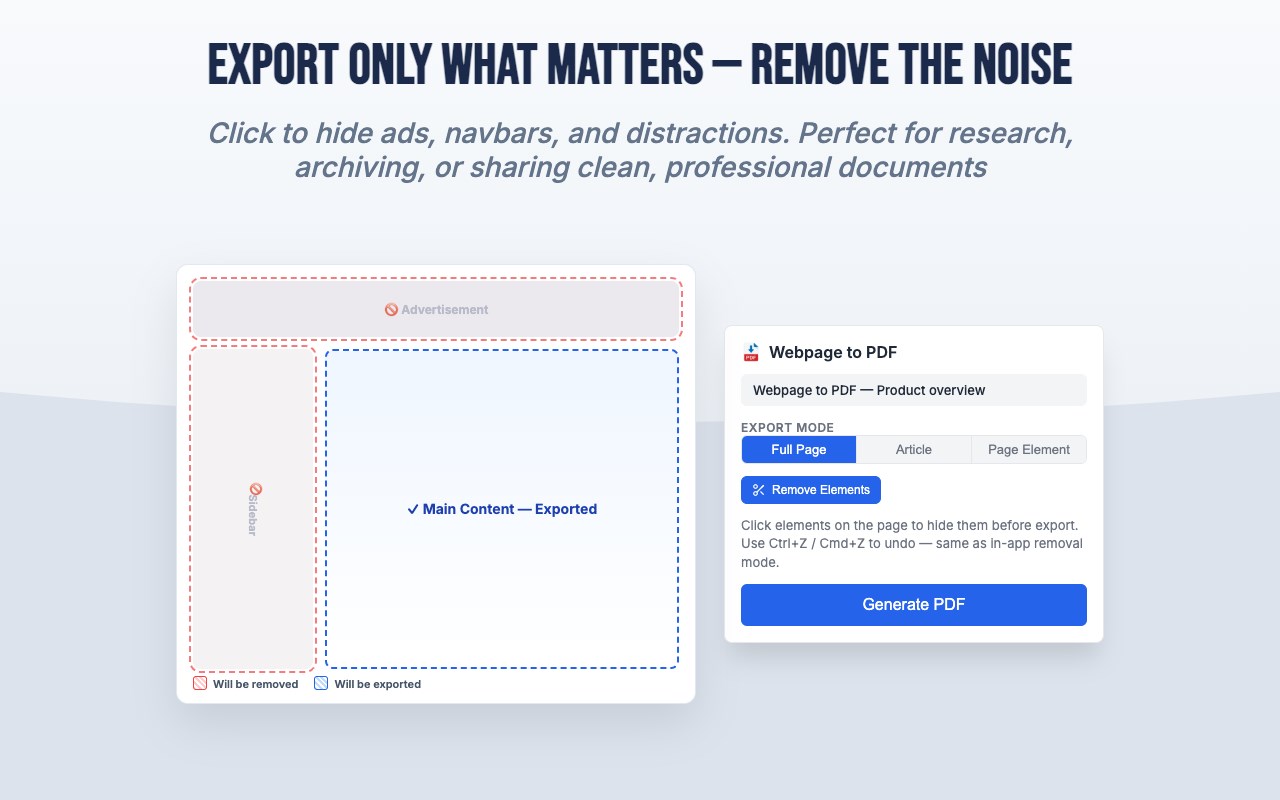
- Remove elements — hide ads, sidebars, or anything distracting before printing
- Select content — focus on the parts of the page you actually need
🖼️ Better captures for modern sites
Optional pre-scroll for lazy-loaded images helps ensure images load before the PDF is generated.
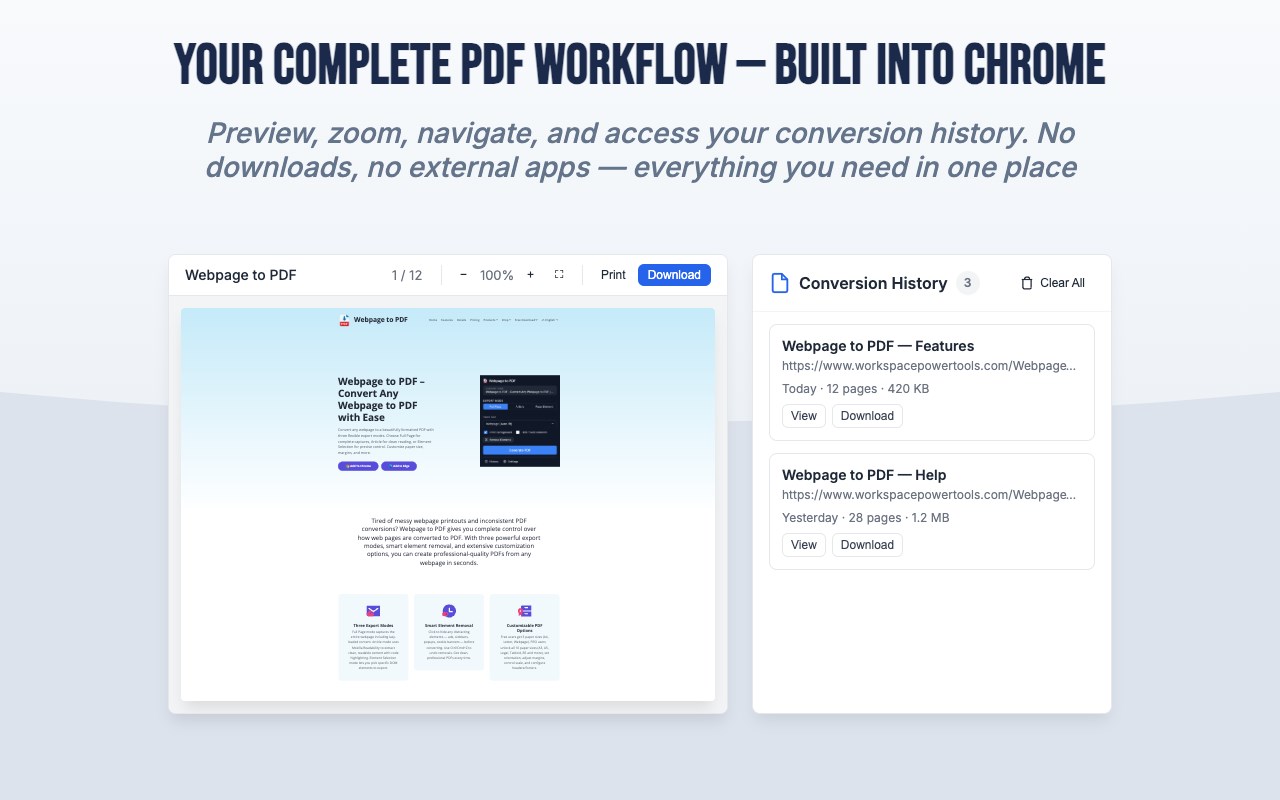
👁️ Built-in PDF viewer
Open previews in a dedicated viewer with zoom and navigation — no extra software required.
📋 Conversion history
Keep recent exports handy for quick reopen or download. (Free plan may limit how many records are shown — upgrade to PRO for unlimited history.)
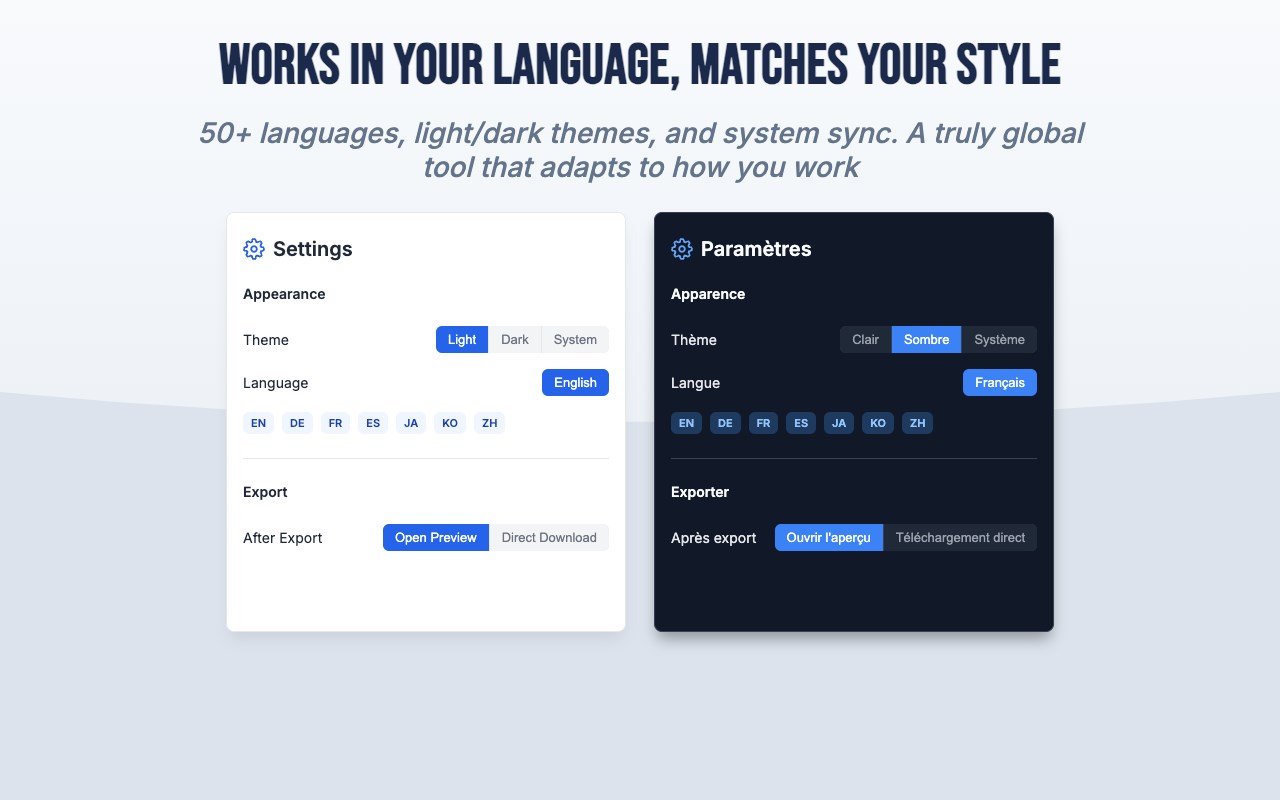
🌓 Looks great in any lighting
Choose Light, Dark, or System theme for the extension UI.
🌍 Speak your language
The interface supports many languages — pick what works best for you in Settings.
👥 WHO IS IT FOR?
- Students saving lecture notes and articles
- Professionals archiving web pages and reports
- Researchers keeping references offline
- Anyone who wants a dependable PDF from a webpage without copy‑pasting into a document
💎 FREE VS PRO
The free version includes core conversion features with reasonable limits (such as daily conversion caps and history limits). PRO unlocks advanced options like additional paper sizes, custom margins, scale control, page ranges, unlimited history, and more — see the extension for current PRO benefits.
🔒 PRIVACY & SECURITY
Your PDF is generated from the page you choose. The extension is designed to convert what you see, not to track your browsing. For details, see our privacy policy linked on the store listing.
Webpage to PDF 是做什么的
Webpage to PDF 是一款面向 Edge 的效率工具类扩展,主要用来管住注意力、屏蔽干扰站点、记录时间。官方对它的介绍是:Save or convert any webpage to PDF in one click — full page, article, or element export, plus margins, print-style options and more.在微软 Edge 加载项商店上,它当前版本 1.4.0,评分 5(1 人评价),约 888 名用户。
适合什么人用
从功能定位看,Webpage to PDF 更适合想专注工作学习、减少无效刷网页的用户。如果你平时只是偶尔遇到相关需求,用浏览器自带功能也能凑合;但如果这件事每天都发生,装一个专门处理它的扩展通常比手动操作省事得多。需要注意的是它作用于所有网站,装上后建议先观察一两天,确认不影响常用站点的正常使用。
怎么安装 Webpage to PDF
- 打开微软 Edge 加载项商店上的官方页面;
- 点「添加到浏览器」并确认权限提示;
- 装好后在扩展列表里固定图标,方便随时开关。
本站只做索引与介绍,安装包来自官方商店。如果商店页面提示当前地区不可用,说明该扩展未在你所在区域上架。
常见问题
Webpage to PDF 是免费的吗?
Webpage to PDF 在微软 Edge 加载项商店免费提供下载。它是浏览器扩展,装上就能直接用,不需要注册账号。
Webpage to PDF 安全吗?
它只申请了 0 项权限,范围比较克制,没有申请「读取所有网站数据」这种大权限。
Webpage to PDF 支持哪些浏览器?
当前收录的版本来自微软 Edge 加载项商店,适用于 Edge。同一个扩展在其他商店可能有对应版本,但功能与版本号不一定相同。
怎么卸载 Webpage to PDF?
在扩展管理页找到 Webpage to PDF,点移除即可。它在本地保存的设置会一起清掉,不会残留数据。
权限清单 来自 manifest.json 原文
站点访问(可选) 1
<all_urls>
接口权限 5
activeTabdebuggerdownloadsscriptingstorage
其他商店也有这款
同一款扩展在不同浏览器下的版本,权限与更新节奏可能不同
