
Syniq Screen Capture EN
Syniq Screen Capture · EEdge MV3
Capture, annotate, and share screenshots instantly from Microsoft Edge.
截图
简介
Capture, annotate, and share screenshots instantly from your browser.
Turn what you see into clear, actionable context—in seconds.
Syniq is the fast, visual way to capture screenshots, explain exactly what matters, and share them wherever work happens. Use it to report bugs, review designs, help customers, document workflows, prepare presentations, or give an AI assistant the context it needs to help.
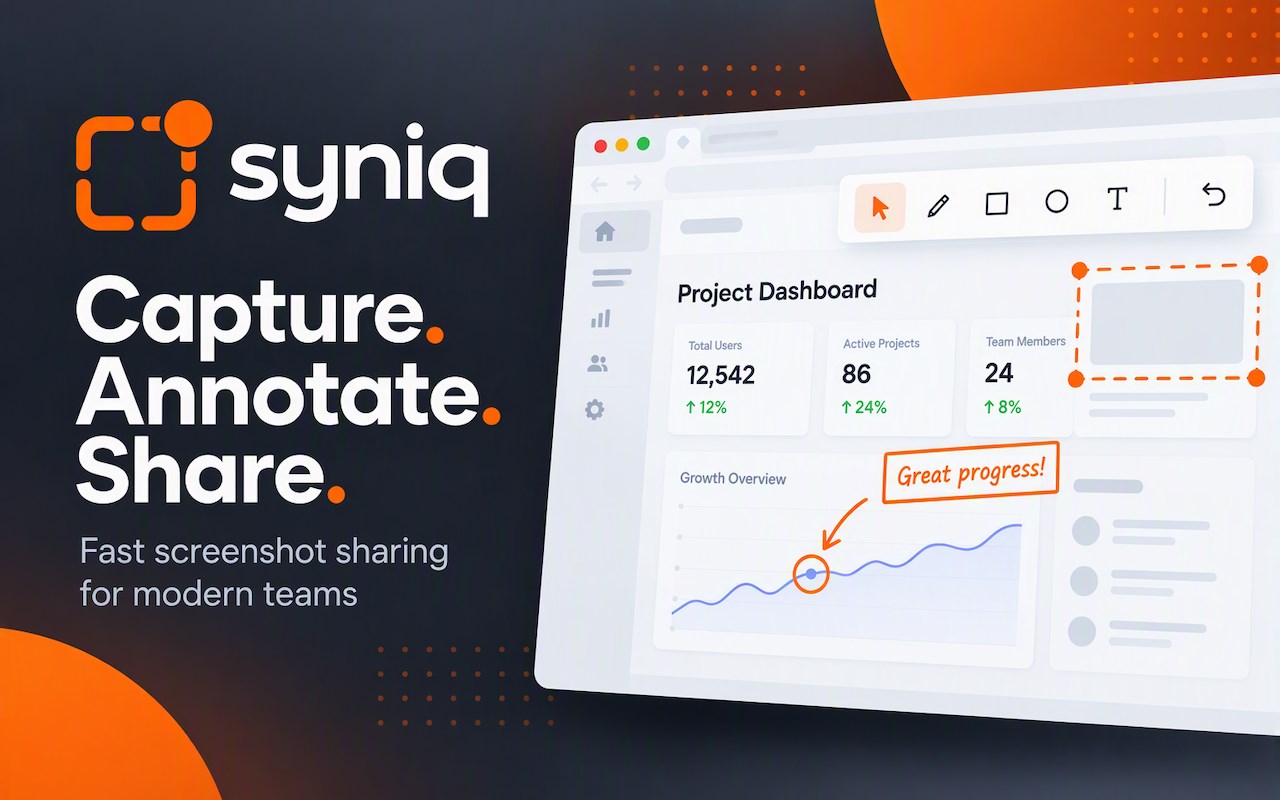
With Syniq, capture a selected area, full screen, application window, browser tab, or entire page with one click or a keyboard shortcut. Add arrows, highlights, text, shapes, blur, and crops, then copy the image, save it to your library, or share it instantly with a link.
Whether you’re clarifying feedback, documenting a problem, or turning an idea into something others can see, Syniq makes visual communication faster, clearer, and easier to act on.
KEY FEATURES
📸 Capture what matters
- Capture a selected area, full screen, application window, browser tab, or entire page
- Start a capture with one click or a keyboard shortcut
- Save or edit images directly from your browser’s right-click menu
✏️ Annotate with clarity
- Add arrows, highlights, text, shapes, blur, and crops
- Point to the exact issue, idea, or decision that needs attention
- Create screenshots that are ready to share—not just explain later
🔗 Share instantly
- Copy captures to your clipboard and paste them into the tools you already use
- Download captures to your computer
- Create public, private, or password-protected links
- Get notified the first time someone views a shared capture
- Turn Syniq links into clickable visual previews in Gmail
📚 Keep your captures ready
- Browse and manage recent captures directly from the extension
- Save and organize captures in your Syniq library
- Set a default privacy level for new captures
- Automatically delete new captures on a schedule you choose
⚡ Bring visual context into your workflow
- Share visual feedback without lengthy messages or unnecessary meetings
- Add screenshots to bug reports, customer conversations, design reviews, documentation, and presentations
- Bring captures into connected work and automation tools
- Give AI assistants the visual context they need to help faster
BUILT FOR THE MOMENTS WHEN WORDS AREN’T ENOUGH
A screenshot often explains more, faster. Syniq helps you show what happened, point out what matters, and keep the conversation moving—without the back-and-forth.
Install Syniq and turn what you see into context people can act on.
Syniq Screen Capture 是做什么的
Syniq Screen Capture 是一款面向 Edge 的效率工具类扩展,主要用来管住注意力、屏蔽干扰站点、记录时间。官方对它的介绍是:Capture, annotate, and share screenshots instantly from Microsoft Edge.在微软 Edge 加载项商店上,它当前版本 1.5.1,约 1 名用户。
适合什么人用
从功能定位看,Syniq Screen Capture 更适合想专注工作学习、减少无效刷网页的用户。如果你平时只是偶尔遇到相关需求,用浏览器自带功能也能凑合;但如果这件事每天都发生,装一个专门处理它的扩展通常比手动操作省事得多。
怎么安装 Syniq Screen Capture
- 打开微软 Edge 加载项商店上的官方页面;
- 点「添加到浏览器」并确认权限提示;
- 装好后在扩展列表里固定图标,方便随时开关。
本站只做索引与介绍,安装包来自官方商店。如果商店页面提示当前地区不可用,说明该扩展未在你所在区域上架。
常见问题
Syniq Screen Capture 是免费的吗?
Syniq Screen Capture 在微软 Edge 加载项商店免费提供下载。它是浏览器扩展,装上就能直接用,不需要注册账号。
Syniq Screen Capture 安全吗?
它只申请了 0 项权限,范围比较克制,没有申请「读取所有网站数据」这种大权限。
Syniq Screen Capture 支持哪些浏览器?
当前收录的版本来自微软 Edge 加载项商店,适用于 Edge。同一个扩展在其他商店可能有对应版本,但功能与版本号不一定相同。
怎么卸载 Syniq Screen Capture?
在扩展管理页找到 Syniq Screen Capture,点移除即可。它在本地保存的设置会一起清掉,不会残留数据。
权限清单 来自 manifest.json 原文
接口权限 6
activeTabcontextMenusidentityoffscreenscriptingstorage
接口权限(可选) 4
clipboardWritedesktopCapturedownloadsnotifications