
Shelf – Arc-Style Bookmark Sidebar EN
Neil Gu · EEdge MV3
Arc-style bookmarks in Chrome's side panel: spaces, pinned links and favorites, kept as your own Chrome bookmarks. Open source.
截图

简介
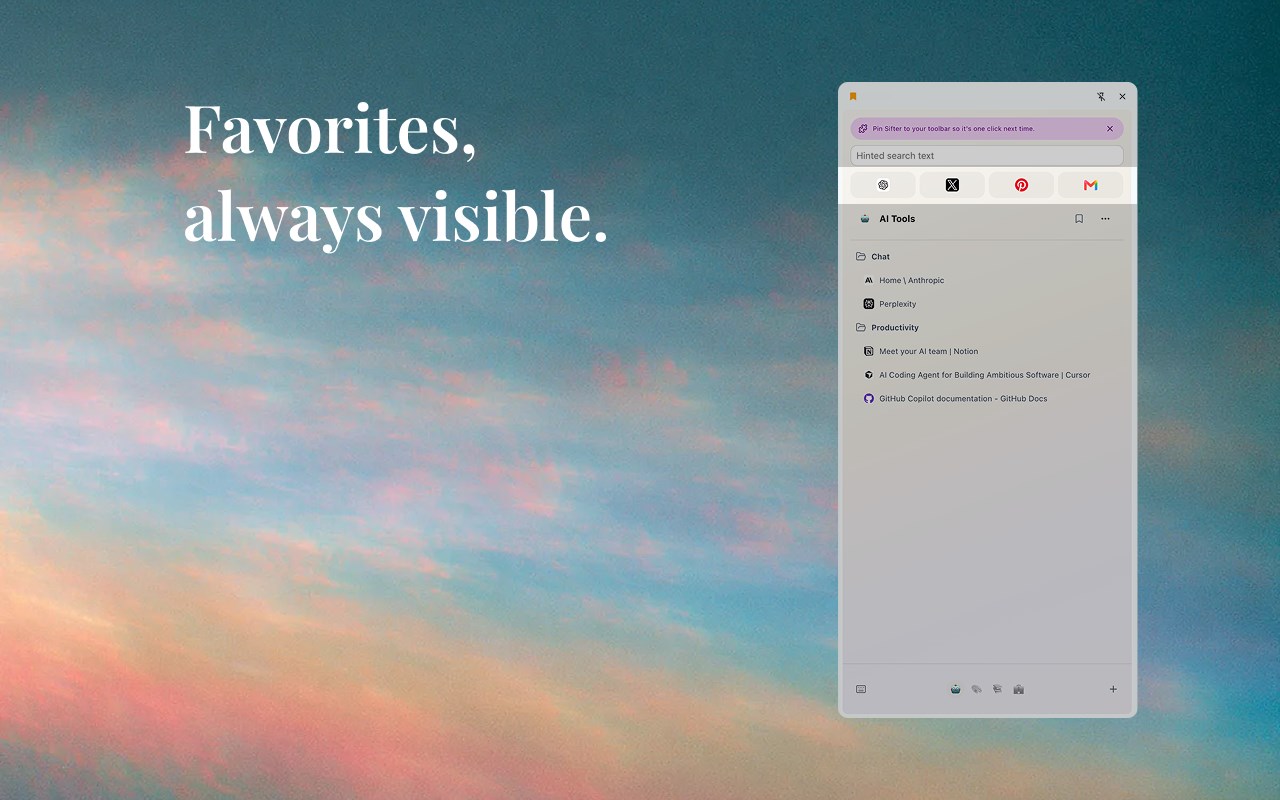
Shelf puts your bookmarks in a sidebar next to your tabs, organized into spaces with pinned links and favorites — the way Arc's sidebar kept the sites you return to, but inside the Chrome you already use. Shelf manages bookmarks, not open tabs.
Everything Shelf shows is a real Chrome bookmark. Spaces are bookmark folders, pinned links and favorites are bookmarks too, so they sync with your Google account like any other bookmark and stay in Chrome even if you uninstall Shelf. No account, no server, nothing to export later.
WHAT YOU GET
• Spaces for every context — work, research, side projects, travel. Switch with one click from the dock at the bottom.
• Favorites that stay visible at the top of the sidebar.
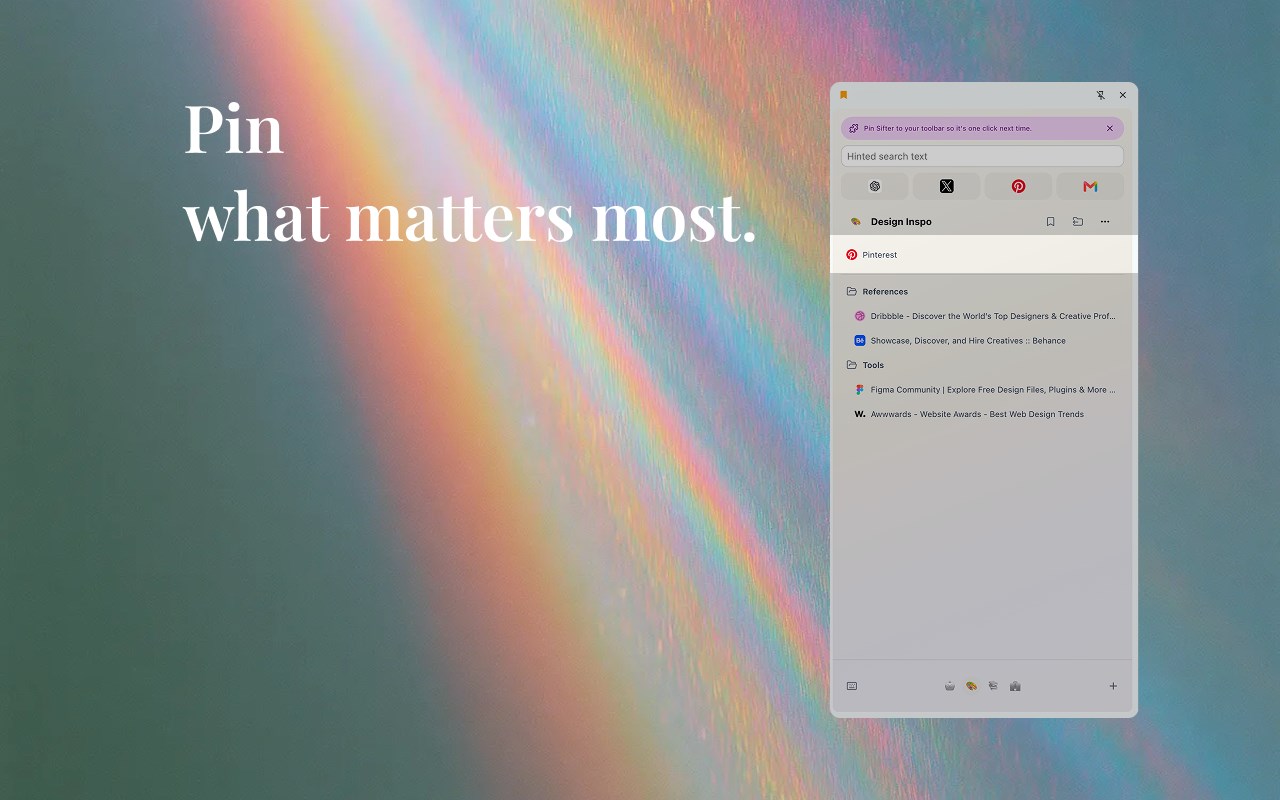
• Pinned links for what matters right now, without moving them out of their folders.
• Click a bookmark that's already open and Shelf takes you to that tab instead of opening it twice.
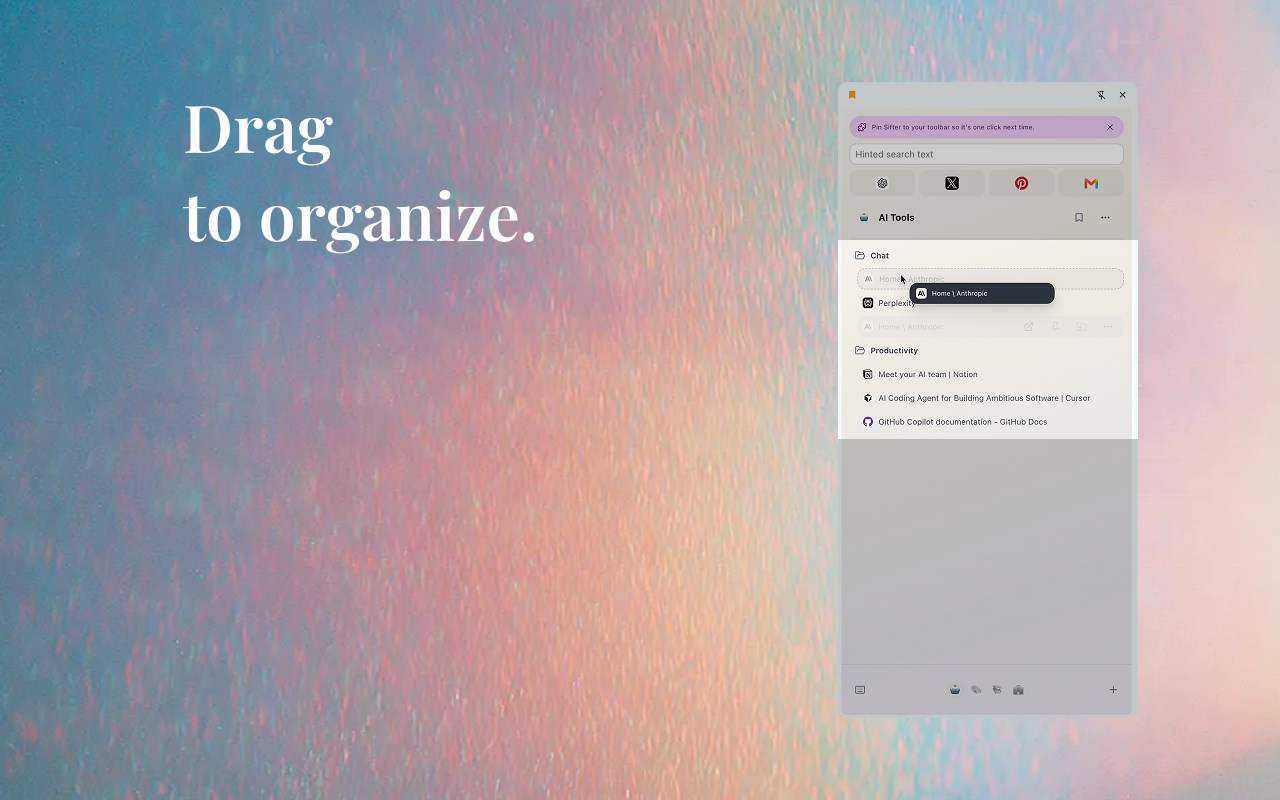
• Drag and drop to rearrange bookmarks and folders, including across spaces.
• Instant search across all your bookmarks. Press Ctrl+Shift+K (⌘+Shift+K on Mac) to open Shelf straight into search.
• Save the page you're on in one click, and Shelf offers to move it into the folder that already holds that site's bookmarks.
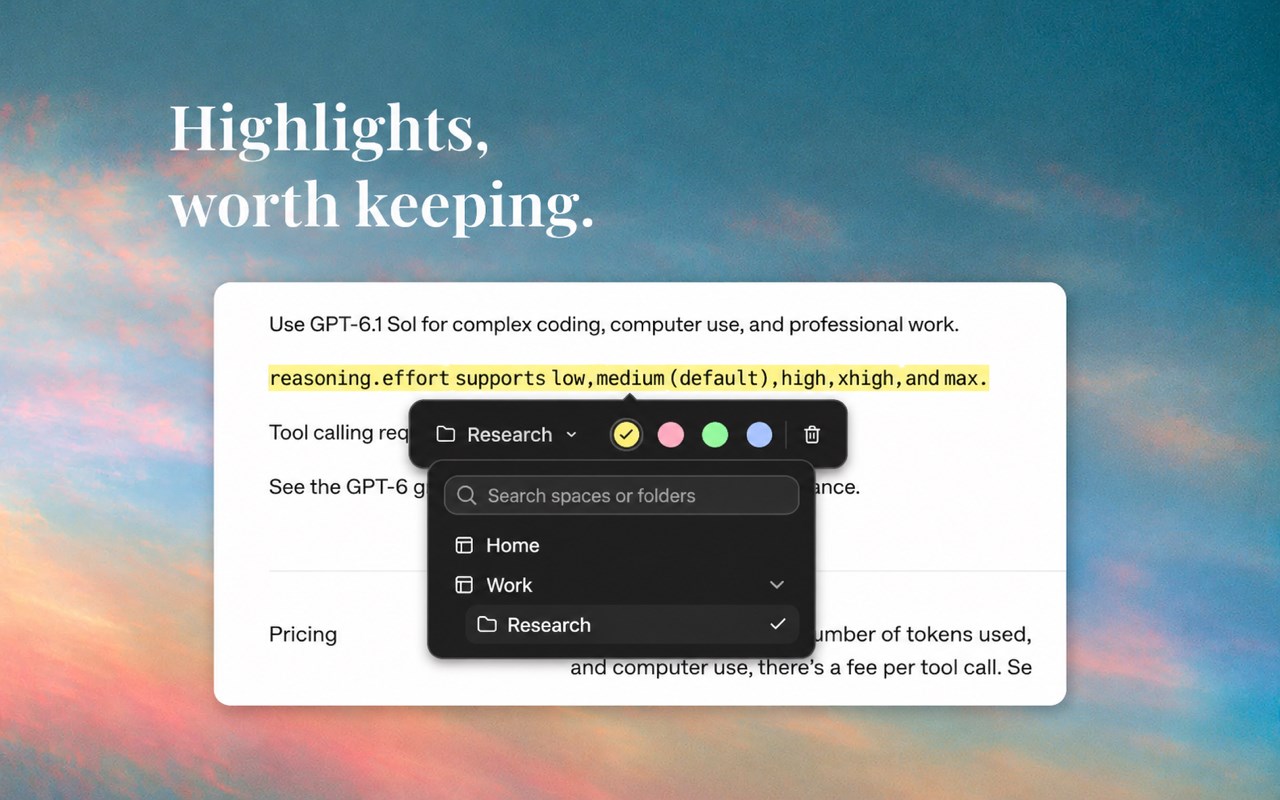
• Save passages, not just pages: select text and pick a color, and it stays highlighted when you come back. Click a highlight to recolor or remove it.
• Open a whole space as a Chrome tab group.
• Already have bookmark folders? Turn several into spaces at once, renaming them and picking an emoji as you go.
MOVING FROM ARC?
Arc stops working on December 22, 2026. If you relied on its sidebar for spaces and pinned links, Shelf gives you the same layout in Chrome, and because it is built on Chrome bookmarks, it can't be shut down on you: your spaces are ordinary bookmark folders you keep either way.
Bring your Arc sidebar over in one step: open Settings → Import from Arc and pick Arc's sidebar file. Each space comes over with its pinned tabs and folders, Arc's favorites become Shelf's favorites, and your open Today tabs can come along too. Importing again only adds what's missing.
HOW SHELF CHANGES YOUR BOOKMARKS
Shelf adds a few folders to keep your spaces: each space is a folder in the Bookmarks Bar named like "Work (Shelf)", pinned links and favorites live in "Pins (Shelf|Pins)" and "Favorites (Shelf|Favorites)", and saved passages in "Highlights (Shelf|Highlights)", all under Other Bookmarks. Rename or delete them in Chrome's bookmark manager like any folder.
PRIVACY
Shelf needs no account and sends nothing anywhere while you use it. It reads web pages only to find the passages you saved and show them highlighted, on your device. When you remove it, Chrome opens a short page asking why; answering is optional and anonymous.
OPEN SOURCE
Shelf is free and open source under the MIT license.
Shelf is made by Carrel (usecarrel.app). It is not affiliated with Arc or The Browser Company.
Shelf – Arc-Style Bookmark Sidebar 是做什么的
Shelf – Arc-Style Bookmark Sidebar 是一款面向 Edge 的效率工具类扩展,主要用来管住注意力、屏蔽干扰站点、记录时间。官方对它的介绍是:Arc-style bookmarks in Chrome's side panel: spaces, pinned links and favorites, kept as your own Chrome bookmarks. Open source.在微软 Edge 加载项商店上,它当前版本 0.4.2。
适合什么人用
从功能定位看,Shelf – Arc-Style Bookmark Sidebar 更适合想专注工作学习、减少无效刷网页的用户。如果你平时只是偶尔遇到相关需求,用浏览器自带功能也能凑合;但如果这件事每天都发生,装一个专门处理它的扩展通常比手动操作省事得多。
怎么安装 Shelf – Arc-Style Bookmark Sidebar
- 打开微软 Edge 加载项商店上的官方页面;
- 点「添加到浏览器」并确认权限提示;
- 装好后在扩展列表里固定图标,方便随时开关。
本站只做索引与介绍,安装包来自官方商店。如果商店页面提示当前地区不可用,说明该扩展未在你所在区域上架。
常见问题
Shelf – Arc-Style Bookmark Sidebar 是免费的吗?
Shelf – Arc-Style Bookmark Sidebar 在微软 Edge 加载项商店免费提供下载。它是浏览器扩展,装上就能直接用,不需要注册账号。
Shelf – Arc-Style Bookmark Sidebar 安全吗?
它只申请了 0 项权限,范围比较克制,没有申请「读取所有网站数据」这种大权限。
Shelf – Arc-Style Bookmark Sidebar 支持哪些浏览器?
当前收录的版本来自微软 Edge 加载项商店,适用于 Edge。同一个扩展在其他商店可能有对应版本,但功能与版本号不一定相同。
怎么卸载 Shelf – Arc-Style Bookmark Sidebar?
在扩展管理页找到 Shelf – Arc-Style Bookmark Sidebar,点移除即可。它在本地保存的设置会一起清掉,不会残留数据。
权限清单 来自 manifest.json 原文
接口权限 7
bookmarkscontextMenusfaviconsidePanelstoragetabGroupstabs