
ScreenRec Toolkit — Video & Screenshot EN
Shibisty · EEdge MV3
Record video with audio and take screenshots, with area selection and hotkeys.
<all_urls>),意味着它可以读取你在任意站点的页面内容,包括已登录的页面。这是许多扩展正常工作的必要条件,但也值得你确认来源可信。
截图
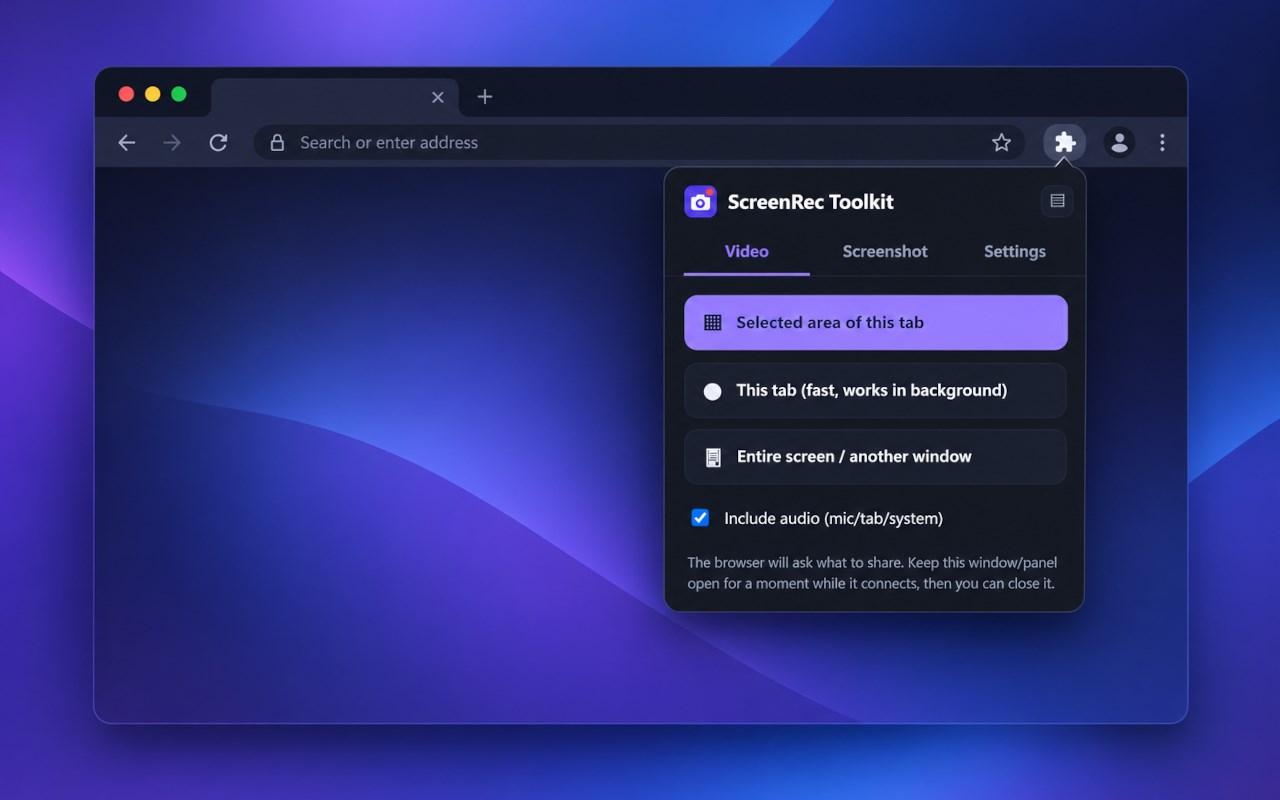
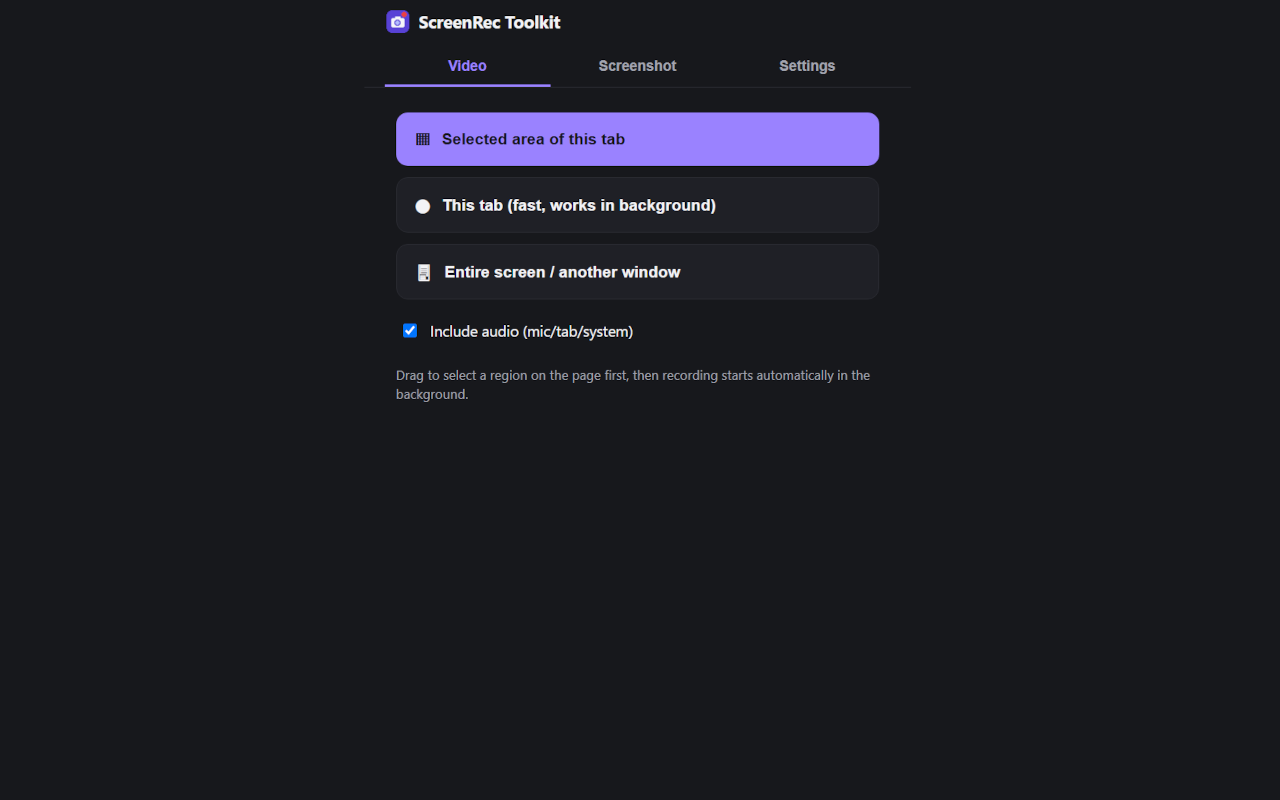
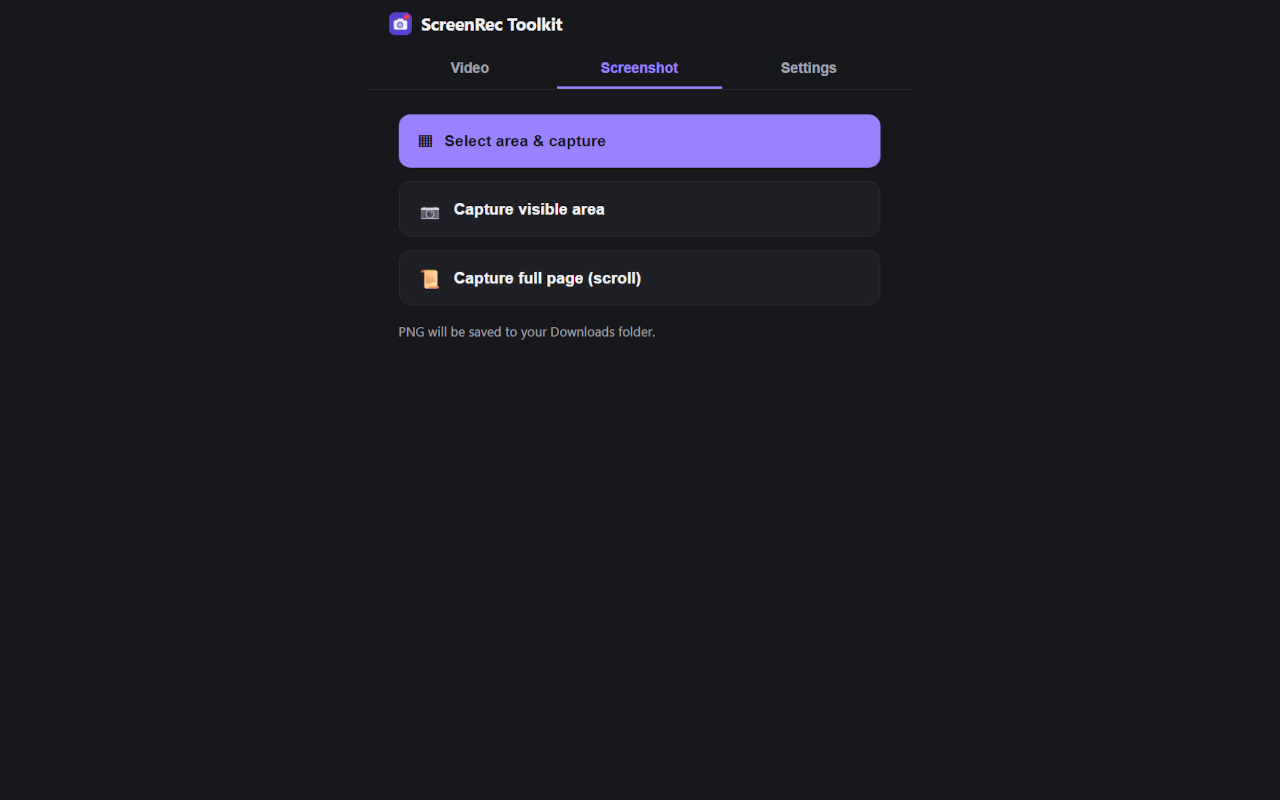
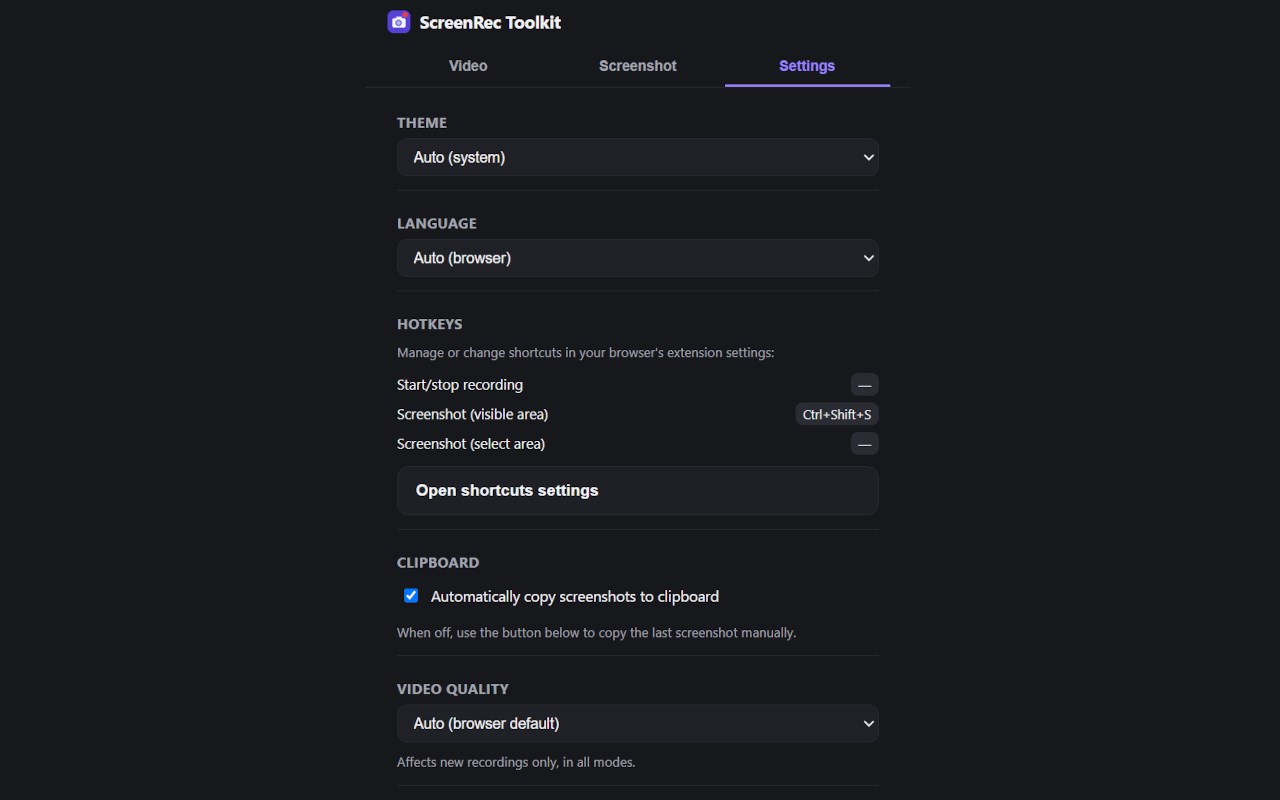
简介
ScreenRec Toolkit
Capture. Record. Annotate. Share.
ScreenRec Toolkit is a powerful browser extension for creating screenshots and screen recordings directly from your browser.
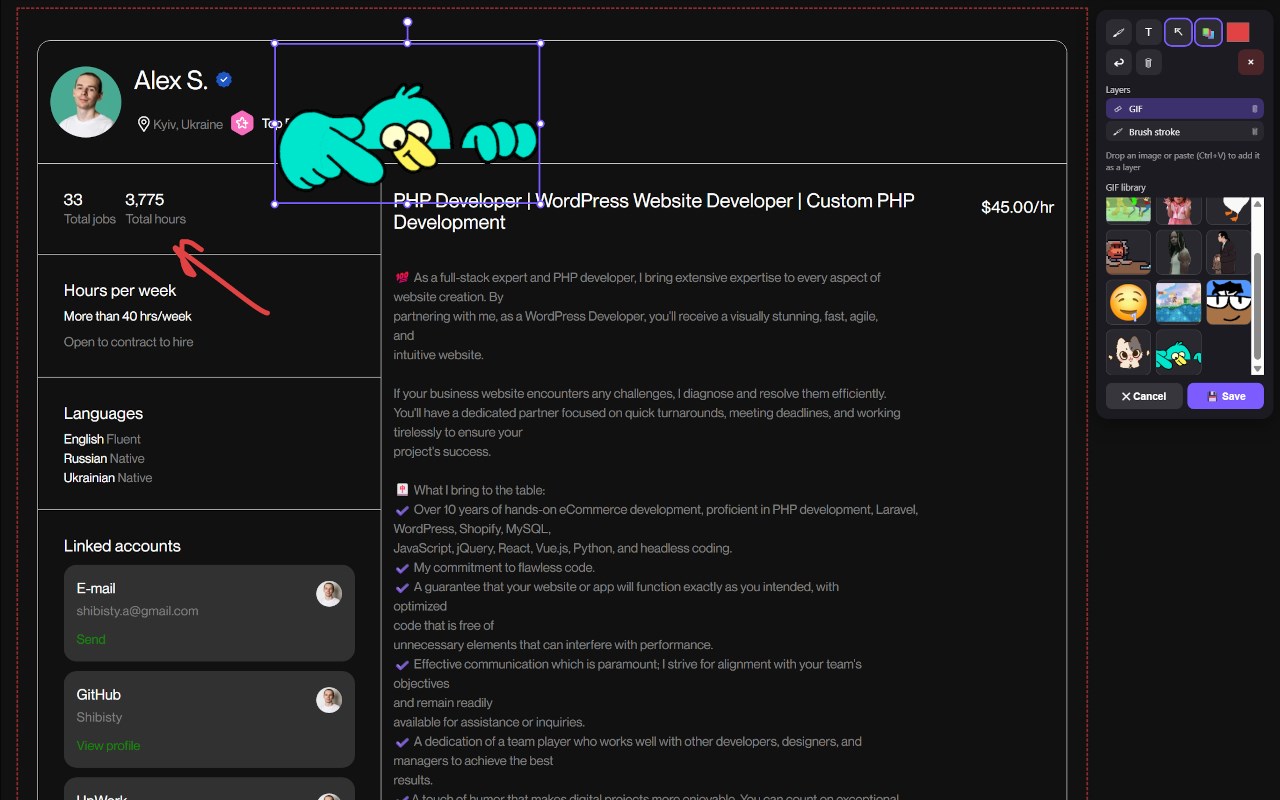
Capture a specific area of a webpage, the visible tab, an entire page, a browser tab, window, or your entire screen — then annotate your capture with drawings, text, GIFs, and images.
Key Features
📸 Powerful Screenshots
Capture exactly what you need:
Selected area of the current tab
Entire visible tab
Full webpage
Copy screenshots directly to the clipboard
Save screenshots as PNG, JPEG, or WEBP
Full-page screenshots are automatically captured in multiple parts and stitched together into a single image.
🎥 Screen Recording
Record:
A selected area of a webpage
The current browser tab
Another browser tab
A specific window
Your entire screen
Choose whether to record with or without audio.
Recordings can be saved as WebM or MP4, using browser-native recording capabilities.
✏️ Draw and Annotate
The main feature of ScreenRec Toolkit is the ability to annotate your capture directly while recording or taking a screenshot.
Use:
🖌️ Freehand drawing
➡️ Arrows and highlights
🔤 Text
🖼️ Images
🎞️ GIFs
📋 Paste images directly with Ctrl + V
This makes it easy to point out details, explain something on screen, create tutorials, report bugs, or quickly share visual feedback.
🎞️ GIFs & Images
Add visual elements directly to your screenshot or recording.
You can:
Insert GIFs from your library
Add images from your library
Paste images directly from the clipboard
Position and resize added elements
⚙️ Recording Quality
Choose the recording quality that fits your needs:
Low — smaller files
Medium — balanced quality and size
High — better image quality
⌨️ Keyboard Shortcuts
Use configurable hotkeys to quickly start:
Screenshots
Screen recordings
No need to open the extension interface every time.
🗂️ Media History
Can't remember where you saved a screenshot or recording?
ScreenRec Toolkit includes a media history that keeps track of your saved captures, making previously created files easier to find.
🌙 Dark & Light Themes
Choose the interface appearance that works best for you:
Dark theme
Light theme
🌍 53 Languages
ScreenRec Toolkit is designed for users around the world and supports 53 languages.
Why ScreenRec Toolkit?
Most screenshot extensions are focused on either screenshots or basic screen recording.
ScreenRec Toolkit combines both into one tool — with a particular focus on capturing a specific part of a webpage and annotating it immediately.
Draw arrows, add text, paste an image, place a GIF, highlight an element, and record the result — all without leaving your browser.
Capture what matters. Explain it visually. Share it instantly.
ScreenRec Toolkit — Video & Screenshot 是做什么的
ScreenRec Toolkit — Video & Screenshot 是一款面向 Edge 的效率工具类扩展,主要用来管住注意力、屏蔽干扰站点、记录时间。官方对它的介绍是:Record video with audio and take screenshots, with area selection and hotkeys.在微软 Edge 加载项商店上,它当前版本 1.0.1,约 3 名用户。
适合什么人用
从功能定位看,ScreenRec Toolkit — Video & Screenshot 更适合想专注工作学习、减少无效刷网页的用户。如果你平时只是偶尔遇到相关需求,用浏览器自带功能也能凑合;但如果这件事每天都发生,装一个专门处理它的扩展通常比手动操作省事得多。需要注意的是它作用于所有网站,装上后建议先观察一两天,确认不影响常用站点的正常使用。
怎么安装 ScreenRec Toolkit — Video & Screenshot
- 打开微软 Edge 加载项商店上的官方页面;
- 点「添加到浏览器」并确认权限提示;
- 装好后在扩展列表里固定图标,方便随时开关。
本站只做索引与介绍,安装包来自官方商店。如果商店页面提示当前地区不可用,说明该扩展未在你所在区域上架。
常见问题
ScreenRec Toolkit — Video & Screenshot 是免费的吗?
ScreenRec Toolkit — Video & Screenshot 在微软 Edge 加载项商店免费提供下载。它是浏览器扩展,装上就能直接用,不需要注册账号。
ScreenRec Toolkit — Video & Screenshot 安全吗?
它只申请了 0 项权限,范围比较克制,没有申请「读取所有网站数据」这种大权限。
ScreenRec Toolkit — Video & Screenshot 支持哪些浏览器?
当前收录的版本来自微软 Edge 加载项商店,适用于 Edge。同一个扩展在其他商店可能有对应版本,但功能与版本号不一定相同。
怎么卸载 ScreenRec Toolkit — Video & Screenshot?
在扩展管理页找到 ScreenRec Toolkit — Video & Screenshot,点移除即可。它在本地保存的设置会一起清掉,不会残留数据。
权限清单 来自 manifest.json 原文
站点访问(可选) 1
<all_urls>
接口权限 11
activeTabclipboardWritedownloadsdownloads.opennotificationsoffscreenscriptingsidePanelstoragetabCapturetabs