
Screen Capture - A Review and Feedback Tool EN
MAQ LLC · EEdge MV3
Extension to aid the process of reviews and audits
截图
简介
Easily annotate screenshots, prioritize comments, and export feedback.
Tired of losing context and tracking multiple documents?
Screen Capture is the all-in-one tool for all your audit and review needs.
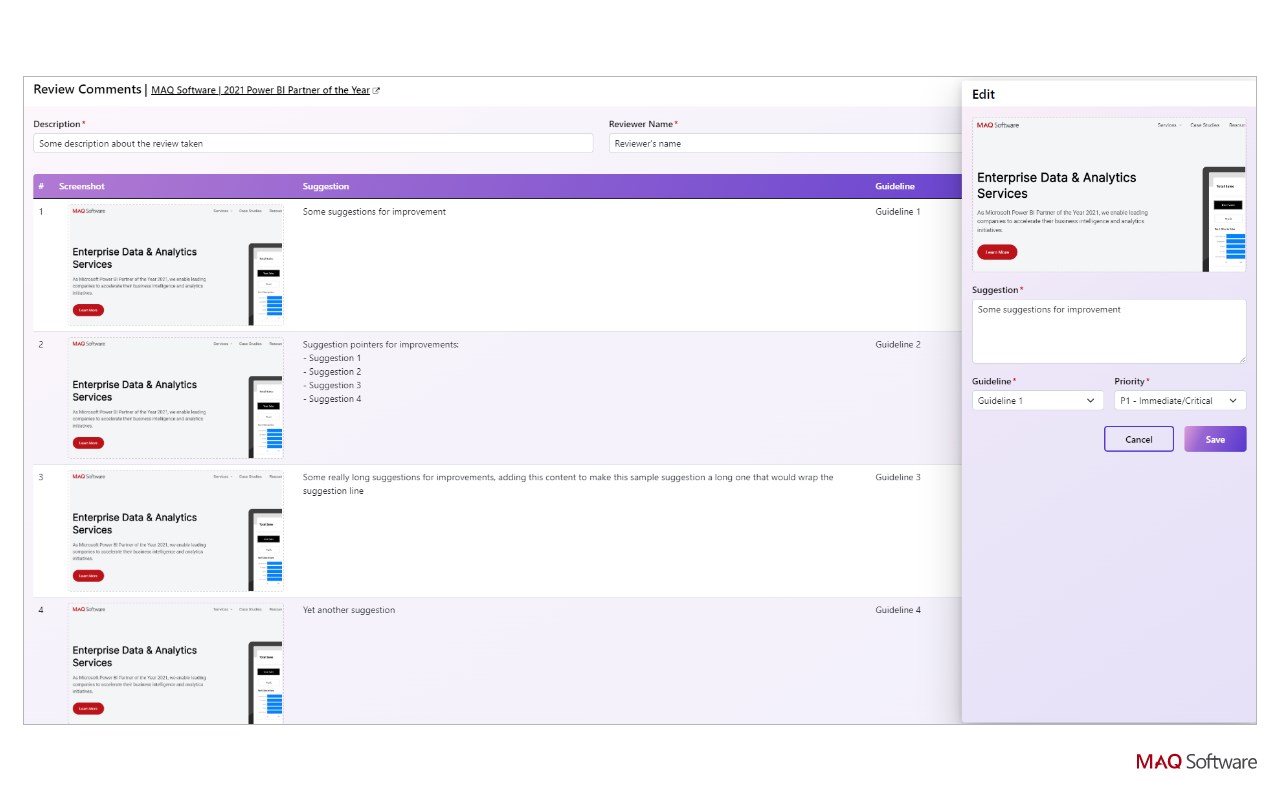
Add screenshots of review elements, provide comments, and categorize your feedback—all using Screen Capture.
You can even prioritize your findings to manage them more effectively. Easily download your findings in a sharable PDF file when you’re done, ensuring everyone is on the same page.
Use cases
• Auditors and reviewers – Screenshot elements and easily include relevant context, suggestions, guideline violations, and priority levels. Effectively communicate findings to the team.
• Development teams – Get properly documented bugs and issues to fix in the product. Effortlessly document and provide updates to the review and design teams.
• Product owners – Understand what issues and bugs are affecting the product and track their progress to help plan upcoming features.
How to use Screen Capture
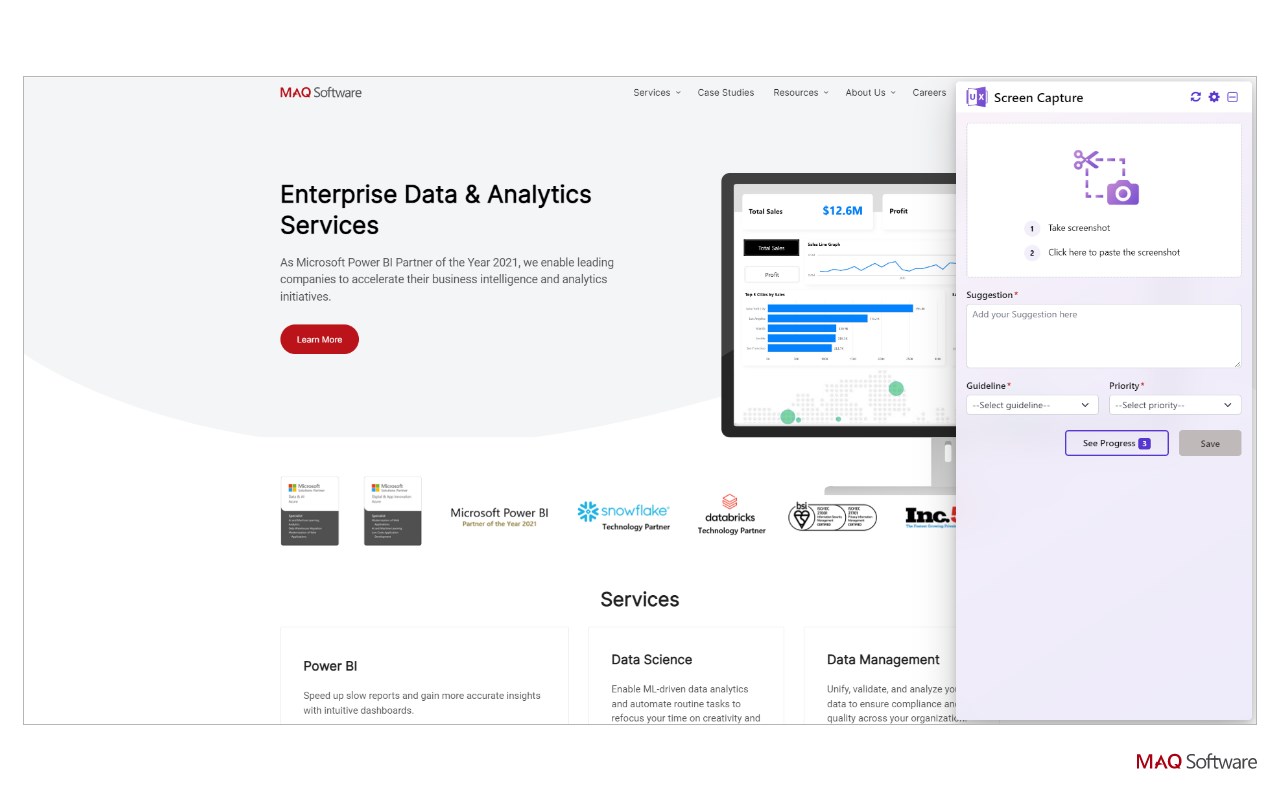
1. Take a screenshot with your preferred tool (e.g., Windows Snip, Greenshot, etc.). Copy the screenshot to your clipboard.
2. Activate the Screen Capture extension from the toolbar or the context menu. Click on the screenshot loading area, as directed on the interface, to paste the screenshot.
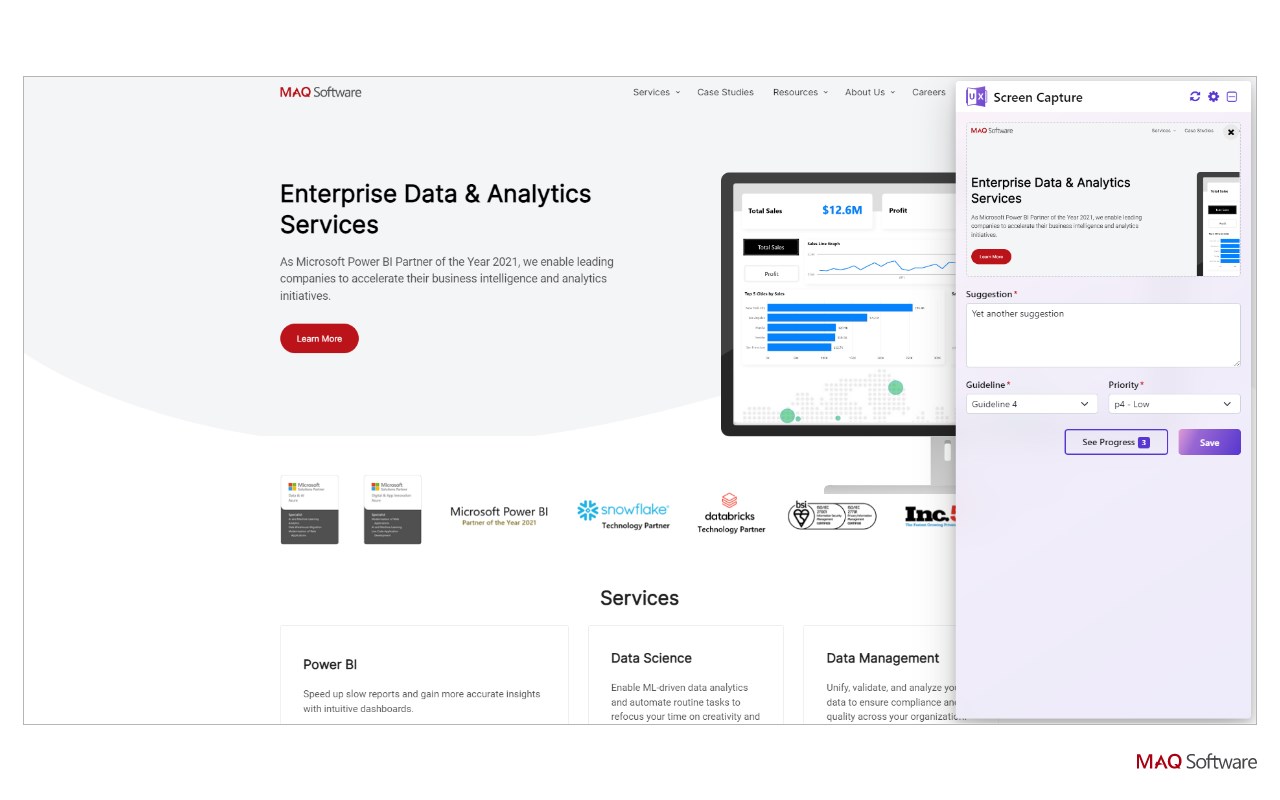
3. Add comments and details as desired. Click Save to save your changes.
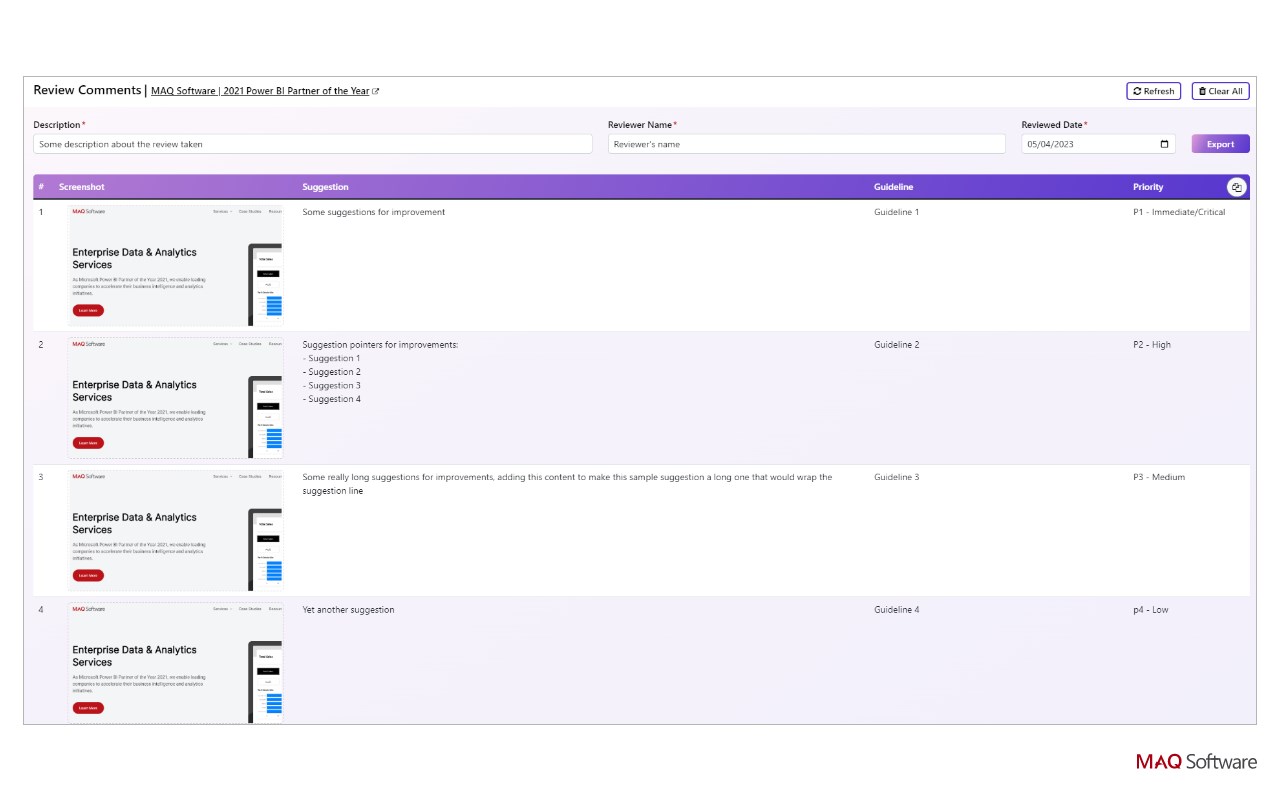
4. Click See Progress to view, edit, or delete screenshots and added details. Provide metadata of the reviewed items (description of the report, the reviewer, and the review date) on this page as well.
5. Click Export to download a report of your screenshot and its details as a PDF file.
Features
• Easily add review comments and feedback to your screenshots using the text field.
• Categorize your feedback with drop-down lists.
• By default, the text field is titled Suggestion, and the feedback can be categorized based on Priority and Guideline (violation).
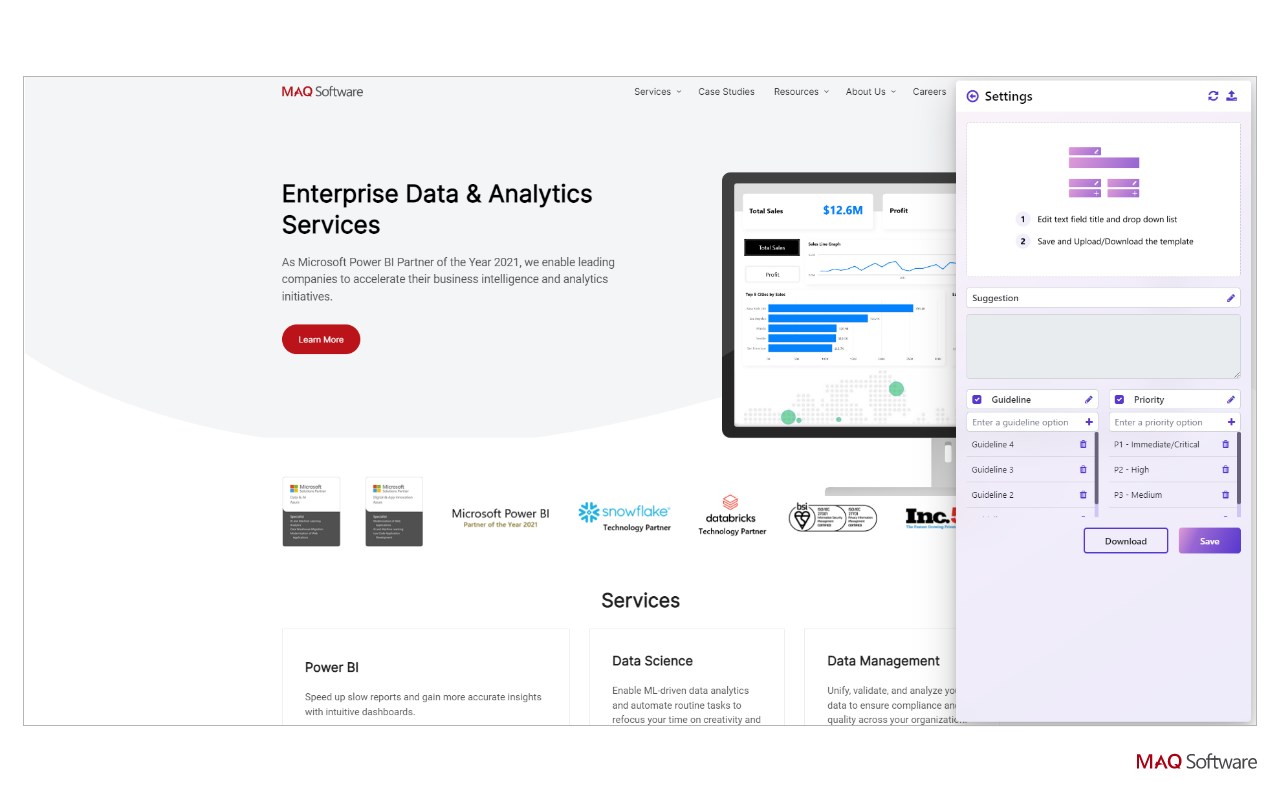
• Rename and customize all the sections, categories, and drop-down options as per your requirements.
• Easily download and share your customized section and category settings for a unified team experience.
• Edit and delete screenshots and added details at any point prior to exporting.
• Export your report in a PDF file or just copy it to paste anywhere you want.
• Privacy is one of our core values. All your data stays with you on your local machine except the exported document that you share with other folks.
Streamline your audit and review processes with Screen Capture, making it easier than ever to identify and resolve issues. Try it today!
Screen Capture - A Review and Feedback Tool 是做什么的
Screen Capture - A Review and Feedback Tool 是一款面向 Edge 的效率工具类扩展,主要用来管住注意力、屏蔽干扰站点、记录时间。官方对它的介绍是:Extension to aid the process of reviews and audits在微软 Edge 加载项商店上,它当前版本 3.0.0,评分 5(1 人评价),约 166 名用户。
适合什么人用
从功能定位看,Screen Capture - A Review and Feedback Tool 更适合想专注工作学习、减少无效刷网页的用户。如果你平时只是偶尔遇到相关需求,用浏览器自带功能也能凑合;但如果这件事每天都发生,装一个专门处理它的扩展通常比手动操作省事得多。
怎么安装 Screen Capture - A Review and Feedback Tool
- 打开微软 Edge 加载项商店上的官方页面;
- 点「添加到浏览器」并确认权限提示;
- 装好后在扩展列表里固定图标,方便随时开关。
本站只做索引与介绍,安装包来自官方商店。如果商店页面提示当前地区不可用,说明该扩展未在你所在区域上架。
常见问题
Screen Capture - A Review and Feedback Tool 是免费的吗?
Screen Capture - A Review and Feedback Tool 在微软 Edge 加载项商店免费提供下载。它是浏览器扩展,装上就能直接用,不需要注册账号。
Screen Capture - A Review and Feedback Tool 安全吗?
它只申请了 0 项权限,范围比较克制,没有申请「读取所有网站数据」这种大权限。
Screen Capture - A Review and Feedback Tool 支持哪些浏览器?
当前收录的版本来自微软 Edge 加载项商店,适用于 Edge。同一个扩展在其他商店可能有对应版本,但功能与版本号不一定相同。
怎么卸载 Screen Capture - A Review and Feedback Tool?
在扩展管理页找到 Screen Capture - A Review and Feedback Tool,点移除即可。它在本地保存的设置会一起清掉,不会残留数据。
权限清单 来自 manifest.json 原文
接口权限 4
activeTabcontextMenusscriptingtabs