
Save Website as PDF EN
Web2PDF · EEdge MV3
Easily save website as PDF. Convert pages to PDF. Get clean, readable, and editable documents — link-friendly and ready to print.
截图
简介
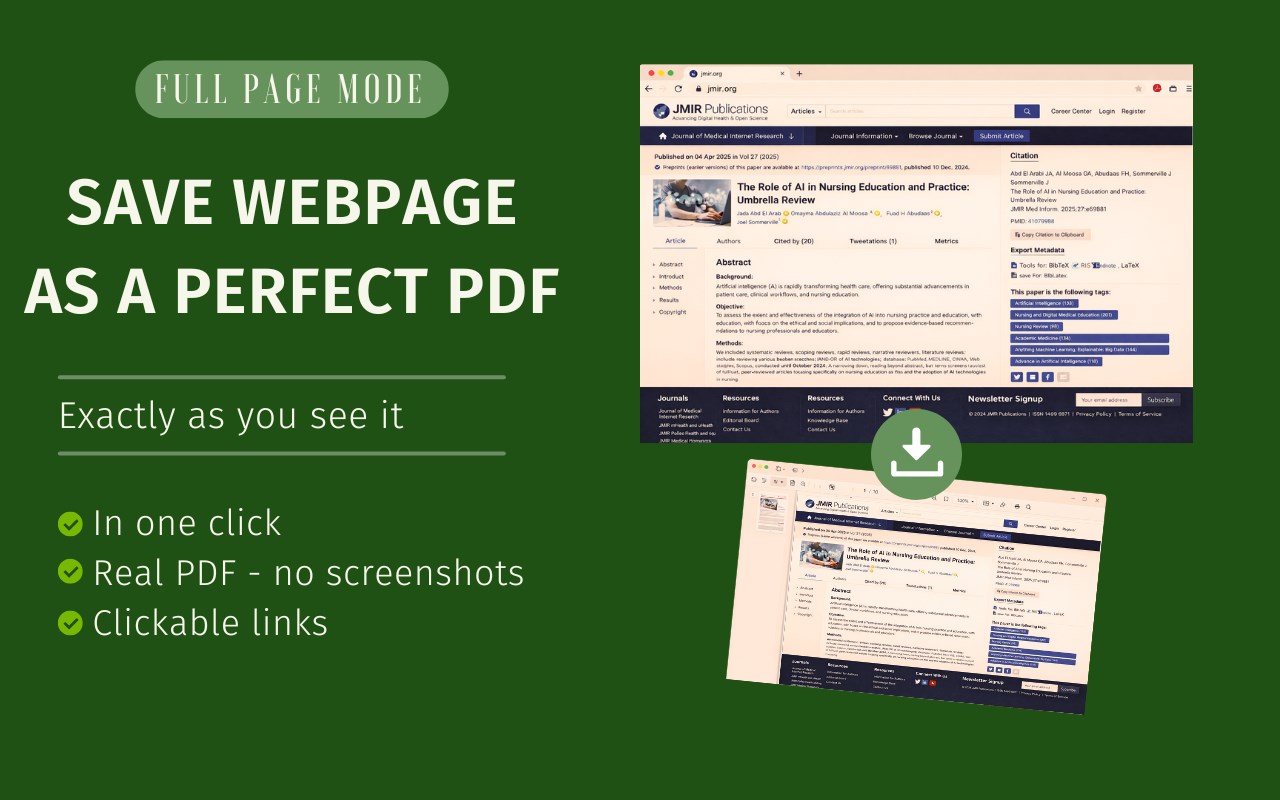
With this Microsoft Edge extension, you can convert any web page into a clean, high-quality PDF document in seconds. Whether you want to download, edit, print, or archive web content, this tool makes it effortless. No more messy layouts or unnecessary clutter. Just the essential content you need in a structured format.
🔍 Top Benefits
➤ Convert web pages to PDF in just a few clicks.
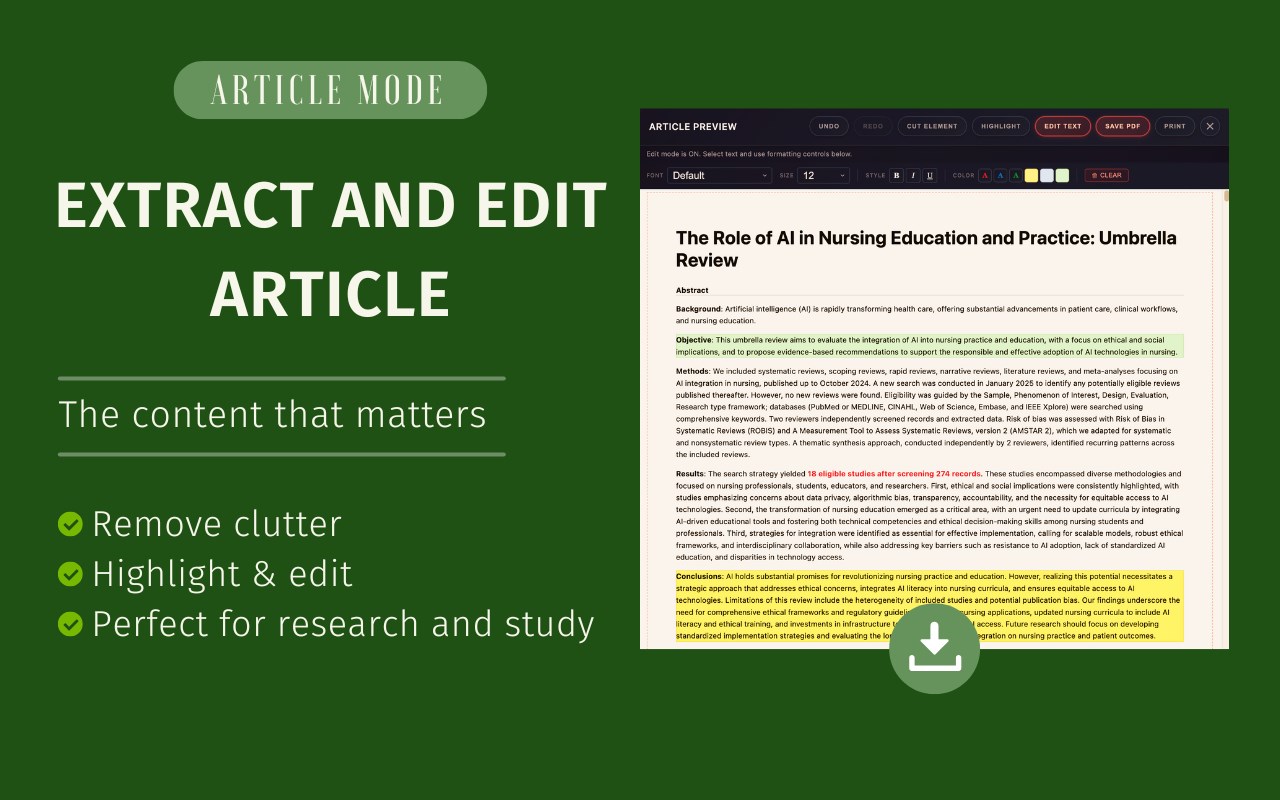
➤ Remove ads, pop-ups, and menus to create clean, readable documents.
➤ Preserve the original layout and clickable links so your saved document remains useful and easy to navigate.
➤ Edit your documents by adding notes, highlighting text, or removing unnecessary elements.
➤ Access your saved PDFs offline so you can read, share, or print them anytime.
➤ Privacy-focused conversion designed to keep your web content on your device.
💰 Free & Pro Plans
Enjoy the extension for free with generous usage limits.
🔹 Free: Up to 10 PDFs per month.
🔹 Pro Monthly: $4/month.
🔹 Pro Lifetime: $24 one-time payment.
No account required. Cancel your monthly subscription anytime.
💡 How to Save a Web Page as PDF
1️⃣ Install the extension from Microsoft Edge Add-ons.
2️⃣ Open the web page you want to save.
3️⃣ Click the Save Website as PDF extension icon.
4️⃣ Choose whether to convert the full page or just the article for a clean, clutter-free document.
5️⃣ Edit your document by adding notes, highlighting text, or removing unnecessary elements.
6️⃣ Download your PDF and access it whenever you need it.
🧐 Frequently Asked Questions
❓ Will the PDF look like the original web page?
💡 The extension preserves relevant formatting, images, and links to help maintain the original page's appearance.
❓ Can I edit my document?
💡 Yes! You can highlight text, add notes, and remove unwanted elements using the available editing tools.
❓ Is my data secure?
💡 The extension is designed with privacy in mind. Web page conversion is performed locally on your device. Network requests used for features such as license validation may still occur.
❓ Does it keep links active?
💡 Yes! Hyperlinks remain clickable in the resulting PDF.
Add Convenience to Your Workflow!
Stop relying on bookmarks for pages that might disappear. With Save Website as PDF, you can keep important information accessible whenever you need it.
Perfect for work, study, research, and personal use. Save articles, reference materials, and useful web content as PDF documents that are easy to read, share, and print.
Save Website as PDF 是做什么的
Save Website as PDF 是一款面向 Edge 的效率工具类扩展,主要用来管住注意力、屏蔽干扰站点、记录时间。官方对它的介绍是:Easily save website as PDF. Convert pages to PDF. Get clean, readable, and editable documents — link-friendly and ready to print.在微软 Edge 加载项商店上,它当前版本 1.5.2,约 41 名用户。
适合什么人用
从功能定位看,Save Website as PDF 更适合想专注工作学习、减少无效刷网页的用户。如果你平时只是偶尔遇到相关需求,用浏览器自带功能也能凑合;但如果这件事每天都发生,装一个专门处理它的扩展通常比手动操作省事得多。
怎么安装 Save Website as PDF
- 打开微软 Edge 加载项商店上的官方页面;
- 点「添加到浏览器」并确认权限提示;
- 装好后在扩展列表里固定图标,方便随时开关。
本站只做索引与介绍,安装包来自官方商店。如果商店页面提示当前地区不可用,说明该扩展未在你所在区域上架。
常见问题
Save Website as PDF 是免费的吗?
Save Website as PDF 在微软 Edge 加载项商店免费提供下载。它是浏览器扩展,装上就能直接用,不需要注册账号。
Save Website as PDF 安全吗?
它只申请了 0 项权限,范围比较克制,没有申请「读取所有网站数据」这种大权限。
Save Website as PDF 支持哪些浏览器?
当前收录的版本来自微软 Edge 加载项商店,适用于 Edge。同一个扩展在其他商店可能有对应版本,但功能与版本号不一定相同。
怎么卸载 Save Website as PDF?
在扩展管理页找到 Save Website as PDF,点移除即可。它在本地保存的设置会一起清掉,不会残留数据。
权限清单 来自 manifest.json 原文
接口权限 5
activeTabdebuggerdownloadsscriptingstorage