
Prime Video Enhancer EN
DineshKP Ventures · EEdge MV3
Enhance your Amazon Prime Video experience
截图
简介
Prime Video, without the distractions. Skip intros and recaps automatically, stop autoplay, hide X-Ray, make subtitles readable — instantly, with no account and no data collection.
Intros you've seen eleven times. Recaps you don't need. Promos for shows you didn't ask for. X-Ray spoiling the cast reveal before you're ready. Autoplay jumping to the next episode before the credits end. Subtitles the wrong size, the wrong colour, impossible to read. Prime Video Enhancer turns every one of those off. Changes apply instantly. Nothing leaves your device.
---
YOUR FIRST 60 SECONDS
Install, refresh Prime Video, and press:
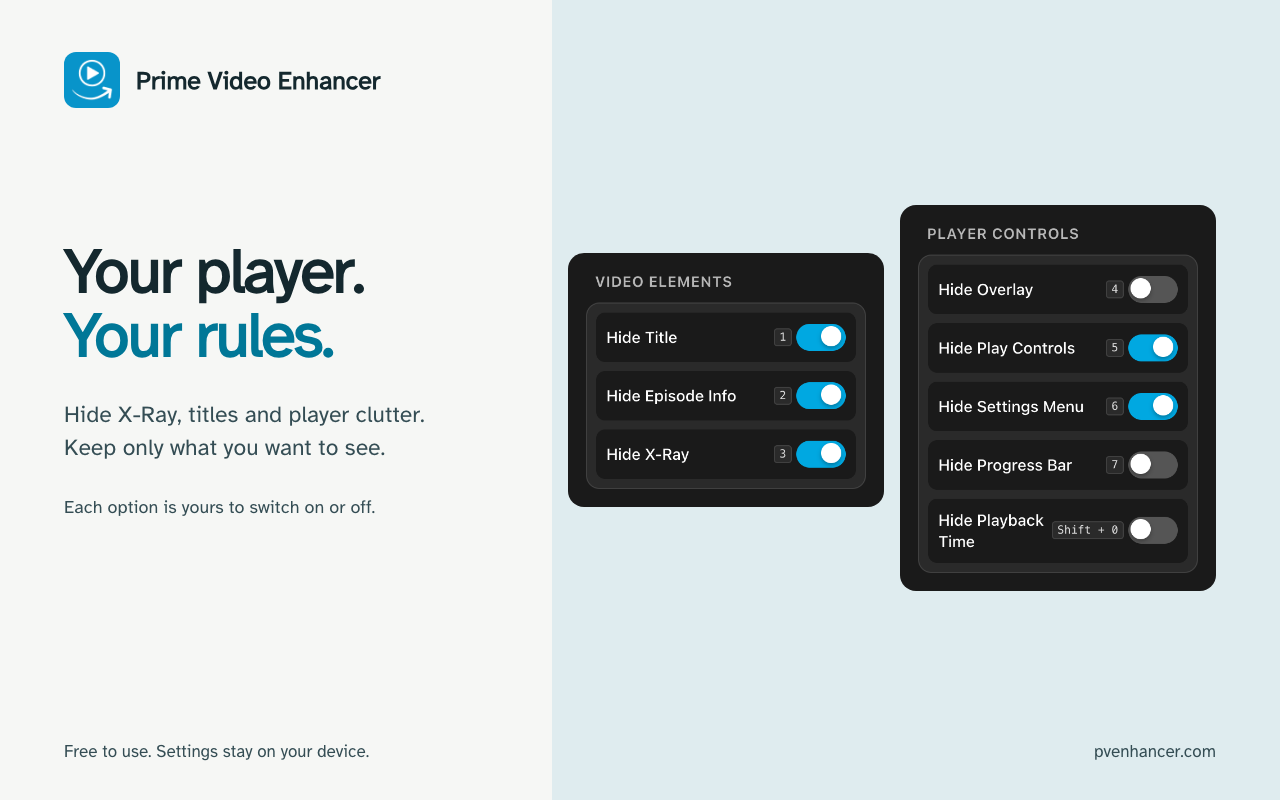
1 — Hide the title overlay
2 — Hide episode and season info
3 — Hide X-Ray
4 — Hide the control overlay
Four key presses. A completely clean Amazon Prime Video player.
Then open the popup and switch on Auto-skip Intro. That one is worth the install on its own.
Every feature works the same way: instant, reversible, no page refresh needed.
---
SKIP WHAT YOU DIDN'T COME FOR
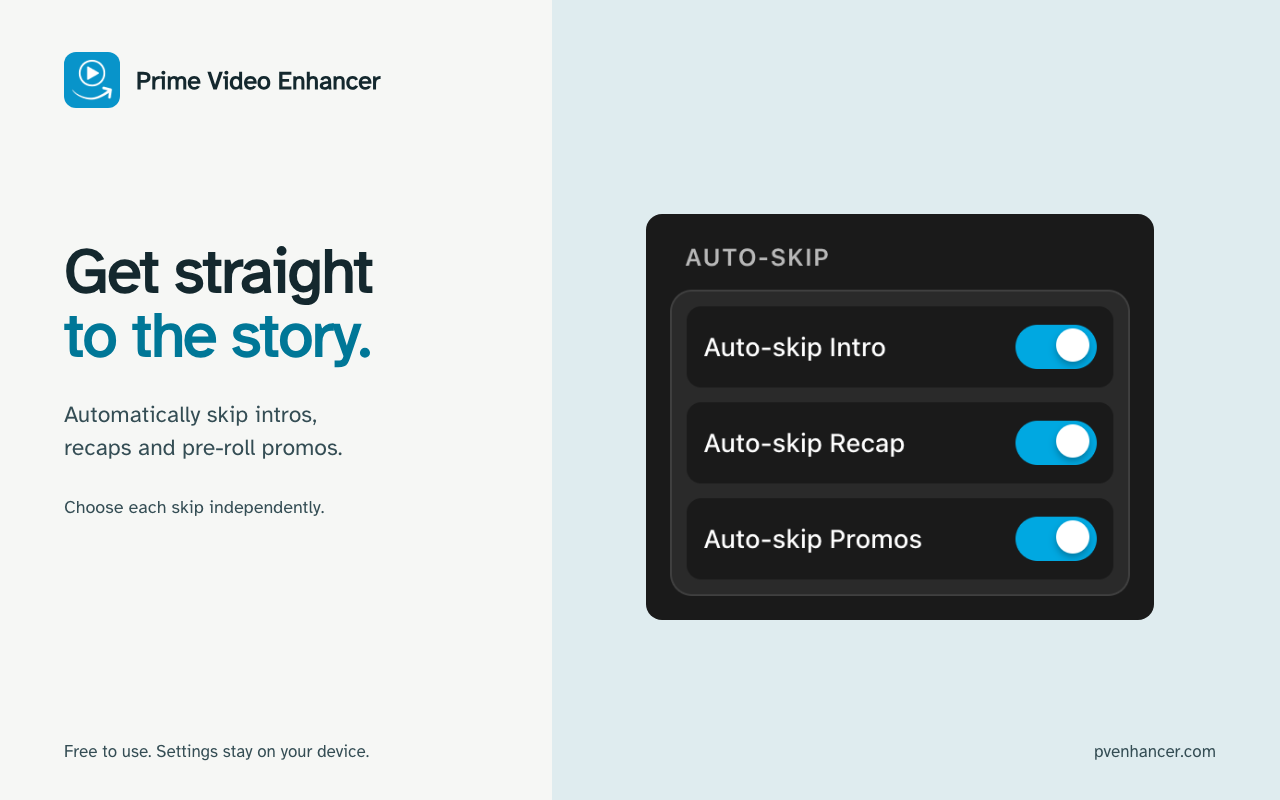
• Auto-skip Intro — Clicks "Skip Intro" the moment it appears, so binge-watching a series never means watching the same title sequence twice
• Auto-skip Recap — Clicks "Skip Recap" through the "Previously on…" section
• Auto-skip Promos — Clicks past the pre-roll trailers for other shows that play before the title you actually opened
• Each is an independent toggle, off by default — turn on only what you want skipped
• Works across more than 30 Prime Video interface languages, not just English
---
HIDE OVERLAYS & AVOID SPOILERS
• Hide X-Ray — Prevent cast names, trivia, and scene information from appearing on hover before you are ready to see them
• Hide Title Overlay — Remove the video title bar that covers the picture during playback
• Hide Episode Info — Remove episode descriptions that reveal upcoming plot points before you have watched them
---
REMOVE PLAYER CLUTTER
• Hide Control Overlay — Remove the playback controls for immersive, cinema-style viewing
• Hide Play/Pause Buttons — Conceal the large center play, pause, and skip buttons
• Hide Settings Menu — Remove the top-right configuration menu so nothing competes with the picture
• Hide Progress Bar — Remove the scrub bar and time indicators for a completely clean screen
---
MANAGE AUTOPLAY & NEXT EPISODE PROMPTS
• Hide Next Episode — Hide the next-episode button and advance card during playback.
• Hide Next Up — Prevent the suggestions panel from opening automatically during end credits. You can still open Next Up manually.
• Cancel autoplay on supported Prime Video players using the player’s native cancellation control. Availability varies by player version.
• For broader autoplay control, turn off Autoplay in Prime Video’s Account & Settings → Player. Instructions are linked in the extension.
---
CALMER BROWSING
• Disable Card Hover Zoom — Stop title cards from scaling and expanding every time your pointer crosses them, so browsing the catalogue stays still and readable
---
SUBTITLES YOU CAN ACTUALLY READ
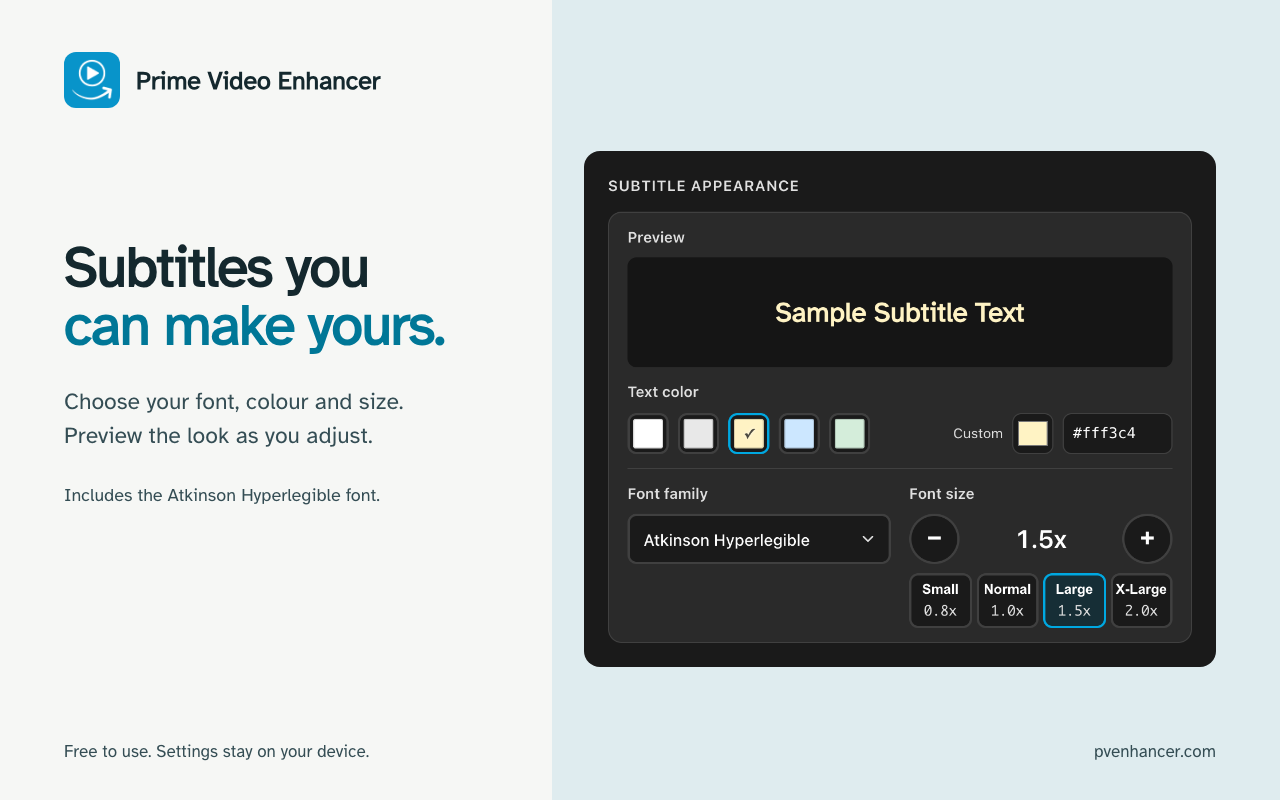
• 16 font choices, grouped in the picker as "On your device" and "Included with the extension"
• Atkinson Hyperlegible ships inside the extension — a typeface the Braille Institute designed for readers with low vision, with letterforms that keep I, l and 1 distinct at small sizes over moving video
• Because it is bundled rather than linked from a font service, choosing it makes no network request and tells nobody what you are watching
• Seven more of the faces already installed on your machine, from Segoe UI through to a monospace and a serif option — including Comic Sans, which earns its place because its disambiguated letterforms genuinely help some readers
• Custom colours — 11 presets, a colour picker, and direct hex input
• Font size from 0.5x to 3.0x, with a live preview in the popup as you adjust
• All subtitle settings persist automatically across viewing sessions
---
PLAYBACK SPEED CONTROL
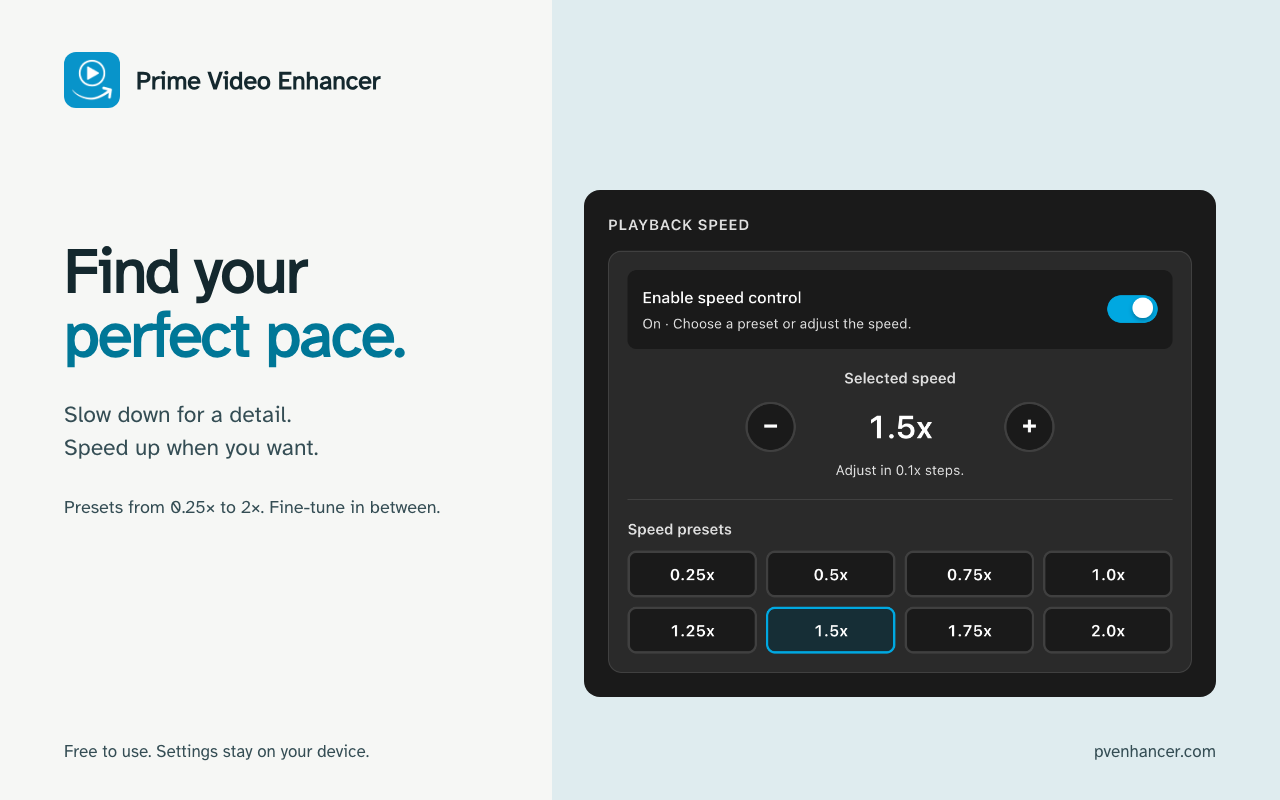
• Eight presets from 0.25x to 2.0x with smooth transitions
• Nudge speed up or down with . and , — or jump straight back to 1x with Shift+,
• Shift+. toggles between your custom speed and normal, so you can drop back for a line of dialogue and return
• On-screen feedback for every change
• Enable or disable the speed feature from the Speed tab — your preference persists across videos
---
KEYBOARD SHORTCUTS
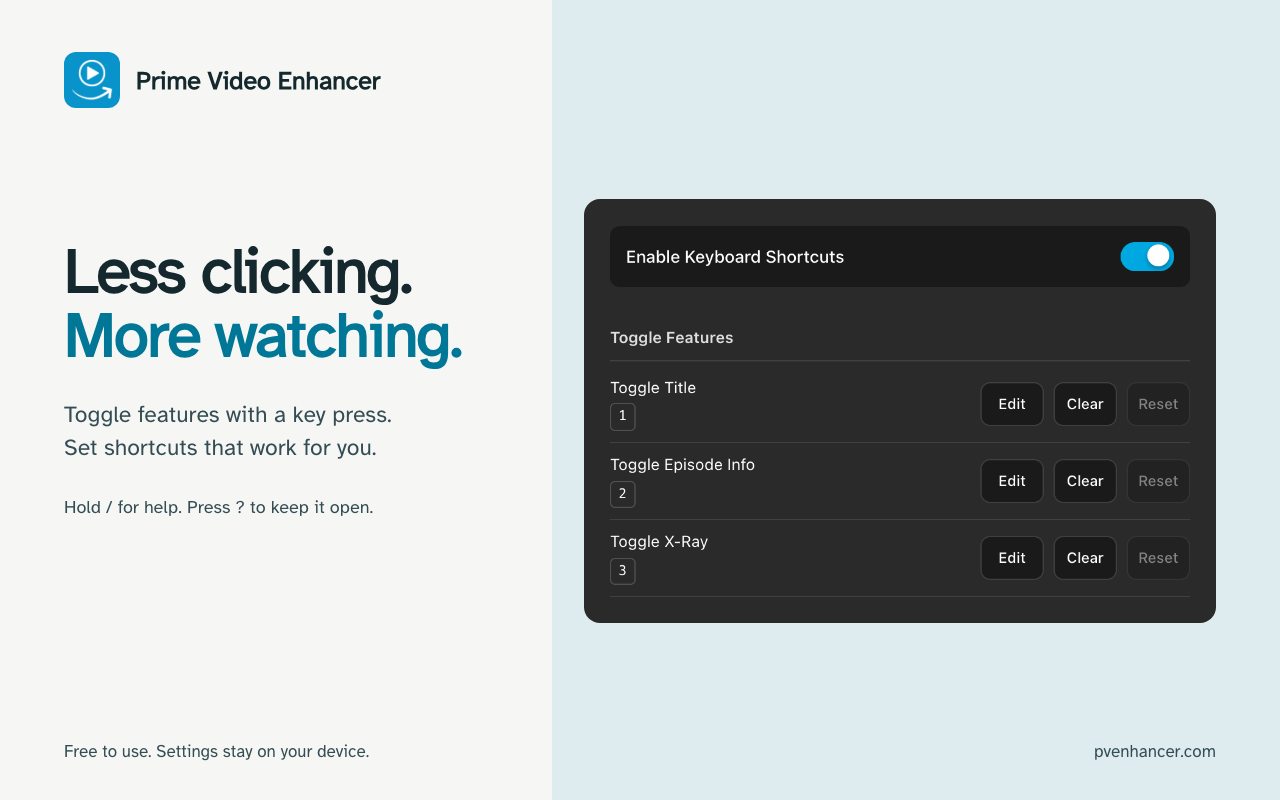
• Hold / during playback to see every available shortcut
• Press ? for a persistent shortcuts panel that stays visible
• Number keys 1-9 toggle features without opening the popup
• Ctrl+Shift+Up/Down adjusts subtitle size; Ctrl+Shift+Left/Right cycles subtitle colours
• Rebind any shortcut to a combination you prefer, or unassign the ones you don't use
• All shortcuts can be disabled entirely if you prefer mouse-only control
---
FEATURES THAT INTRODUCE THEMSELVES
Skip an intro by hand and PVE will offer, once, to do it for you from then on. These nudges are one-time, dismissible, and easy to silence completely — switch off "Show feature tips" and you will never see another.
---
100% PRIVACY-FOCUSED
• No personal data collected or transmitted
• No access to your Amazon account or viewing history
• All settings stored locally on your device only
• No external analytics, tracking pixels, or third-party services
• The extension makes no network requests of its own — there is no backend and no remotely loaded code. Network activity is limited to the browser's own Edge Web Store update checks
• That holds for the bundled subtitle font too. Loading a webfont from a font CDN would hand a third party your IP address and the page you were on, every time you opened the player — so the font file ships inside the extension instead
• Source ships readable and unobfuscated, so anyone can verify all of the above
---
Designed for Prime Video in Edge, including supported Amazon-hosted players. Automatic skip controls recognise more than 30 interface languages. Feature availability can vary by region and player version.
---
BUILT WI…
Prime Video Enhancer 是做什么的
Prime Video Enhancer 是一款面向 Edge 的实用工具类扩展,主要用来解决浏览器里某类具体的小问题。官方对它的介绍是:Enhance your Amazon Prime Video experience在微软 Edge 加载项商店上,它当前版本 1.22.1,评分 5(1 人评价),约 330 名用户。
适合什么人用
从功能定位看,Prime Video Enhancer 更适合想补上浏览器原生缺失功能的用户。如果你平时只是偶尔遇到相关需求,用浏览器自带功能也能凑合;但如果这件事每天都发生,装一个专门处理它的扩展通常比手动操作省事得多。
怎么安装 Prime Video Enhancer
- 打开微软 Edge 加载项商店上的官方页面;
- 点「添加到浏览器」并确认权限提示;
- 装好后在扩展列表里固定图标,方便随时开关。
本站只做索引与介绍,安装包来自官方商店。如果商店页面提示当前地区不可用,说明该扩展未在你所在区域上架。
常见问题
Prime Video Enhancer 是免费的吗?
Prime Video Enhancer 在微软 Edge 加载项商店免费提供下载。它是浏览器扩展,装上就能直接用,不需要注册账号。
Prime Video Enhancer 安全吗?
它只申请了 0 项权限,范围比较克制,没有申请「读取所有网站数据」这种大权限。
Prime Video Enhancer 支持哪些浏览器?
当前收录的版本来自微软 Edge 加载项商店,适用于 Edge。同一个扩展在其他商店可能有对应版本,但功能与版本号不一定相同。
怎么卸载 Prime Video Enhancer?
在扩展管理页找到 Prime Video Enhancer,点移除即可。它在本地保存的设置会一起清掉,不会残留数据。
权限清单 来自 manifest.json 原文
接口权限 1
storage