
Power Automate Editor – 流程 JSON 编辑器
Maxime Guerin · EEdge MV3
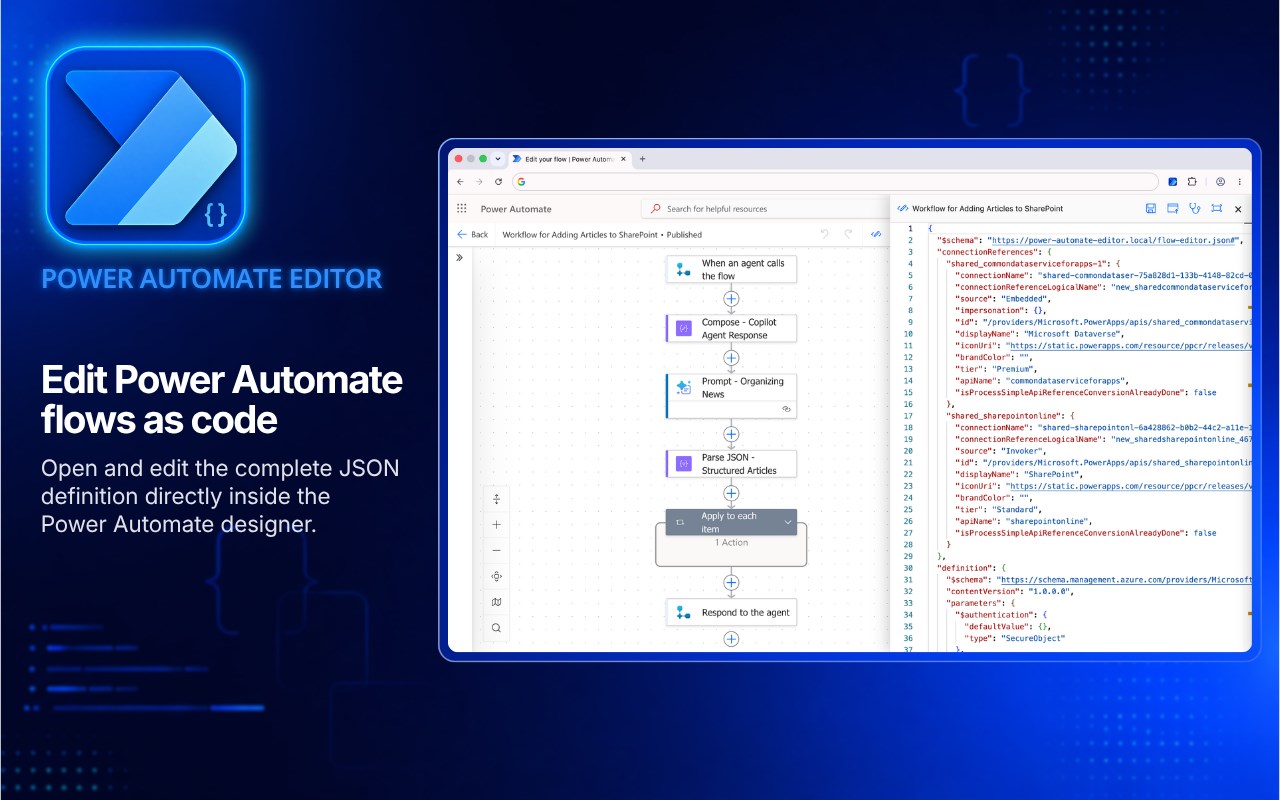
直接在设计器中编辑和验证 Power Automate 流程的 JSON 定义。
截图

简介
⚡ Power Automate Editor – Edit your flows like code
Power Automate Editor adds a full-fledged JSON editor directly into the Microsoft Power Automate designer.
View the complete definition of the currently open flow, edit it with Monaco Editor (the editing engine used by Visual Studio Code), and then review, save, or publish your changes without leaving the designer.
The extension is designed for developers, Power Platform consultants, administrators, and advanced users who want to understand the structure of their automations in detail and make changes to their JSON definition more quickly.
🔥 Key Features
1️⃣ Integrated JSON editing
An “Edit flow in JSON” button is added directly to the Power Automate designer toolbar.
The editor opens in a resizable side panel, without interrupting your work or requiring you to manually export the flow.
Easily copy the complete JSON definition of your flow to share it with ChatGPT, Claude, Copilot, Gemini, or any other AI to analyze, debug, and help you improve it.
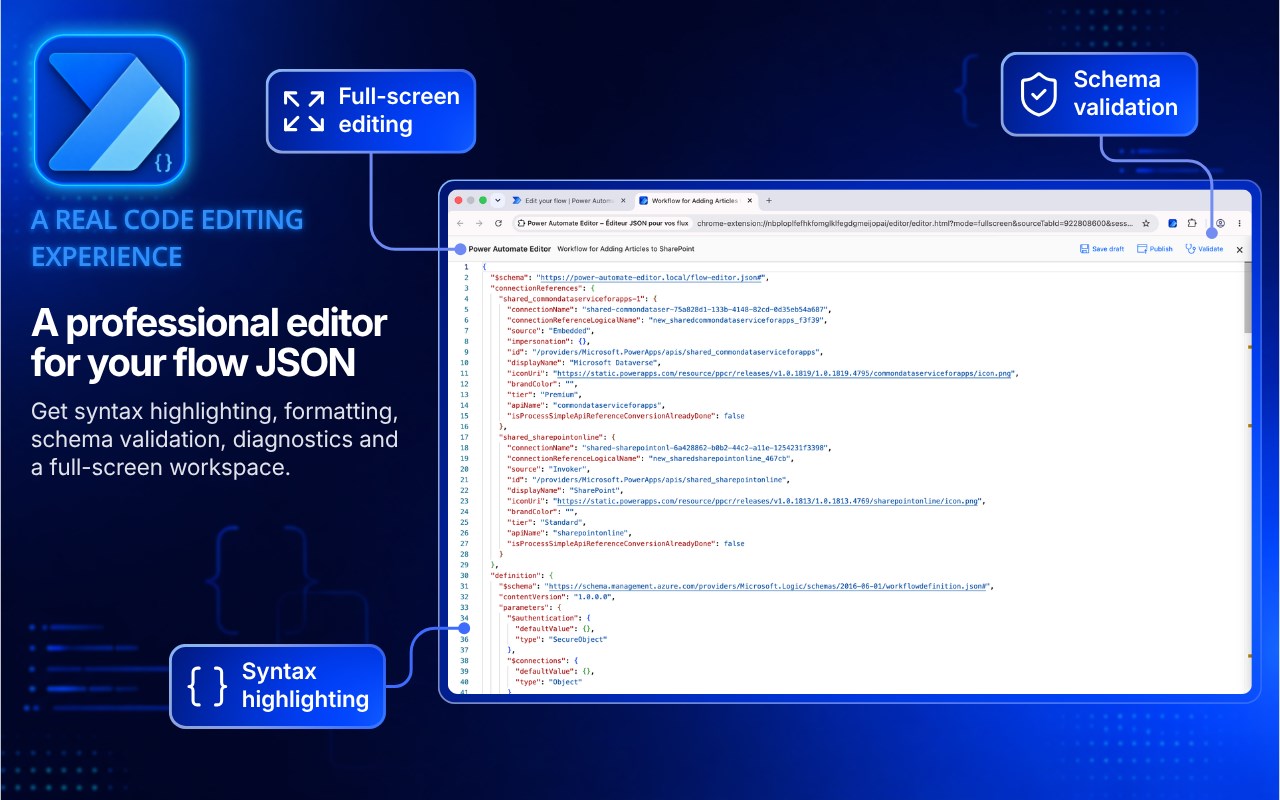
2️⃣ A True Code-Editing Experience
Take advantage of the Monaco Editor to work in a clear and powerful interface:
• JSON syntax highlighting
• Indentation and formatting
• Syntax error detection
• Validation against the flow schema
• More comfortable navigation through complex definitions
• Familiar keyboard shortcuts, including Ctrl+S or Cmd+S
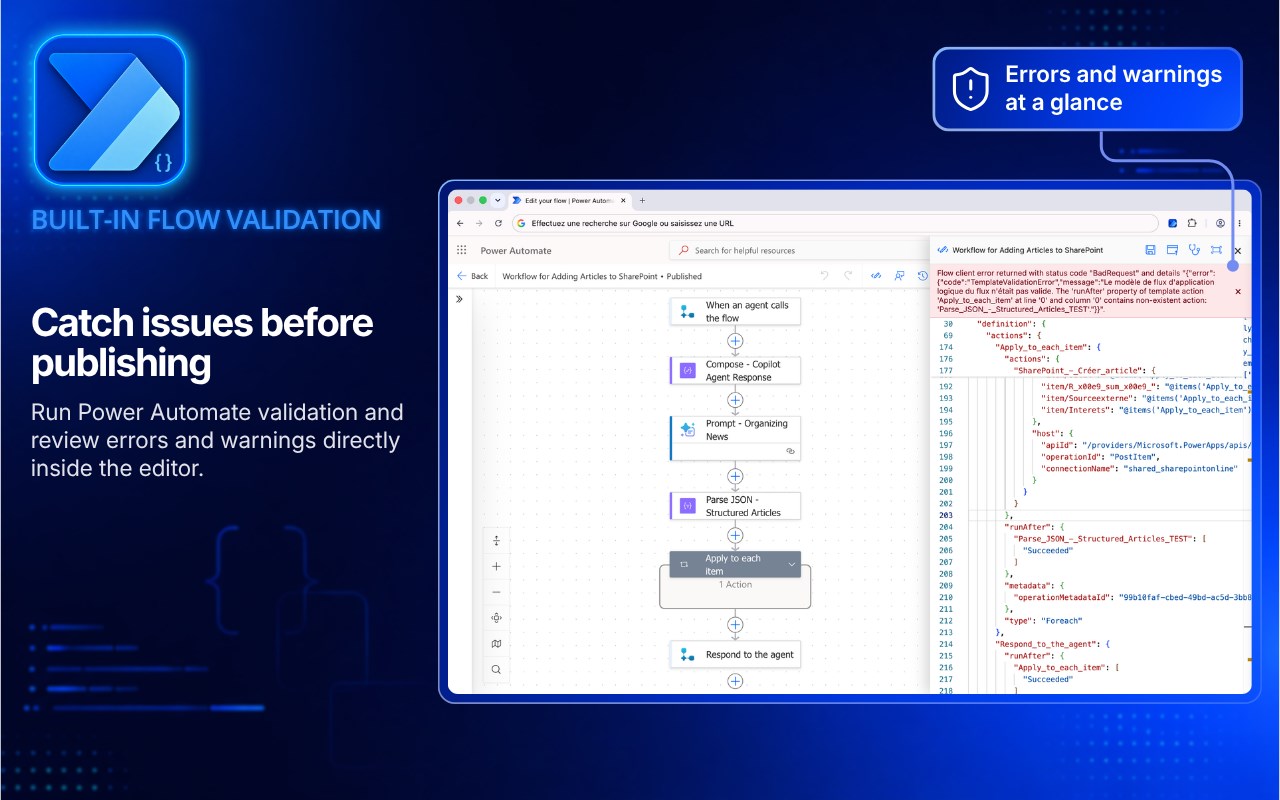
3️⃣ Validation with Power Automate
Check your definition before saving it using the official Microsoft Power Automate validation APIs.
Any detected errors and warnings are displayed directly in the extension to help you correct the flow before publishing it.
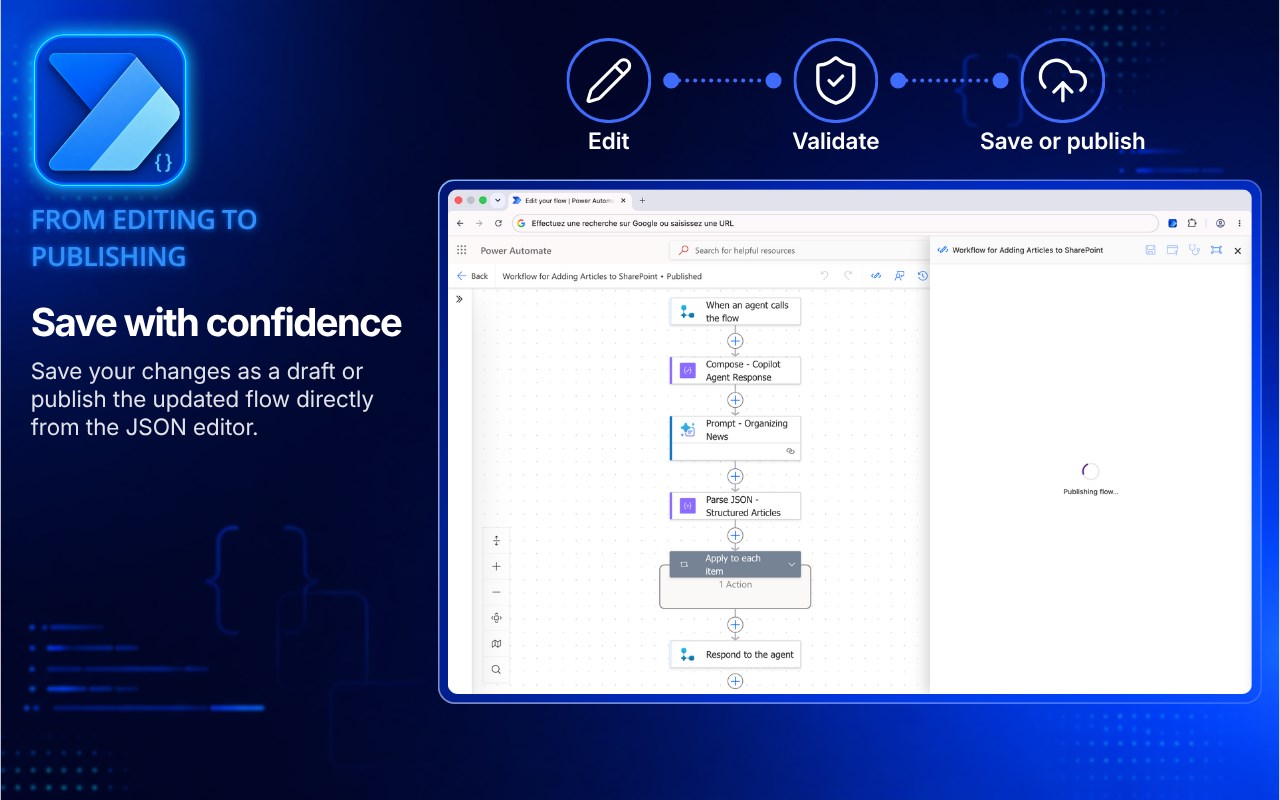
4️⃣ Save as a draft
Save your changes to the flow draft without publishing them immediately.
This allows you to prepare and review your changes before making them live.
5️⃣ Direct Publishing
When your definition is ready, publish the flow directly from the JSON editor.
The extension uses your existing Microsoft session and the official Power Automate and Dataverse APIs to save and publish the selected flow.
6️⃣ Full-Screen Mode
Open the editor in a dedicated tab to have more space when working on large or particularly complex flows.
7️⃣ On-the-Fly Activation
Enable or disable the integration from the extension icon.
Your preference is stored locally in Edge, and the Power Automate interface is updated automatically.
🌍 Multilingual Extension
Power Automate Editor is available in multiple languages and automatically adapts its interface to the language configured in Chrome.
🔐 Privacy and Security
Power Automate Editor respects your privacy:
• No third-party accounts required
• No ads
• No analytics or tracking tools
• No data sent to the developer
• No external servers operated by the developer
• No JavaScript code loaded remotely
• Functionality limited to necessary Microsoft pages and APIs
• Secure communications exclusively via HTTPS
To function, the extension temporarily detects the context of the open flow as well as the authentication information already used by your Microsoft session. This information is used solely to communicate with official Microsoft APIs in order to load, validate, save, or publish the requested flow.
Authentication tokens are stored only temporarily in the local browser session. They are not permanently saved, synchronized, or transmitted to the developer or any advertising service.
🖱️ How to use it?
1. Install Power Automate Editor
2. Sign in to Microsoft Power Automate as usual
3. Open a flow in the designer
4. Wait for the flow to finish loading
5. Click the “Edit flow as JSON” button
6. Edit and validate the definition
7. Save it as a draft or publish it
⚠️ For advanced users
Directly editing a JSON definition may affect how a flow works. Carefully review your changes and keep a backup of important flows before making any significant changes.
Power Automate Editor does not bypass any Microsoft permissions. The user must have the necessary permissions to view, edit, and publish the flow in question.
Power Automate Editor is an independent extension. It is not affiliated with, endorsed by, or sponsored by Microsoft.
Power Automate Editor – 流程 JSON 编辑器 是做什么的
Power Automate Editor – 流程 JSON 编辑器 是一款面向 Edge 的实用工具类扩展,主要用来解决浏览器里某类具体的小问题。官方对它的介绍是:直接在设计器中编辑和验证 Power Automate 流程的 JSON 定义。在微软 Edge 加载项商店上,它当前版本 1.0.2,约 40 名用户。
适合什么人用
从功能定位看,Power Automate Editor – 流程 JSON 编辑器 更适合想补上浏览器原生缺失功能的用户。如果你平时只是偶尔遇到相关需求,用浏览器自带功能也能凑合;但如果这件事每天都发生,装一个专门处理它的扩展通常比手动操作省事得多。
怎么安装 Power Automate Editor – 流程 JSON 编辑器
- 打开微软 Edge 加载项商店上的官方页面;
- 点「添加到浏览器」并确认权限提示;
- 装好后在扩展列表里固定图标,方便随时开关。
本站只做索引与介绍,安装包来自官方商店。如果商店页面提示当前地区不可用,说明该扩展未在你所在区域上架。
常见问题
Power Automate Editor – 流程 JSON 编辑器 是免费的吗?
Power Automate Editor – 流程 JSON 编辑器 在微软 Edge 加载项商店免费提供下载。它是浏览器扩展,装上就能直接用,不需要注册账号。
Power Automate Editor – 流程 JSON 编辑器 安全吗?
它只申请了 0 项权限,范围比较克制,没有申请「读取所有网站数据」这种大权限。
Power Automate Editor – 流程 JSON 编辑器 支持哪些浏览器?
当前收录的版本来自微软 Edge 加载项商店,适用于 Edge。同一个扩展在其他商店可能有对应版本,但功能与版本号不一定相同。
怎么卸载 Power Automate Editor – 流程 JSON 编辑器?
在扩展管理页找到 Power Automate Editor – 流程 JSON 编辑器,点移除即可。它在本地保存的设置会一起清掉,不会残留数据。
权限清单 来自 manifest.json 原文
接口权限 3
storagetabswebRequest