
PDF Editor EN
Eli Tran · EEdge MV3
Open PDFs in a clean editor — annotate, sign, crop, reorder, all in your browser.
<all_urls>),意味着它可以读取你在任意站点的页面内容,包括已登录的页面。这是许多扩展正常工作的必要条件,但也值得你确认来源可信。
截图
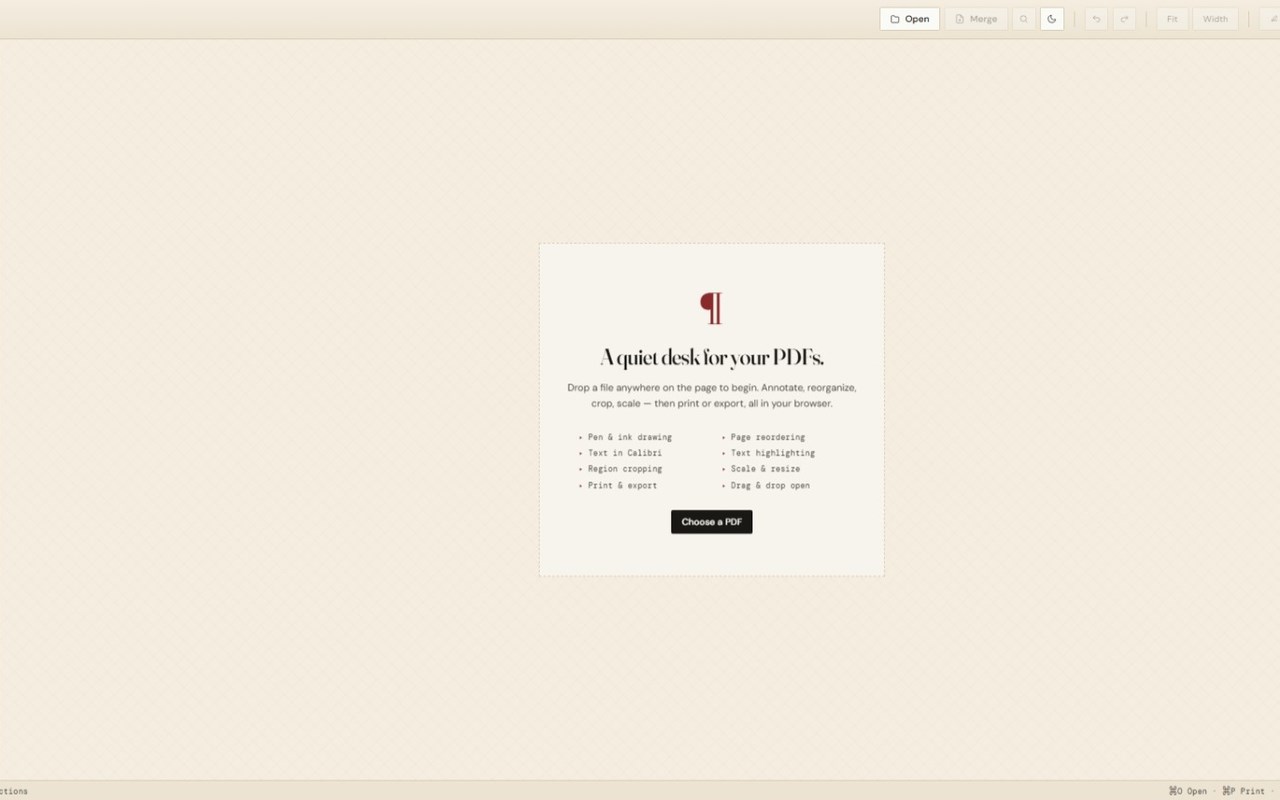
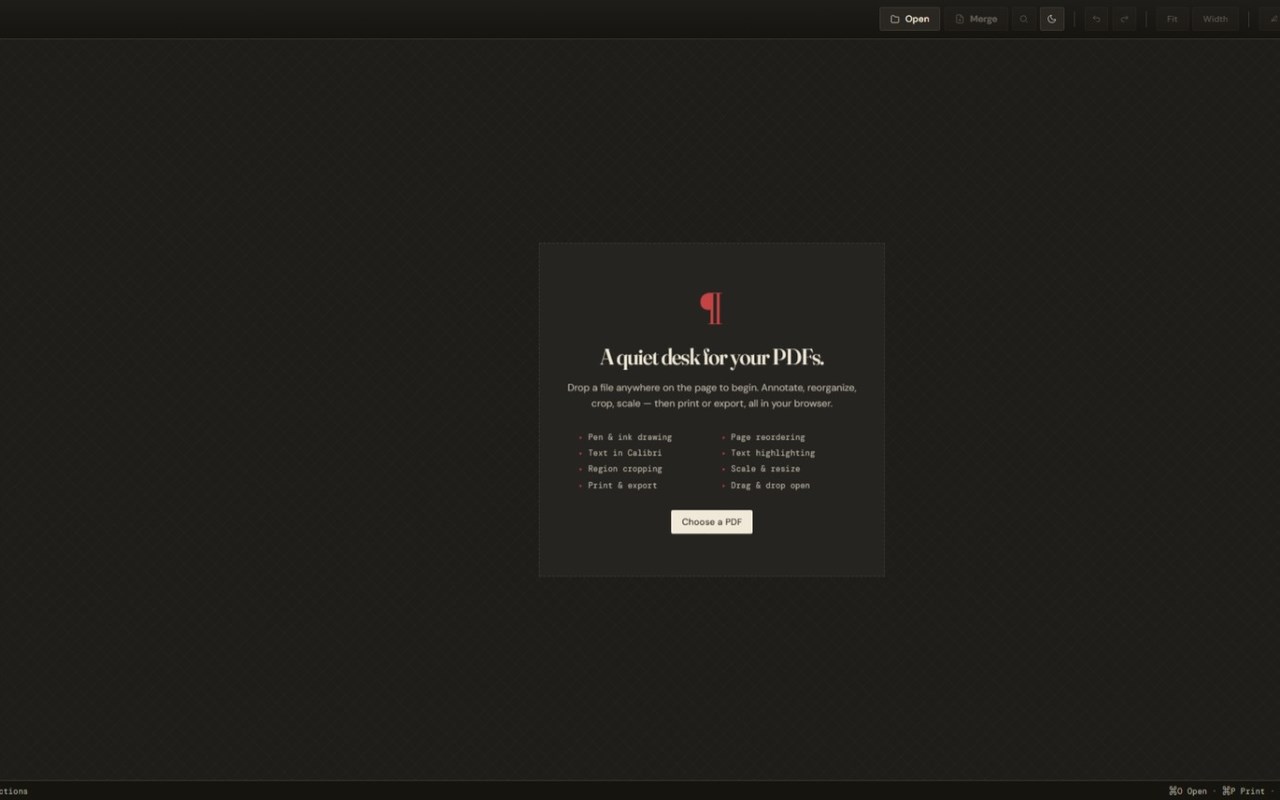
简介
PDF Editor turns any PDF into something you can mark up, sign, and share — entirely in your browser. No uploads, no accounts, no servers. Your files stay on your device.
═══ EVERYTHING YOU NEED TO MARK UP A PDF ═══
✎ Pen tool — freehand drawing in 7 pure colors with custom hex picker for any shade you want, plus adjustable stroke width
✎ Highlighter — true highlighter blending that preserves text crispness underneath, exactly like a real Sharpie on paper
✎ Text annotations — type directly on the page in Calibri, with full color, size, bold, italic, and corner-resize controls
✎ Numbered bubbles — drop sequential callouts for diagrams and engineering markup, with auto-incrementing numbers and 8 fill colors
✎ Signature pad — draw your signature once with mouse, trackpad, or touch, then place it anywhere; vector-based so it stays sharp at any size
✎ Stamps — 8 preset rubber stamps (APPROVED, DRAFT, CONFIDENTIAL, REVIEWED, REJECTED, PAID, URGENT, VOID) with optional date
✎ Image import — drop any PNG or JPG onto a page as a draggable, resizable annotation
✎ Find / Search — Ctrl+F to search text in the document, jump between matches with Enter / Shift+Enter
✎ Eraser — quick removal of any annotation
═══ POWERFUL DOCUMENT FEATURES ═══
▸ Merge multiple PDFs — append pages from any number of files, fully editable like the originals
▸ Page rotation — rotate left/right in 90° increments, bakes into export
▸ Page reordering — drag pages in the side panel to rearrange
▸ Region cropping — define a crop area that visually cuts the page
▸ Page resize — scale individual pages or the entire document
▸ Delete pages — remove unwanted pages, restore them anytime
▸ Quality-controlled export — choose Standard, High, or Maximum (288 DPI) output
═══ SMART INTERFACE ═══
✦ Single Select & Pan tool — drag empty space to scroll, drag annotations to move them, no mode switching
✦ Hold Space to force-pan even over busy areas
✦ Light and dark modes — preference persists across sessions
✦ Zoom presets — Fit page in view or fill page width with one click
✦ Full undo/redo across every edit (80-step history)
✦ Drag-and-drop file open from anywhere on the page
═══ DESIGNED FOR KEYBOARD FLUENCY ═══
V Select · P Pen · H Highlight · T Text · N Number · S Stamp · I Image · E Erase · C Crop · R Resize
Shift+L / Shift+R Rotate · Ctrl+F Find · Ctrl+Z Undo · Ctrl+P Print · Ctrl+S Export · Ctrl+O Open
Ctrl+= Zoom in · Ctrl+− Zoom out · Ctrl+0 Reset zoom
═══ PRIVACY-FIRST ═══
Everything happens locally in your browser using PDF.js for rendering and pdf-lib for export. No data leaves your computer. No telemetry, no tracking, no cloud sync. Works offline after first launch.
═══ BUILT FOR ═══
- Engineers and designers marking up technical drawings with numbered callouts
- Students annotating papers and study materials
- Reviewers leaving feedback on PDFs
- Anyone who needs to sign or stamp a document without scanning or printing
- People who care about keeping their files private
Right-click any PDF link on the web to open it instantly in PDF Editor, or click the toolbar icon to start with a fresh editor and drop in your own files.
PDF Editor 是做什么的
PDF Editor 是一款面向 Edge 的效率工具类扩展,主要用来管住注意力、屏蔽干扰站点、记录时间。官方对它的介绍是:Open PDFs in a clean editor — annotate, sign, crop, reorder, all in your browser.在微软 Edge 加载项商店上,它当前版本 1.0.3,约 656 名用户。
适合什么人用
从功能定位看,PDF Editor 更适合想专注工作学习、减少无效刷网页的用户。如果你平时只是偶尔遇到相关需求,用浏览器自带功能也能凑合;但如果这件事每天都发生,装一个专门处理它的扩展通常比手动操作省事得多。需要注意的是它作用于所有网站,装上后建议先观察一两天,确认不影响常用站点的正常使用。
怎么安装 PDF Editor
- 打开微软 Edge 加载项商店上的官方页面;
- 点「添加到浏览器」并确认权限提示;
- 装好后在扩展列表里固定图标,方便随时开关。
本站只做索引与介绍,安装包来自官方商店。如果商店页面提示当前地区不可用,说明该扩展未在你所在区域上架。
常见问题
PDF Editor 是免费的吗?
PDF Editor 在微软 Edge 加载项商店免费提供下载。它是浏览器扩展,装上就能直接用,不需要注册账号。
PDF Editor 安全吗?
它只申请了 0 项权限,范围比较克制,没有申请「读取所有网站数据」这种大权限。
PDF Editor 支持哪些浏览器?
当前收录的版本来自微软 Edge 加载项商店,适用于 Edge。同一个扩展在其他商店可能有对应版本,但功能与版本号不一定相同。
怎么卸载 PDF Editor?
在扩展管理页找到 PDF Editor,点移除即可。它在本地保存的设置会一起清掉,不会残留数据。
权限清单 来自 manifest.json 原文
站点访问(可选) 1
<all_urls>
接口权限 2
contextMenusstorage
其他商店也有这款
同一款扩展在不同浏览器下的版本,权限与更新节奏可能不同
