PageStitch – Full Page Screenshot EN
extWorldInc · EEdge MV3
Free full page screenshot of a scrolling page, area, or element. Annotate and save as PNG or PDF. No account, all on your device.
截图
简介
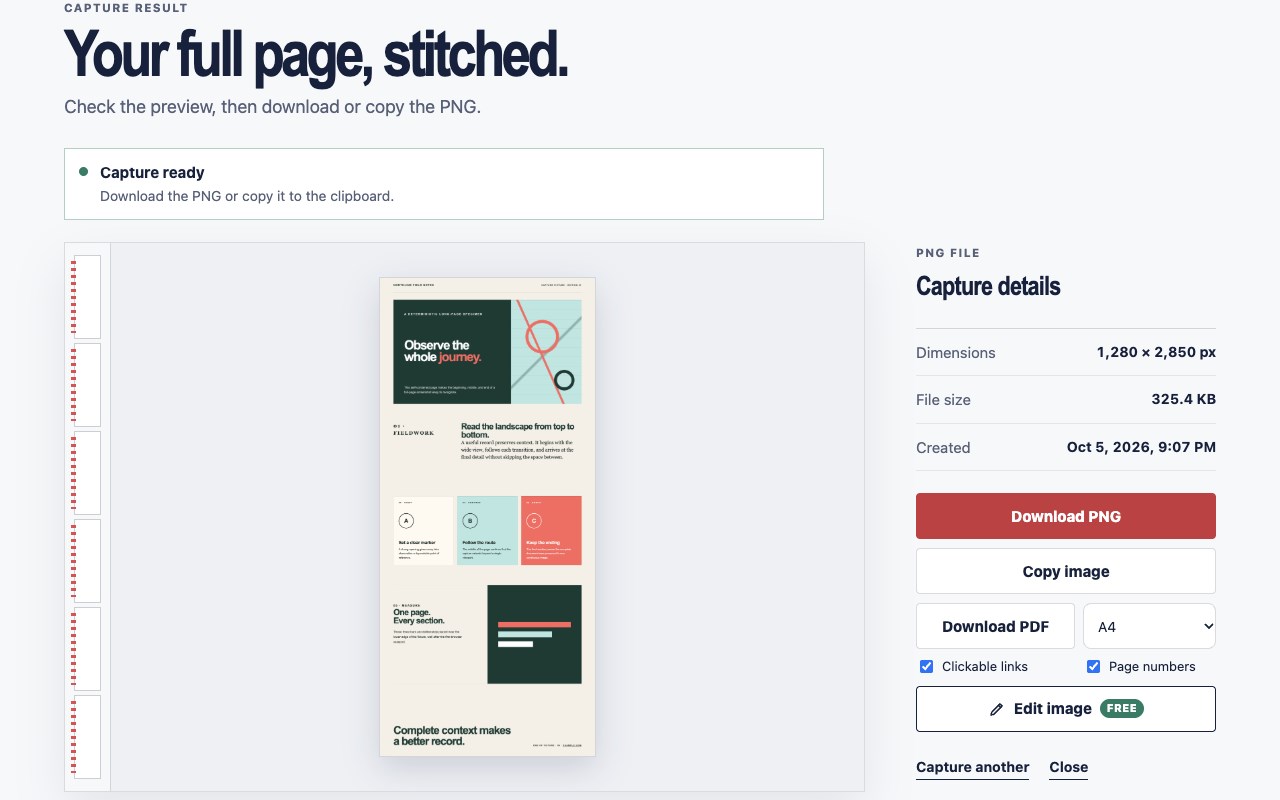
Take a free full page screenshot of any webpage. PageStitch scrolls and stitches the whole page into one sharp image, then lets you annotate it and save it as PNG or PDF.
No account, no uploads: your captures are processed and stored only on your device.
Capture the whole page or just part of it
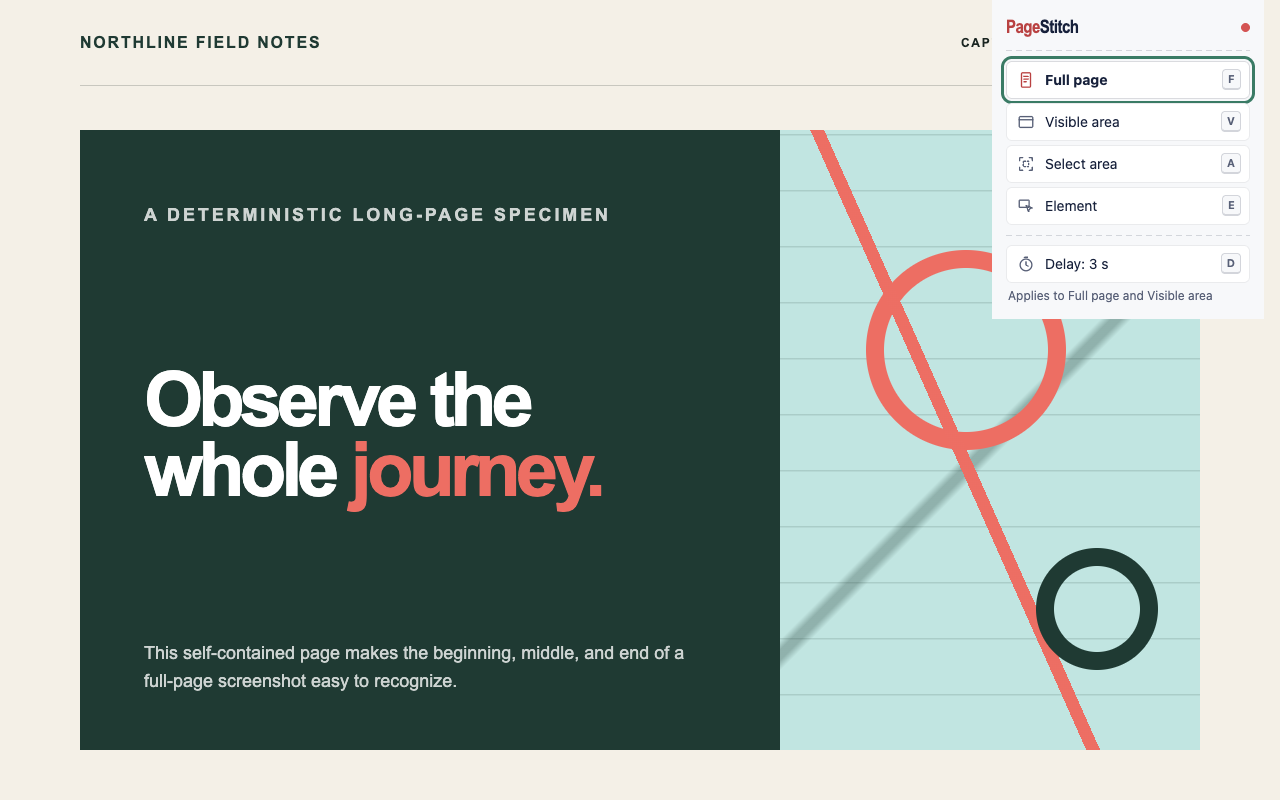
- Full page: a scrolling screenshot of the entire webpage, including pages wider than the browser window
- Visible area: just what is on screen
- Select area: drag a rectangle to capture a selected area (drag past the screen edge to select more)
- Element: capture a single element, such as a table, a chart, or a post
- Delay: wait 3 or 10 seconds before a full-page or visible-area capture
- Keyboard shortcut: Alt+Shift+S opens the capture menu (change it at edge://extensions/shortcuts); press Enter for a full page
Annotate screenshots in the free editor
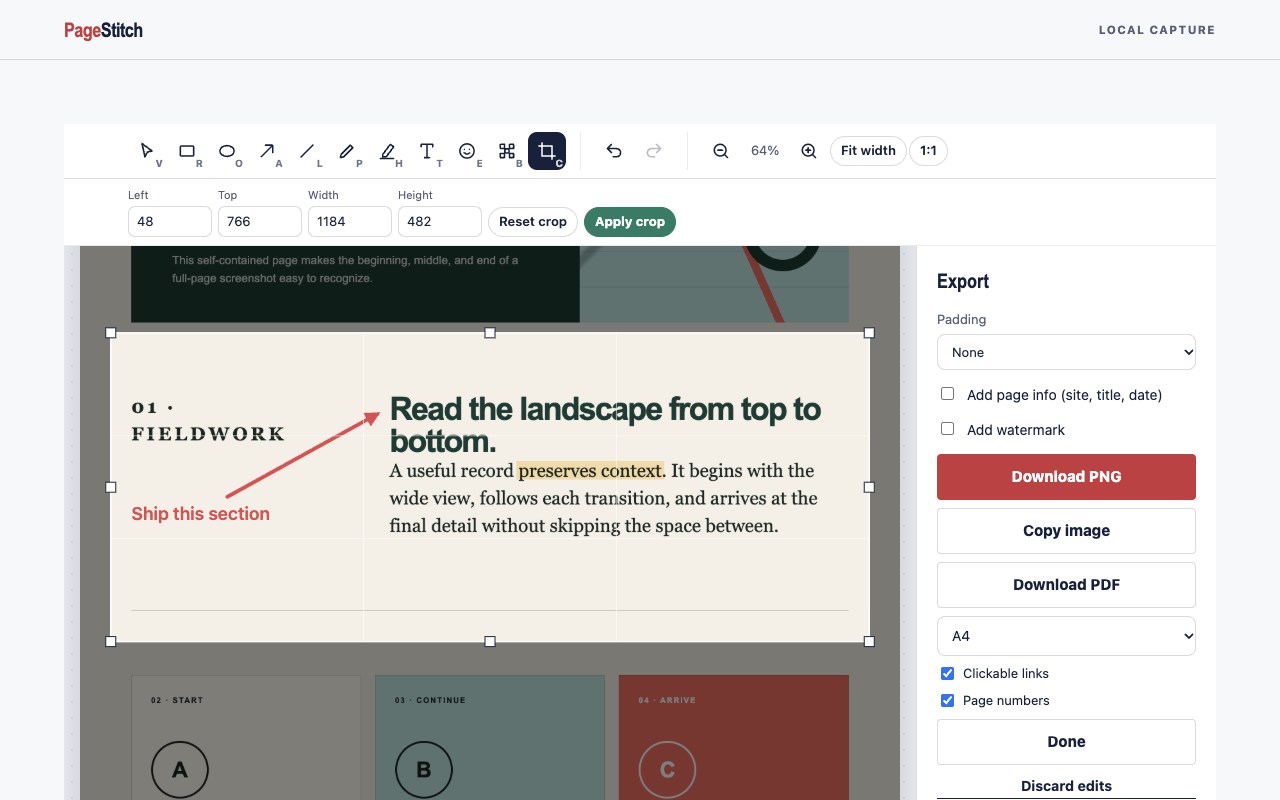
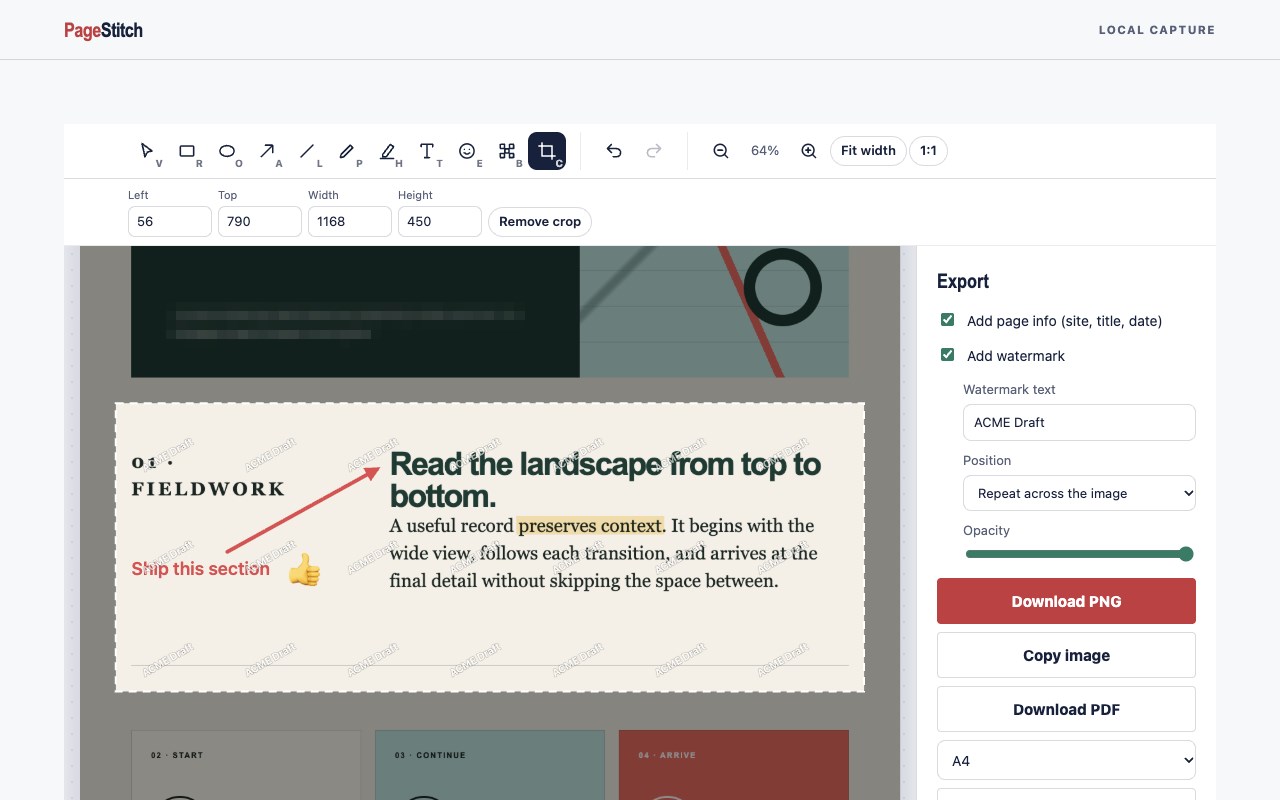
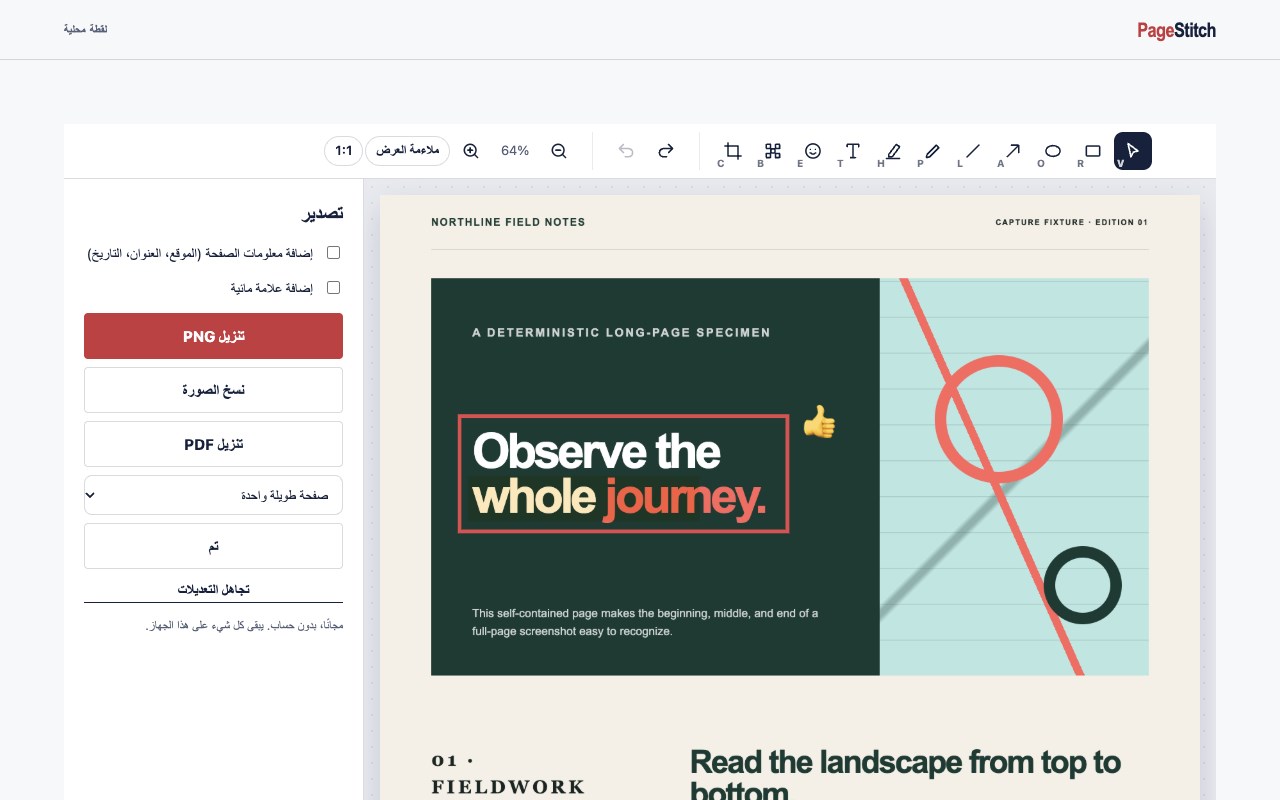
Crop losslessly with resize handles, draw arrows and shapes, highlight, write text, and add emoji. Blur sensitive info such as names, email addresses, or account numbers before you share. Stamp the page's site, title, and date (ISO format available), add a watermark or padding, and undo or redo any step. All free.
Screenshot to PDF
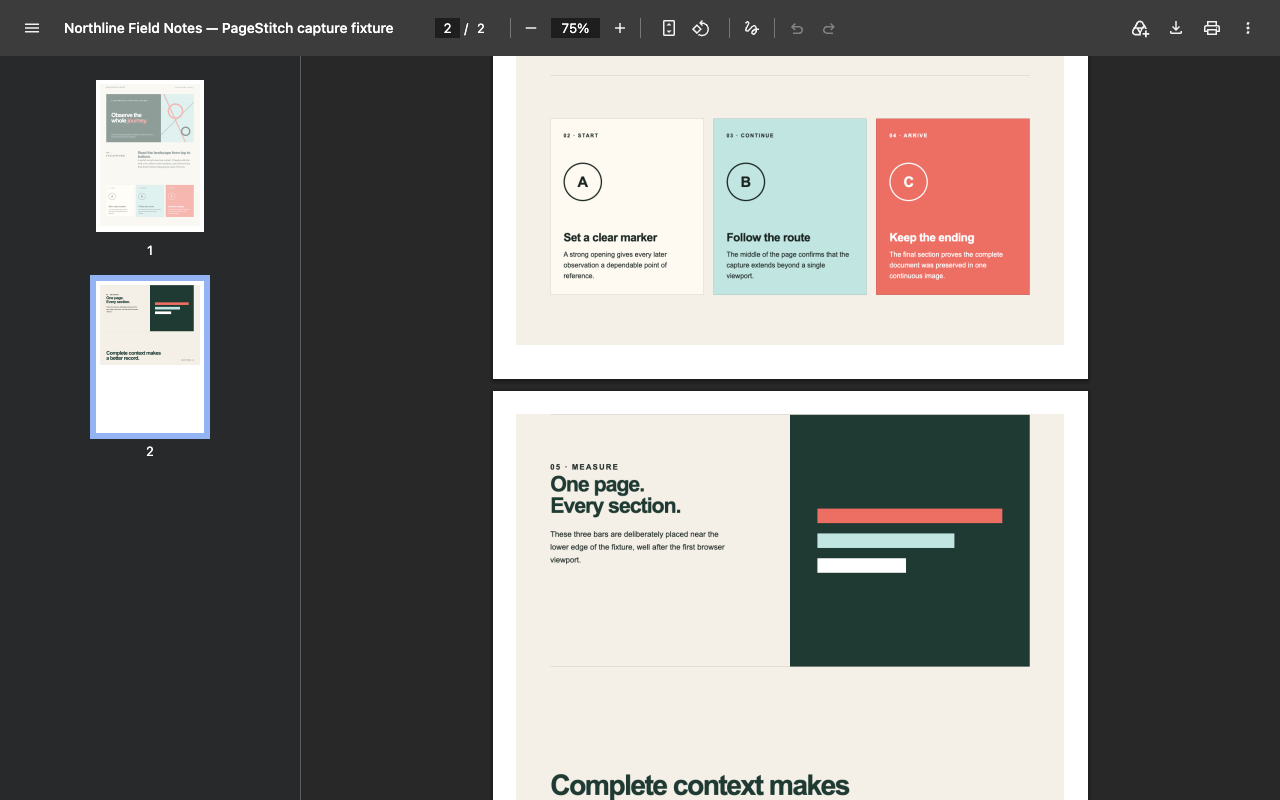
Save the webpage as PDF on one long page, A4, or US Letter, with smart page breaks, clickable links, and page numbers. Even huge captures become a single PDF.
Download or copy
- Preview the result locally, then download a PNG named after the site, page title, date, and time
- Copy the image with a button or Ctrl+C (⌘C on Mac) when Microsoft Edge and your operating system permit clipboard access
- Pages too large for one image are saved as lossless numbered PNG parts
Useful for documentation, design review, QA and bug reports, receipts, and research: any screen capture that needs more than one screen.
Private by design
PageStitch has no accounts, analytics, advertising, tracking, cloud storage, or remote code. Captures are processed and stored only on your device, never uploaded, and deleted automatically (see Privacy details below).
Privacy details
Captures are temporarily held in extension-owned browser storage. A single-image capture is deleted as soon as the result page has rendered it; a capture split into several PNG parts is kept while its result tab is open and deleted when you select Close or Capture another. Leftover records, such as those from a result tab closed from the tab strip, a failed render, or a crash, are deleted once they are 24 hours old, when the extension next starts or saves a capture. The site name and page title are kept with the local capture only to name the downloaded file and to title a PDF you save. To make links in a saved PDF clickable, PageStitch also keeps the addresses of links on the captured page, which can include the page's own address; these link addresses stay with the capture on your device, are deleted with it, are never transmitted, and are written into a file only when you save a PDF with Clickable links turned on. A small count of successful captures is kept in extension-owned local storage to decide when to show an optional review-or-support message (at most three times); the count never leaves your device and is deleted when PageStitch is removed. The editor also remembers your last editor settings (color, sizes, fill, blur strength, emoji, padding, date format, and watermark text, position, and opacity) and your PDF settings (page size, clickable links, and page numbers) in local storage on this device; this is never transmitted and is deleted when PageStitch is removed.
Limits
Microsoft Edge system pages, other extension pages, and non-HTTP(S) pages cannot be captured. Keep the source tab active until capture finishes. Pages with continuously changing layouts, nested custom scrollers, or very large dimensions may not stitch perfectly.
PageStitch – Full Page Screenshot 是做什么的
PageStitch – Full Page Screenshot 是一款面向 Edge 的效率工具类扩展,主要用来管住注意力、屏蔽干扰站点、记录时间。官方对它的介绍是:Free full page screenshot of a scrolling page, area, or element. Annotate and save as PNG or PDF. No account, all on your device.在微软 Edge 加载项商店上,它当前版本 0.5.4,约 6 名用户。
适合什么人用
从功能定位看,PageStitch – Full Page Screenshot 更适合想专注工作学习、减少无效刷网页的用户。如果你平时只是偶尔遇到相关需求,用浏览器自带功能也能凑合;但如果这件事每天都发生,装一个专门处理它的扩展通常比手动操作省事得多。
怎么安装 PageStitch – Full Page Screenshot
- 打开微软 Edge 加载项商店上的官方页面;
- 点「添加到浏览器」并确认权限提示;
- 装好后在扩展列表里固定图标,方便随时开关。
本站只做索引与介绍,安装包来自官方商店。如果商店页面提示当前地区不可用,说明该扩展未在你所在区域上架。
常见问题
PageStitch – Full Page Screenshot 是免费的吗?
PageStitch – Full Page Screenshot 在微软 Edge 加载项商店免费提供下载。它是浏览器扩展,装上就能直接用,不需要注册账号。
PageStitch – Full Page Screenshot 安全吗?
它只申请了 0 项权限,范围比较克制,没有申请「读取所有网站数据」这种大权限。
PageStitch – Full Page Screenshot 支持哪些浏览器?
当前收录的版本来自微软 Edge 加载项商店,适用于 Edge。同一个扩展在其他商店可能有对应版本,但功能与版本号不一定相同。
怎么卸载 PageStitch – Full Page Screenshot?
在扩展管理页找到 PageStitch – Full Page Screenshot,点移除即可。它在本地保存的设置会一起清掉,不会残留数据。
权限清单 来自 manifest.json 原文
接口权限 3
activeTaboffscreenscripting