
PageShotter - Full Page Screenshot EN
PageShotter · EEdge MV3
Capture, edit, and annotate full-page, visible-area, or element screenshots locally. Export searchable PDFs with clickable links.
截图
简介
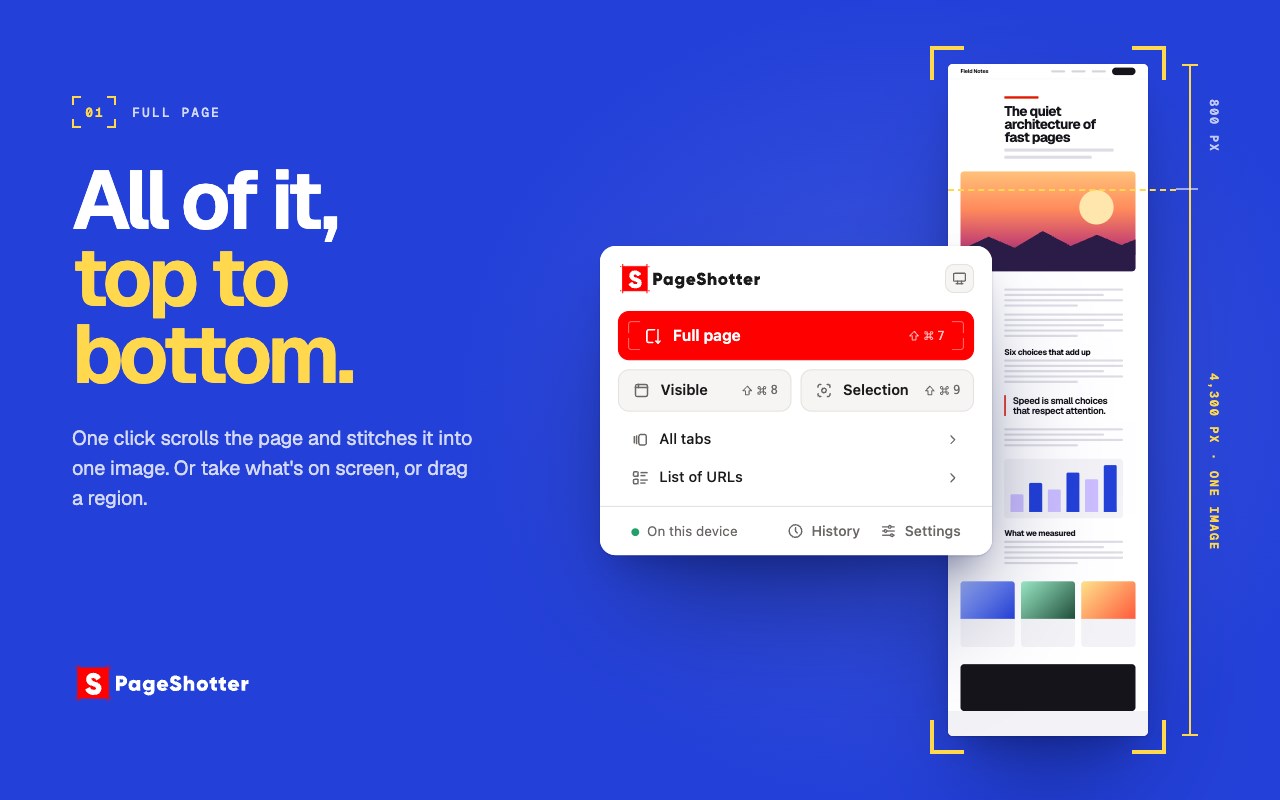
📸 Full page screenshot in one click — capture an entire webpage, top to bottom, without sending anything anywhere.
Ever needed to screenshot a whole webpage instead of just the part on your screen? PageShotter scrolls the page
for you and stitches every section into one seamless long screenshot. It happens entirely inside your browno account, no sign-up, no uploads, no analytics. Your screenshots stay on your computer unless you choose to
send one.
🖥️ THREE WAYS TO CAPTURE ANY PAGE • 📜 Full page — a complete scrolling screenshot from the header to the last line of the footer. Sticky menus
appear once instead of in every section, floating bars step out of the way, and images that load as you scare given time to arrive, so the picture matches the page.
• 🖥️ Visible area — an instant page snapshot of exactly what is on screen right now. • ✂️ Selection — drag a box over any region, or hold Ctrl and click to capture a single element: a card, atable, a chart, with its boundary found for you. A selection taller than the window scrolls as you drag it.
All three are in the page's own right-click menu too, so a capture is one click from wherever you are reading.
📚 CAPTURE MANY PAGES AT ONCE
Batch capture takes a list of addresses you paste, or the tabs you tick in the current window, and saves a
full-page screenshot of each one as its own file. Open tabs are captured where they are and left open. A reportat the end lists anything that failed, with a Retry for it.
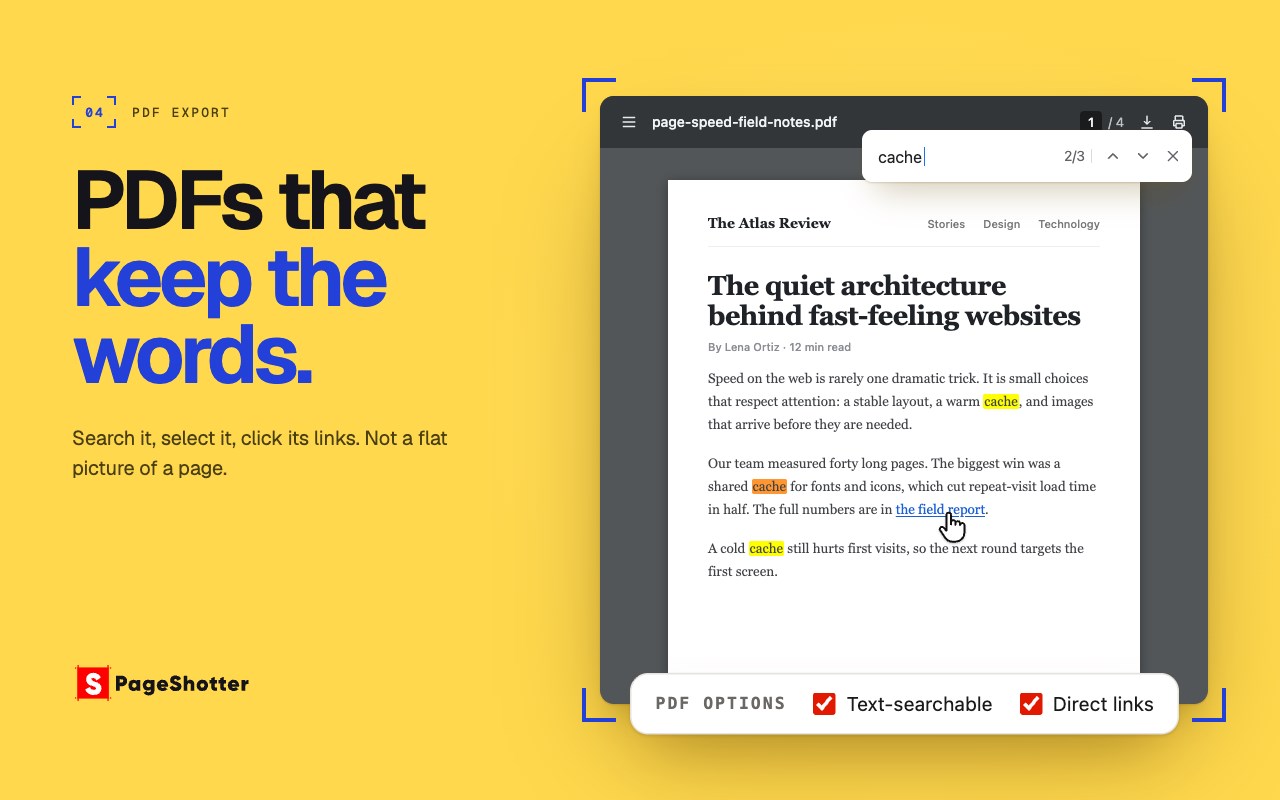
📄 A PDF YOU CAN ACTUALLY SEARCH
Most screenshot tools hand you a picture of the page. This one hands you a document. Export the screenshot to
PDF and the text stays selectable and searchable and the links stay clickable — read from the page itself, notrecovered by OCR. Ctrl+F works inside the saved file, and a link in it still goes where it went. Choose
fit-to-content or A4, Letter and Legal, and split to pages or keep one long page.
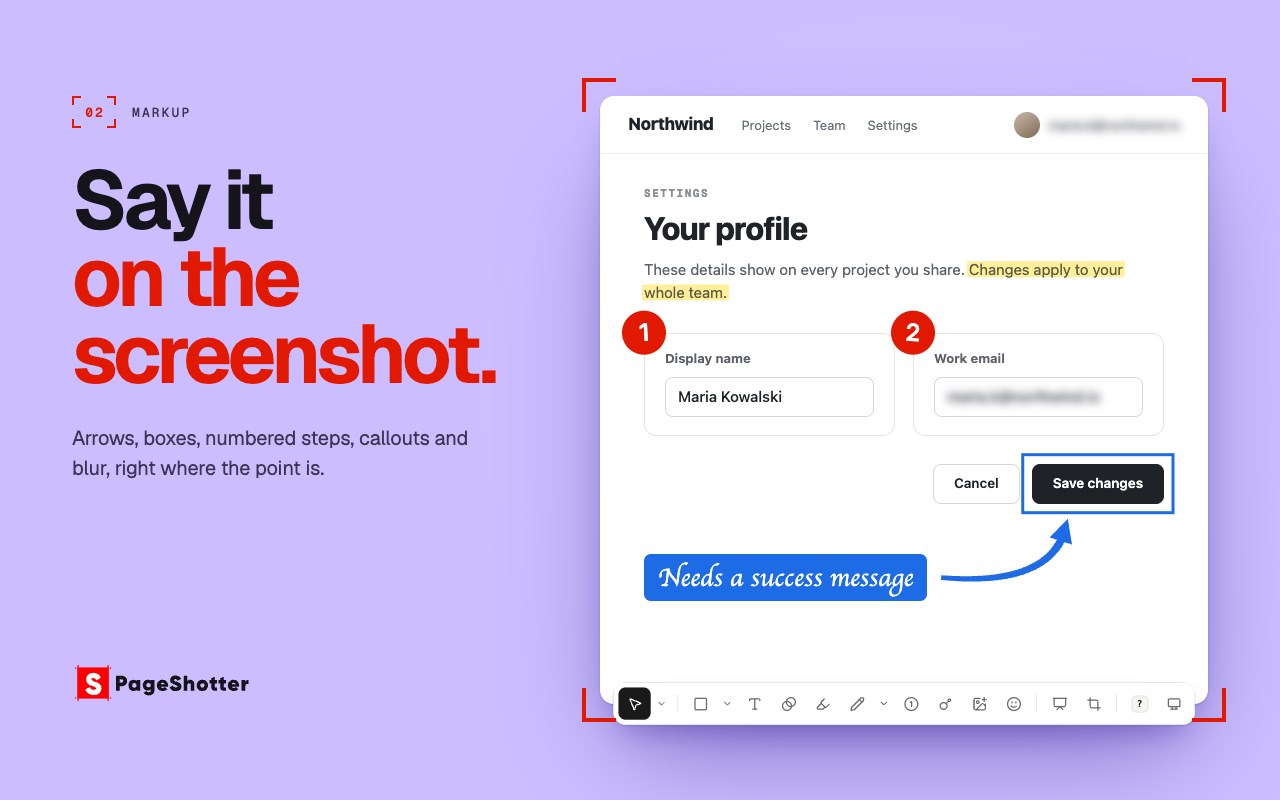
✏️ ANNOTATE BEFORE YOU EXPORT
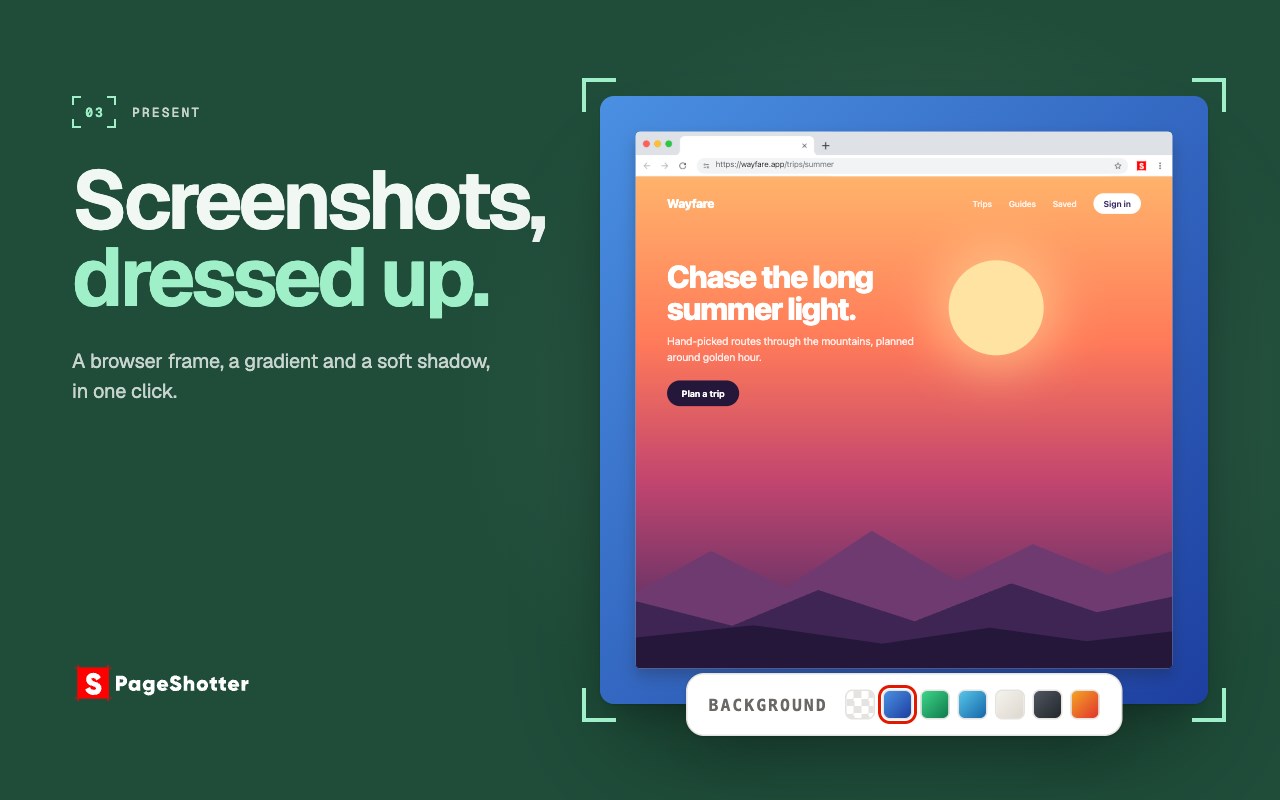
Press Edit to open the built-in screenshot editor and add rectangles, ellipses, straight or curved arrows,lines, text callouts, numbered counters, pen and marker strokes, a magnifier for small detail, highlights, emoji, pictures of your own and blur regions. Resize, rotate, reorder, group, hide or lock each mark, crop without destroying the original, and undo or redo as you work. Saved captures keep their editable layers, so reopening one from History lets you carry on instead of flattening the work. Set each tool's colour, stroke and text style once in Editor defaults, and every new mark starts the way you like it. 🖼️ MAKE IT PRESENTATION READY Press Edit, then Present, to turn a plain capture into something that belongs in a slide, a blog post or a release note: • 🪟 Wrap it in a realistic browser window, macOS or Windows, light or dark, carrying the page's own address • 🎨 Six gradient backdrops, or any colour you like • 📐 Breathing room, rounded corners and a soft drop shadow • 🗓️ Stamp the capture date on the frame if you want a record
What the preview shows is exactly what the saved file contains.
🗂️ HISTORY THAT REMEMBERS WHAT THE PAGE SAID
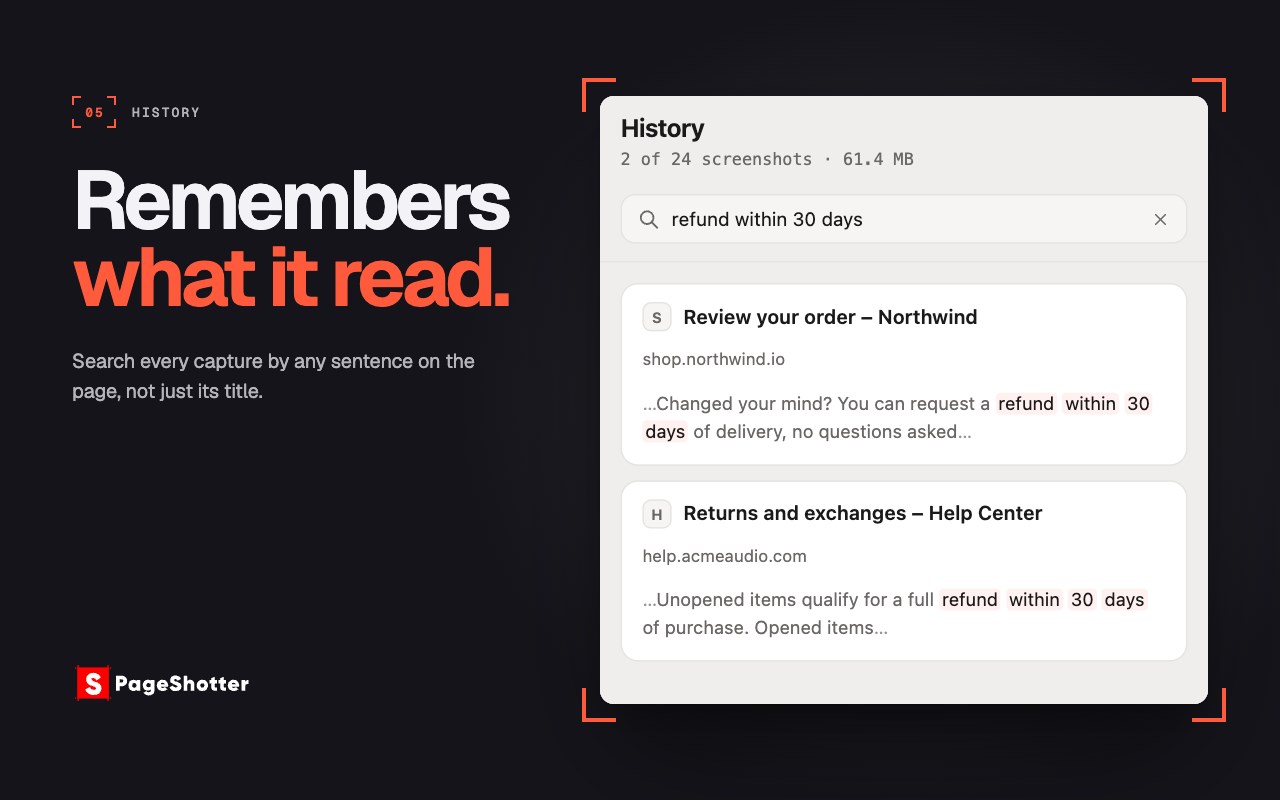
Recent captures are kept on your own computer so you can reopen and re-export them without recapturing. Search them by the words that were on the page — not only by the title the tab happened to carry. Keep them for a day, a year, or forever, and delete any of them whenever you like.
💾 EXPORT HOW YOU NEED IT
PNG, JPEG, WebP, straight to the clipboard, or PDF. Or press Gmail: a new message opens in your own Gmail with the screenshot already attached, and you write it and press Send. Crop before exporting without losing the full capture. A screenshot too large to save at full size can be exported at a smaller scale, and the menu tells you which scale will work before you press anything. Save into a folder of your choice inside Downloads, or straight to Downloads itself. Pick your usual format, quality, scale and PDF options once in Settings, and every export starts from them.
📐 BUILT FOR PAGES THAT NEVER END
Chat threads, dashboards, receipts, changelogs and endless feeds are captured in tiles rather than truncated, so a page far taller than a browser can hold in one canvas still arrives as one screenshot. Pages that keep growing as you scroll are captured to a limit you choose instead of forever.
🔒 LOCAL BY DESIGN
Installing asks for three permissions: activeTab and scripting, so PageShotter can capture the tab you invoke it on and only while it is capturing, and contextMenus for the right-click menu. It has no access to the sites you visit until you use a feature that needs it, and then the browser asks you first. Batch capture asks for access to all websites, because capturing a tab you didn't click on needs it, and one button in Settings removes it again. Send to Gmail asks for access to mail.google.com alone. No account, no analytics, no uploads: PageShotter makes no network requests of its own. Edge asks about saving into a folder only when you first use one, never at install, and choosing Downloads itself means it never asks at all.
Open source under the M…
PageShotter - Full Page Screenshot 是做什么的
PageShotter - Full Page Screenshot 是一款面向 Edge 的效率工具类扩展,主要用来管住注意力、屏蔽干扰站点、记录时间。官方对它的介绍是:Capture, edit, and annotate full-page, visible-area, or element screenshots locally. Export searchable PDFs with clickable links.在微软 Edge 加载项商店上,它当前版本 1.6.0,约 4 名用户。
适合什么人用
从功能定位看,PageShotter - Full Page Screenshot 更适合想专注工作学习、减少无效刷网页的用户。如果你平时只是偶尔遇到相关需求,用浏览器自带功能也能凑合;但如果这件事每天都发生,装一个专门处理它的扩展通常比手动操作省事得多。
怎么安装 PageShotter - Full Page Screenshot
- 打开微软 Edge 加载项商店上的官方页面;
- 点「添加到浏览器」并确认权限提示;
- 装好后在扩展列表里固定图标,方便随时开关。
本站只做索引与介绍,安装包来自官方商店。如果商店页面提示当前地区不可用,说明该扩展未在你所在区域上架。
常见问题
PageShotter - Full Page Screenshot 是免费的吗?
PageShotter - Full Page Screenshot 在微软 Edge 加载项商店免费提供下载。它是浏览器扩展,装上就能直接用,不需要注册账号。
PageShotter - Full Page Screenshot 安全吗?
它只申请了 0 项权限,范围比较克制,没有申请「读取所有网站数据」这种大权限。
PageShotter - Full Page Screenshot 支持哪些浏览器?
当前收录的版本来自微软 Edge 加载项商店,适用于 Edge。同一个扩展在其他商店可能有对应版本,但功能与版本号不一定相同。
怎么卸载 PageShotter - Full Page Screenshot?
在扩展管理页找到 PageShotter - Full Page Screenshot,点移除即可。它在本地保存的设置会一起清掉,不会残留数据。
权限清单 来自 manifest.json 原文
接口权限 3
activeTabcontextMenusscripting
接口权限(可选) 1
downloads