GitHub 安全笔记助手
Long-drong · EEdge MV3
中文版 一、产品定位 GitHub安全笔记助手是一款面向开发者与技术爱好者的**轻量化知识管理工具**,核心定位为「安全同步+本地可控」的笔记解决方案。通过将网页关键内容与截图关联存储至个人GitHub仓库,实现知识的云端备份、版本追溯与跨设备访问,同时通过严格的权限控制保障数据安全。 二、核心价值 1. **数据主权可控**:所有笔记及截图均存储于用户个人GitHub仓库,完全掌握数据所有权,避免第三方平台的数据泄露风险。 2. **安全同步机制**:采用GitHub Token认证,支持最小权限原则(仅授予仓库读写权限),降低凭证泄露后的资产风险。 3. **场景适配性强**:覆盖技术调研、资料整理、灵感记录等场景,尤其适合需要长期沉淀且频繁查阅的网页型知识(如API文档、教程、代码片段)。 三、详细功能解析 1. 核心功能模块 - **新增笔记**:支持输入标题、正文
截图
简介
中文版
一、产品定位
GitHub安全笔记助手是一款面向开发者与技术爱好者的**轻量化知识管理工具**,核心定位为「安全同步+本地可控」的笔记解决方案。通过将网页关键内容与截图关联存储至个人GitHub仓库,实现知识的云端备份、版本追溯与跨设备访问,同时通过严格的权限控制保障数据安全。
二、核心价值
1. **数据主权可控**:所有笔记及截图均存储于用户个人GitHub仓库,完全掌握数据所有权,避免第三方平台的数据泄露风险。
2. **安全同步机制**:采用GitHub Token认证,支持最小权限原则(仅授予仓库读写权限),降低凭证泄露后的资产风险。
3. **场景适配性强**:覆盖技术调研、资料整理、灵感记录等场景,尤其适合需要长期沉淀且频繁查阅的网页型知识(如API文档、教程、代码片段)。
三、详细功能解析
1. 核心功能模块
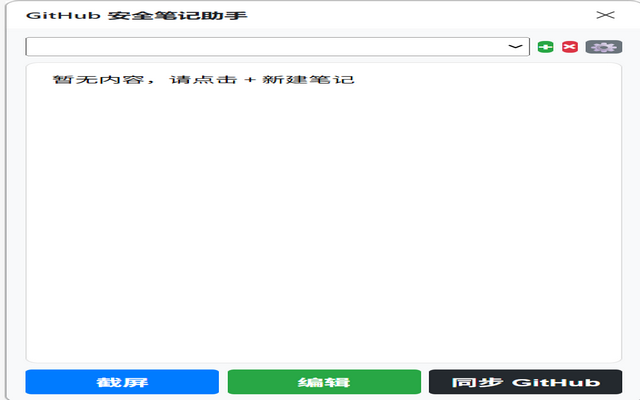
- **新增笔记**:支持输入标题、正文内容,自动关联当前网页URL(可选),并可一键截取网页局部/全屏图像(支持自定义截图区域),形成「文字+图片+来源」的完整知识单元。
- **编辑笔记**:允许修改标题、正文及替换截图,修改记录可通过GitHub提交历史追溯(需开启仓库提交记录查看)。
- **删除笔记**:彻底移除本地及GitHub仓库中的对应文件(含Markdown正文与截图文件),操作不可逆,建议谨慎使用。
- **截图功能**:集成网页截图工具,支持JPG/PNG格式,截图文件自动命名并存储于笔记同名目录,便于后续检索。
- **同步GitHub**:手动/自动触发同步,将本地笔记(Markdown格式)与截图上传至指定仓库的`notes/`目录(可自定义路径),同步状态实时反馈(成功/失败原因提示)。
2. 安全增强设计
- **Token安全规范**:强制要求用户创建「仅仓库读写权限」的Personal Access Token(PAT),禁止勾选`delete_repo`等高危权限;建议通过密码管理器存储Token,避免明文暴露。
- **本地加密存储**:Token默认加密存储于本地配置文件(如AES-256加密),仅在同步时临时解密,降低本地泄露风险。
- **仓库隔离策略**:推荐用户创建专用仓库(如`my-safe-notes`),避免与个人代码仓库混存,减少误操作影响范围。
四、使用流程指引
1. **前置准备**:
- 注册GitHub账号并完成邮箱验证;
- 创建专用仓库(建议设为Private,进一步保护隐私);
- 进入GitHub Settings → Developer settings → Personal access tokens,生成仅含`repo`(仓库读写)权限的Token,复制保存(仅显示一次)。
2. **初始化配置**:
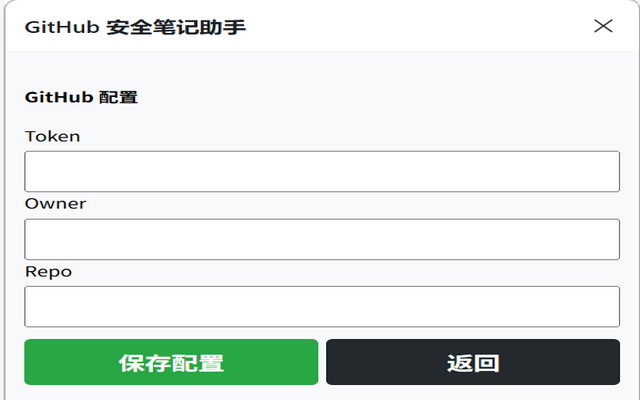
- 打开助手工具,输入GitHub用户名、仓库名及Token,完成首次绑定;
- 验证连接成功后,即可开始创建笔记。
3. **日常使用**:
- 浏览目标网页时,点击助手插件/桌面端按钮,输入笔记标题→编辑正文→截取所需图像→点击「同步」,完成知识入库;
- 后续可在工具内直接编辑已存笔记,修改后重新同步即可更新GitHub仓库内容。
五、注意事项
- **Token保管责任**:Token等同于仓库操作密钥,丢失可能导致他人篡改/删除笔记,需立即在GitHub撤销并重新生成。
- **同步频率建议**:非高频场景下建议手动同步,避免因网络波动导致重复提交;大文件截图(>10MB)可能触发GitHub API限制,建议压缩后上传。
- **版本冲突处理**:若多人协作同一仓库(不推荐),需通过Git分支管理避免覆盖,单用户场景下工具会自动处理提交冲突。
English Version
# GitHub Secure Notes Assistant - Extended Guide
I. Product Positioning
The GitHub Secure Notes Assistant is a **lightweight knowledge management tool** designed for developers and tech enthusiasts. Its core value lies in being a "secure sync + locally controlled" note-taking solution. By syncing web content (text + screenshots) to users' personal GitHub repositories, it enables cloud backup, version tracking, and cross-device access—all while ensuring data security through strict permission controls.
II. Core Values
1. **Data Sovereignty**: All notes and screenshots are stored in users' personal GitHub repositories, giving full ownership of data and eliminating third-party platform leakage risks.
2. **Secure Sync Mechanism**: Uses GitHub Personal Access Tokens (PATs) with the principle of least privilege (only repository read/write permissions), reducing asset risks if credentials are compromised.
3. **High Scenario Adaptability**: Covers technical research, material organization, and inspiration recording—ideal for long-term storage of web-based knowledge (e.g., API docs, tutorials, code snippets).
III. Detailed Feature Breakdown
1. Core Function Modules
- **Add Note**: Input title and body text, optionally auto-link the current webpage URL, and capture full-page/partial screenshots (customizable region selection). Forms a complete knowledge unit with "text + image + source".
- **Edit Note**: Modify titles, body text, or replace screenshots. Edit history can be traced via GitHub commit logs (requires enabling repository commit visibility).
- **Delete Note**: Permanently removes corresponding files (Markdown body + screenshot) from both local storage and GitHub. Irreversible—use with caution.
- **Screenshot Tool**: Built-in web capture supporting JPG/PNG formats. Screenshots are auto-named and stored in a directory named after the note for easy retrieval.
- **Sync to GitHub**: Manually/auto-trigger sync to upload local notes (Markdown) and screenshots to the `notes/` directory (customizable path) of the specified repository. Real-time feedback on sync status (success/failure reasons).
2. Security Enhancements
- **Token Best Practices**: Enforces creation of PATs with *only* `repo` (repository read/write) permissions; prohibits high-risk scopes like `delete_repo`. Recommends storing tokens in password managers to avoid plaintext exposure.
- **Local Encrypted Storage**: Tokens are encrypted (AES-256) by default in local config files, decrypted only temporarily during sync to reduce local leakage risks.
- **Repository Isolation**: Advises creating a dedicated repository (e.g., `my-safe-notes`) instead of mixing with personal code repos, minimizing accidental impact scope.
IV. Usage Workflow
1. **Prerequisites**:
- Sign up for a GitHub account and verify your email.
- Create a dedicated repository (set to Private for privacy).
- Go to GitHub Settings → Developer settings → Personal access tokens, generate a token with *only* `repo` permissions, and save it (visible once only).
2. **Initial Setup**:
- Open the assistant tool, enter your GitHub username, repository name, and token to complete binding.
- After successful connection verification, start creating notes.
3. **Daily Use**:
- While browsing a target webpage, click the plugin/desktop app button: enter note title → edit body text → capture needed images → click "Sync" to store knowledge.
- Later, directly edit saved notes in the tool and re-sync to update the GitHub repository.
V. Important Notes
- **Token Custody Responsibility**: Tokens act as repository operation keys. Loss may lead to unauthorized edits/deletions—immediately revoke and regenerate in GitHub if lost.
- **Sync Frequency Tips**: For non-high-frequency use, manual sync is recommended to avoid duplicate commits from network issues. Large screenshots (>10MB) may hit GitHub API limits—compress before uploading.
- **Version Conflict Handling**: If collaborating on the same repository (not recommended), use Git branches to prevent overwrites. For single-user scenarios, the tool auto-resolves sync conflicts.
GitHub 安全笔记助手 是做什么的
GitHub 安全笔记助手 是一款面向 Edge 的效率工具类扩展,主要用来管住注意力、屏蔽干扰站点、记录时间。官方对它的介绍是:中文版 一、产品定位 GitHub安全笔记助手是一款面向开发者与技术爱好者的**轻量化知识管理工具**,核心定位为「安全同步+本地可控」的笔记解决方案。通过将网页关键内容与截图关联存储至个人GitHub仓库,实现知识的云端备份、版本追溯与跨设备访问,同时通过严格的权限控制保障数据安全。 二、核心价值 1. **数据主权可控**:所有笔记及截图均存储于用户个人GitHub仓库,完全掌握数据所有权,避免第三方平台的数据泄露风险。 2. **安全同步机制**:采用GitHub Token认证,支持最小权限原则(仅授予仓库读写权限),降低凭证泄露后的资产风险。 3. **场景适配性强**:覆盖技术调研、资料整理、灵感记录等场景,尤其适合需要长期沉淀且频繁查阅的网页型知识(如API文档、教程、代码片段)。 三、详细功能解析 1. 核心功能模块 - **新增笔记**:支持输入标题、正文在微软 Edge 加载项商店上,它当前版本 1.1,约 10 名用户。
适合什么人用
从功能定位看,GitHub 安全笔记助手 更适合想专注工作学习、减少无效刷网页的用户。如果你平时只是偶尔遇到相关需求,用浏览器自带功能也能凑合;但如果这件事每天都发生,装一个专门处理它的扩展通常比手动操作省事得多。
怎么安装 GitHub 安全笔记助手
- 打开微软 Edge 加载项商店上的官方页面;
- 点「添加到浏览器」并确认权限提示;
- 装好后在扩展列表里固定图标,方便随时开关。
本站只做索引与介绍,安装包来自官方商店。如果商店页面提示当前地区不可用,说明该扩展未在你所在区域上架。
常见问题
GitHub 安全笔记助手 是免费的吗?
GitHub 安全笔记助手 在微软 Edge 加载项商店免费提供下载。它是浏览器扩展,装上就能直接用,不需要注册账号。
GitHub 安全笔记助手 安全吗?
它只申请了 0 项权限,范围比较克制,没有申请「读取所有网站数据」这种大权限。
GitHub 安全笔记助手 支持哪些浏览器?
当前收录的版本来自微软 Edge 加载项商店,适用于 Edge。同一个扩展在其他商店可能有对应版本,但功能与版本号不一定相同。
怎么卸载 GitHub 安全笔记助手?
在扩展管理页找到 GitHub 安全笔记助手,点移除即可。它在本地保存的设置会一起清掉,不会残留数据。
权限清单 来自 manifest.json 原文
接口权限 5
activeTabcontextMenusscriptingsidePanelstorage