
GetTranscript — Video Transcript Exporter EN
RobinMJD · EEdge MV3
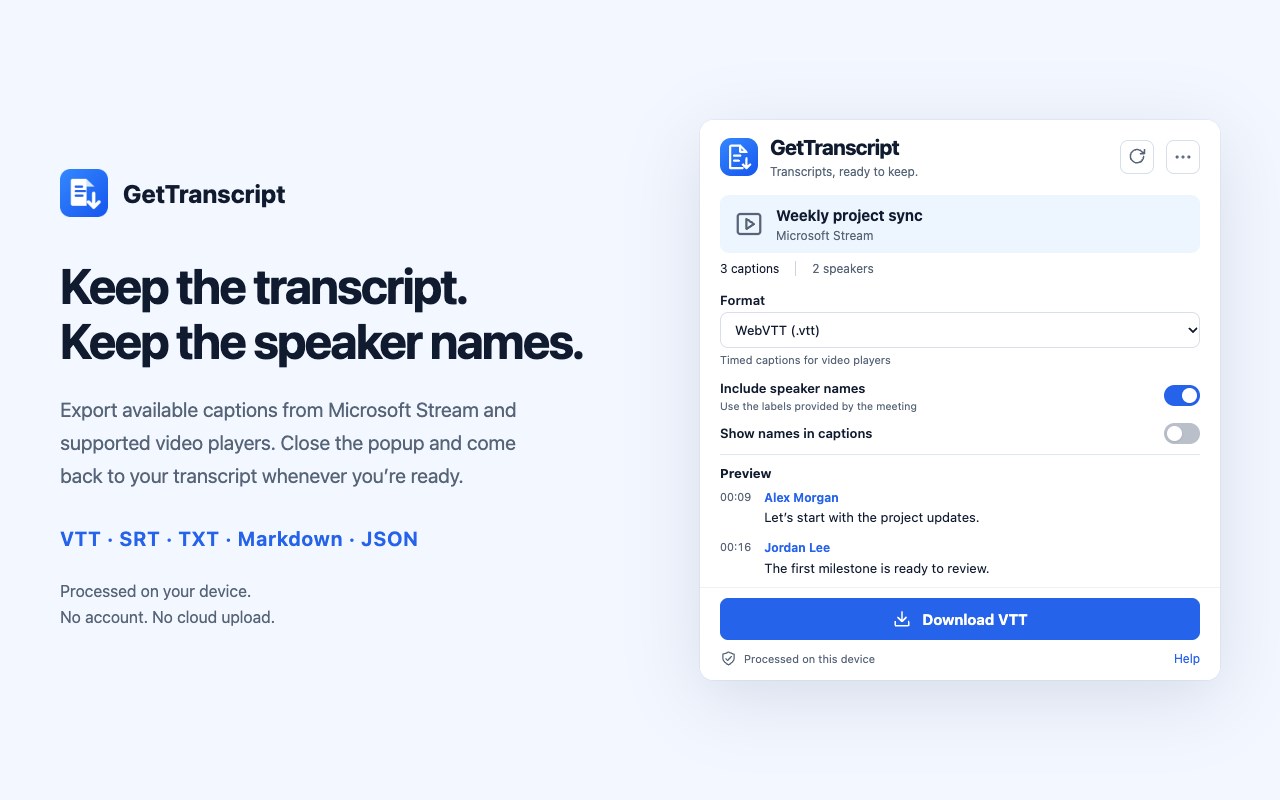
Export video transcripts as VTT, SRT, text, Markdown or JSON. Preserve available speaker names. Processed locally on click.
截图
简介
Keep the conversation in a format you can use.
GetTranscript exports captions already available on a video page. Open the extension, choose a format, and download. A Caption track selector appears only when the player provides multiple separate tracks. Transcripts can contain several spoken languages. Choose WebVTT for caption tools, SRT for video editors, plain text or Markdown for notes, and JSON for structured processing.
On supported Microsoft Stream pages, GetTranscript first reads the recording's structured transcript and native speaker names without scrolling the transcript panel. If needed, it uses the player's captions and matches panel labels by text and timestamps. It preserves existing VTT voice tags on other supported players. Unmatched captions remain unnamed.
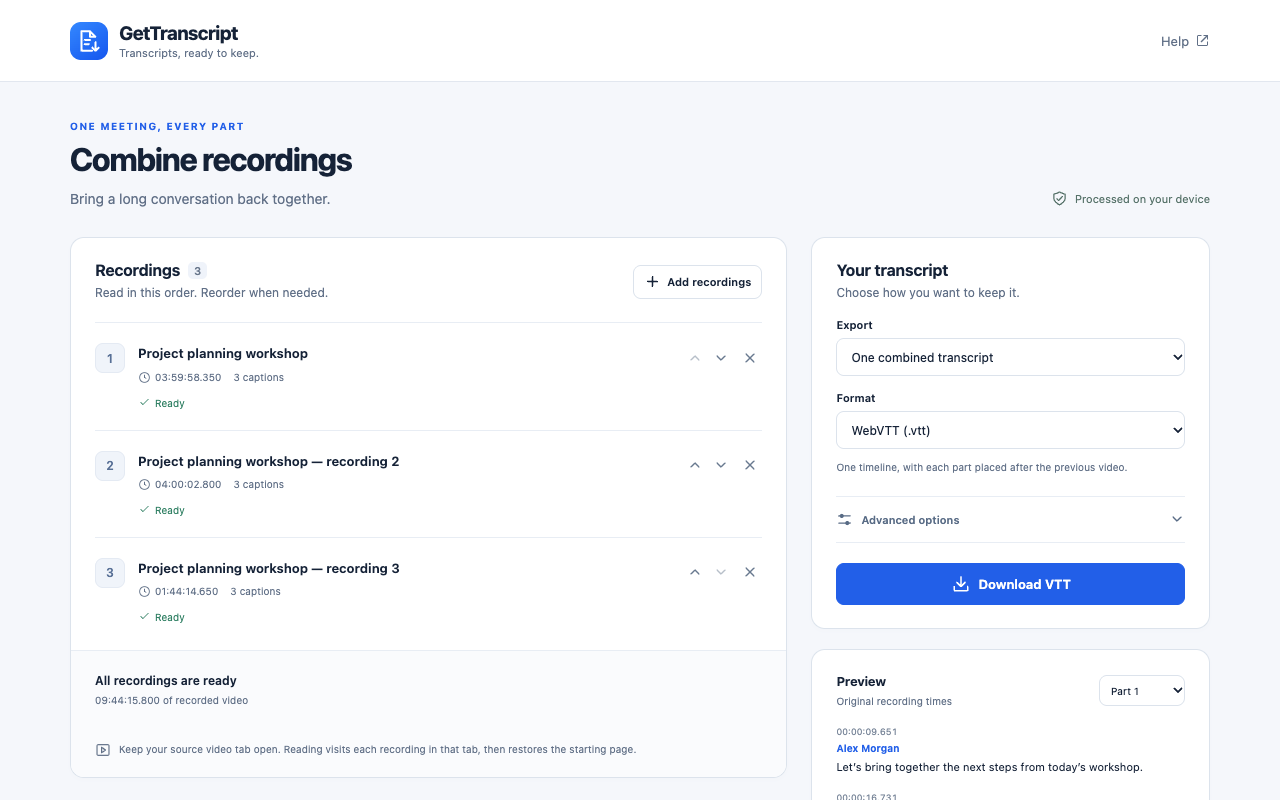
Meeting split into several recordings? Open More options → Combine recordings. Add up to 20 links from the same website, arrange the parts and choose one combined transcript or a ZIP of separate files. Find links on source offers Stream links already present on the page; it does not guess filenames. Speaker names are matched separately for each part.
Join recordings end to end using their full video durations, set start times to preserve known gaps, or keep each part’s original times in Markdown, text and JSON. Separate files always retain original timestamps. Small caption overruns of up to 5 seconds are preserved with a timing warning while the next part keeps its video-duration offset. Larger timing conflicts block the shared timeline. Recordings with different spoken languages can be combined without changing or translating their text. Markdown, text and JSON can include links back to the recordings.
Reading visits each recording in your open source tab, then restores its starting page and player state when you have not navigated elsewhere. Keep that tab open. Close the popup or workspace whenever you like: reading and exports continue, and reopening restores progress and download status. Pause and continue collection, or retry a failed part. Slow Stream players get up to 45 seconds to become ready, and supported Transcript controls open automatically. If help is needed, Open recording brings the source tab forward so you can open Transcript before retrying without a reload. The player fallback reports incomplete speaker coverage when it cannot expose further rows.
Everything is processed locally. There is no developer server, analytics, account registration or AI processing. Results, recording links and progress checkpoints stay in temporary browser session memory. Refresh replaces cached results; source-tab close, browser restart or extension reload clears them. Only export preferences are stored persistently. The extension uses temporary access to the source tab without permanent access to every website.
Requirements: a readable caption track in a supported HTML5 player, or a standard Microsoft Stream recording page hosted on SharePoint with an accessible transcript. Caption languages are discovered without a language whitelist. A transcript containing multiple spoken languages remains together; no single language is assigned to the whole conversation in the interface. The interface is in English; captions retain their original language and text direction. For embedded videos, open the original player page. For pages without captions, GetTranscript cannot generate a transcript from audio. Live caption sources may expose only a rolling window.
GetTranscript is independent of Microsoft and Google. Export only content you are authorized to keep.
GetTranscript — Video Transcript Exporter 是做什么的
GetTranscript — Video Transcript Exporter 是一款面向 Edge 的效率工具类扩展,主要用来管住注意力、屏蔽干扰站点、记录时间。官方对它的介绍是:Export video transcripts as VTT, SRT, text, Markdown or JSON. Preserve available speaker names. Processed locally on click.在微软 Edge 加载项商店上,它当前版本 1.3.1,约 12 名用户。
适合什么人用
从功能定位看,GetTranscript — Video Transcript Exporter 更适合想专注工作学习、减少无效刷网页的用户。如果你平时只是偶尔遇到相关需求,用浏览器自带功能也能凑合;但如果这件事每天都发生,装一个专门处理它的扩展通常比手动操作省事得多。
怎么安装 GetTranscript — Video Transcript Exporter
- 打开微软 Edge 加载项商店上的官方页面;
- 点「添加到浏览器」并确认权限提示;
- 装好后在扩展列表里固定图标,方便随时开关。
本站只做索引与介绍,安装包来自官方商店。如果商店页面提示当前地区不可用,说明该扩展未在你所在区域上架。
常见问题
GetTranscript — Video Transcript Exporter 是免费的吗?
GetTranscript — Video Transcript Exporter 在微软 Edge 加载项商店免费提供下载。它是浏览器扩展,装上就能直接用,不需要注册账号。
GetTranscript — Video Transcript Exporter 安全吗?
它只申请了 0 项权限,范围比较克制,没有申请「读取所有网站数据」这种大权限。
GetTranscript — Video Transcript Exporter 支持哪些浏览器?
当前收录的版本来自微软 Edge 加载项商店,适用于 Edge。同一个扩展在其他商店可能有对应版本,但功能与版本号不一定相同。
怎么卸载 GetTranscript — Video Transcript Exporter?
在扩展管理页找到 GetTranscript — Video Transcript Exporter,点移除即可。它在本地保存的设置会一起清掉,不会残留数据。
权限清单 来自 manifest.json 原文
接口权限 4
activeTabdownloadsscriptingstorage