
EasyPDF: Edit, Compress, Sign PDF EN
EasyPDF · EEdge MV3
Edit, compress, merge, sign and convert PDF right in your browser. Fonts preserved, no account needed, done in seconds.
截图
简介
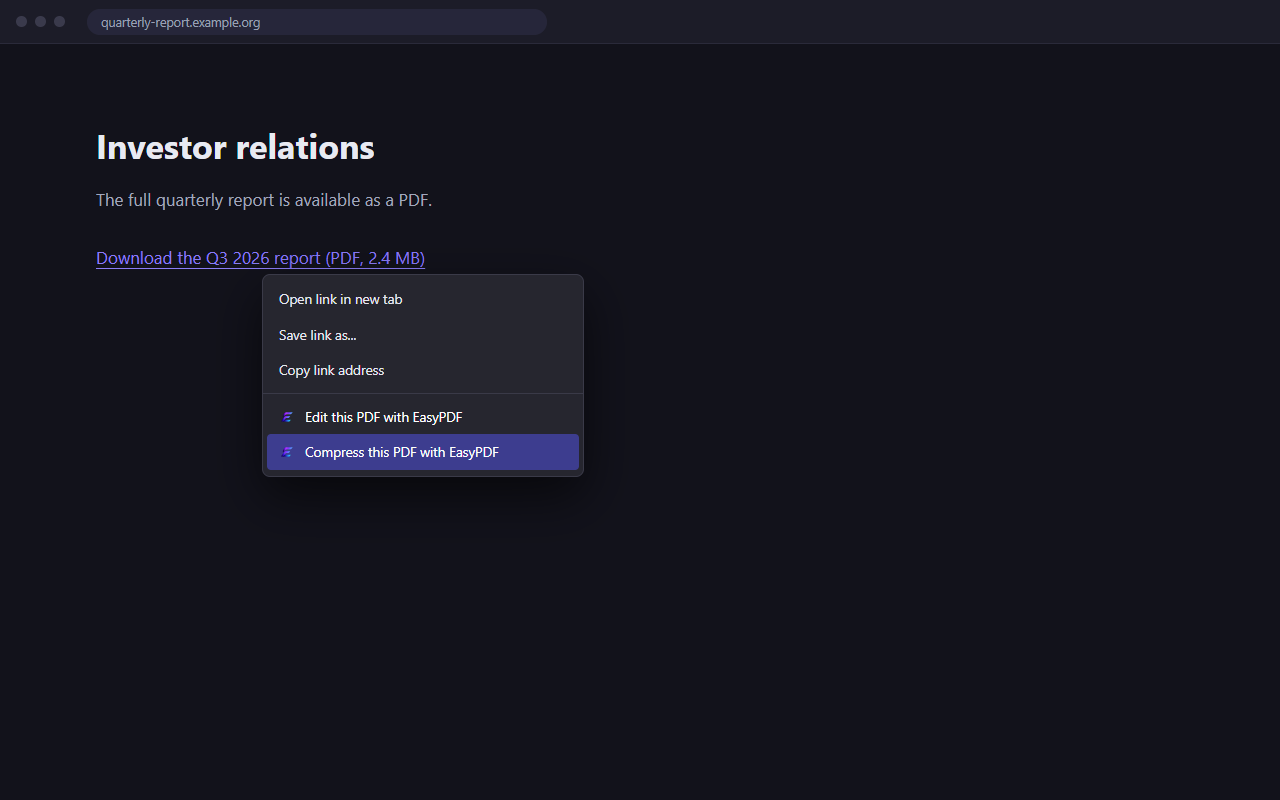
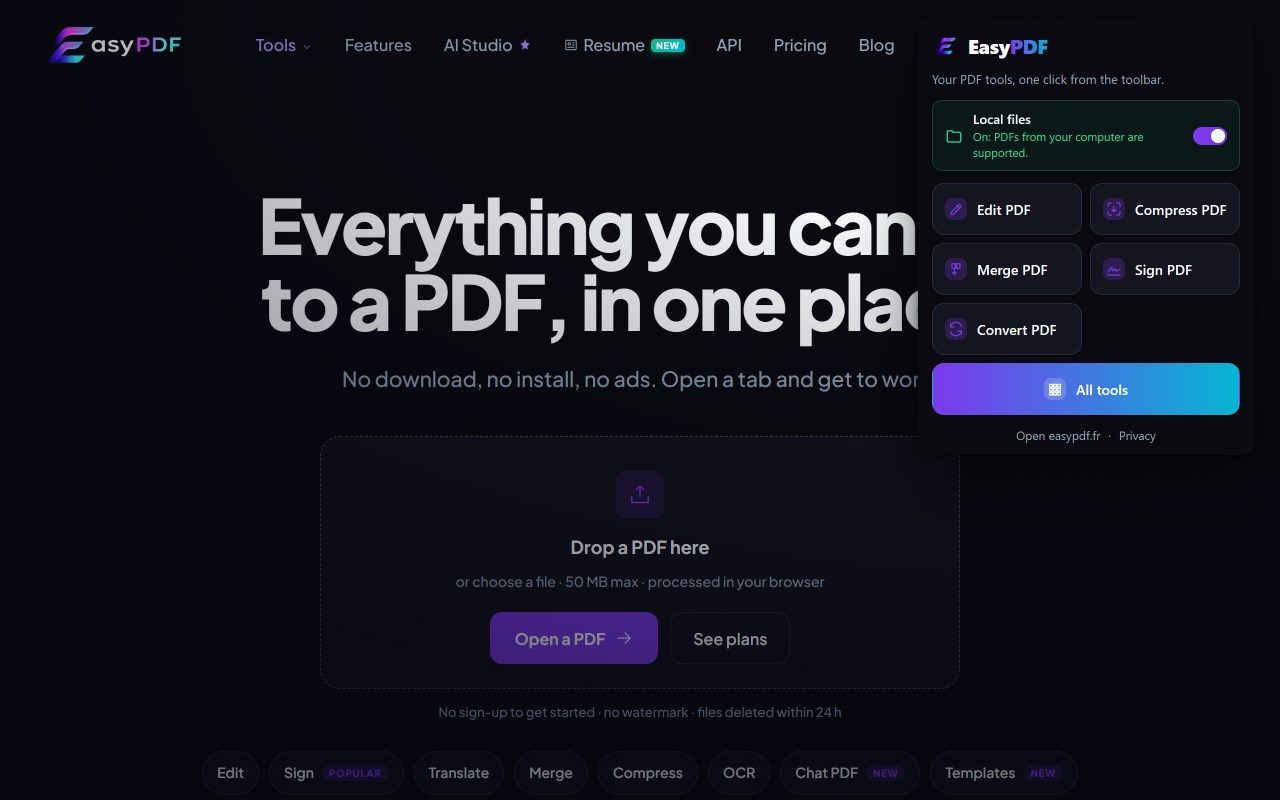
EasyPDF brings the PDF tools of easypdf.fr to Microsoft Edge. Right-click a PDF link or an open PDF, choose Edit, Compress, Sign or Translate, and the matching tool opens in a new tab with the file already loaded. No manual download, no drag and drop, no search for the right page.
WHAT YOU CAN DO
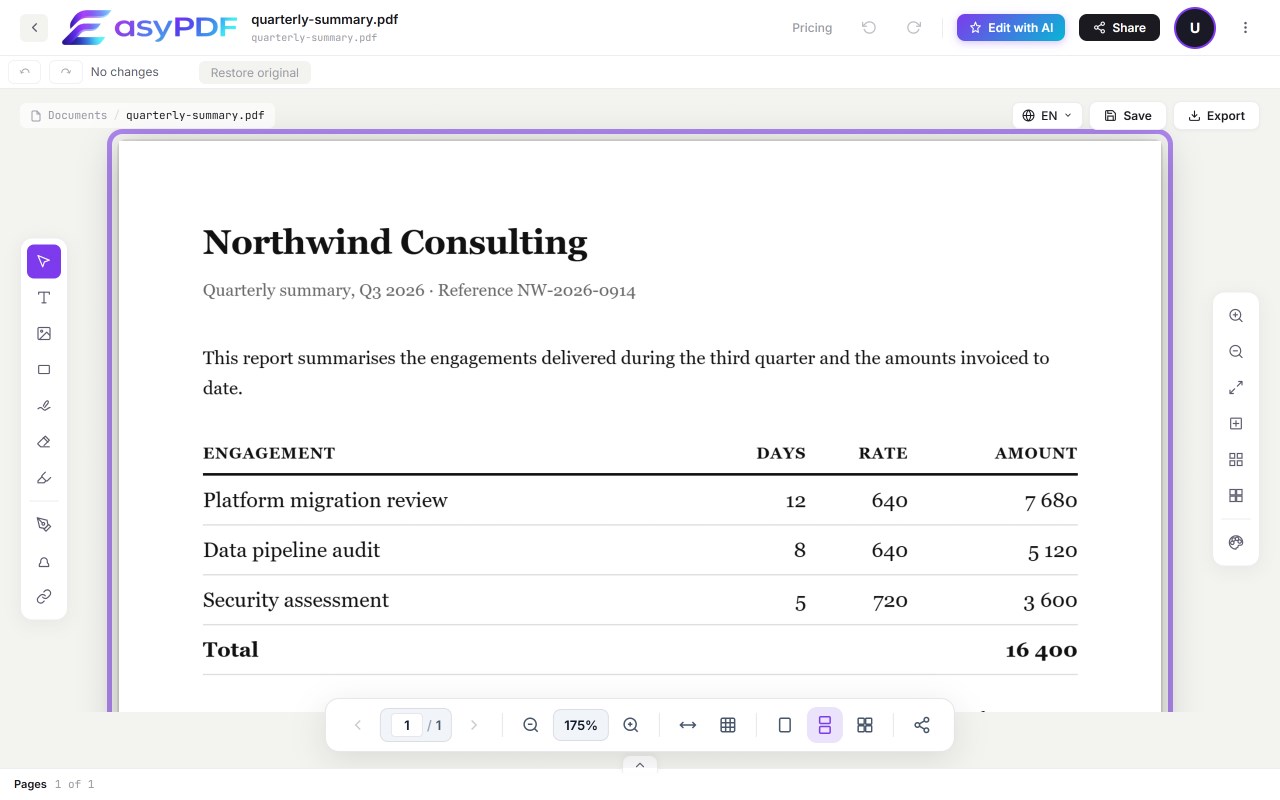
- Edit PDF: change the existing text of a PDF, the original fonts are kept.
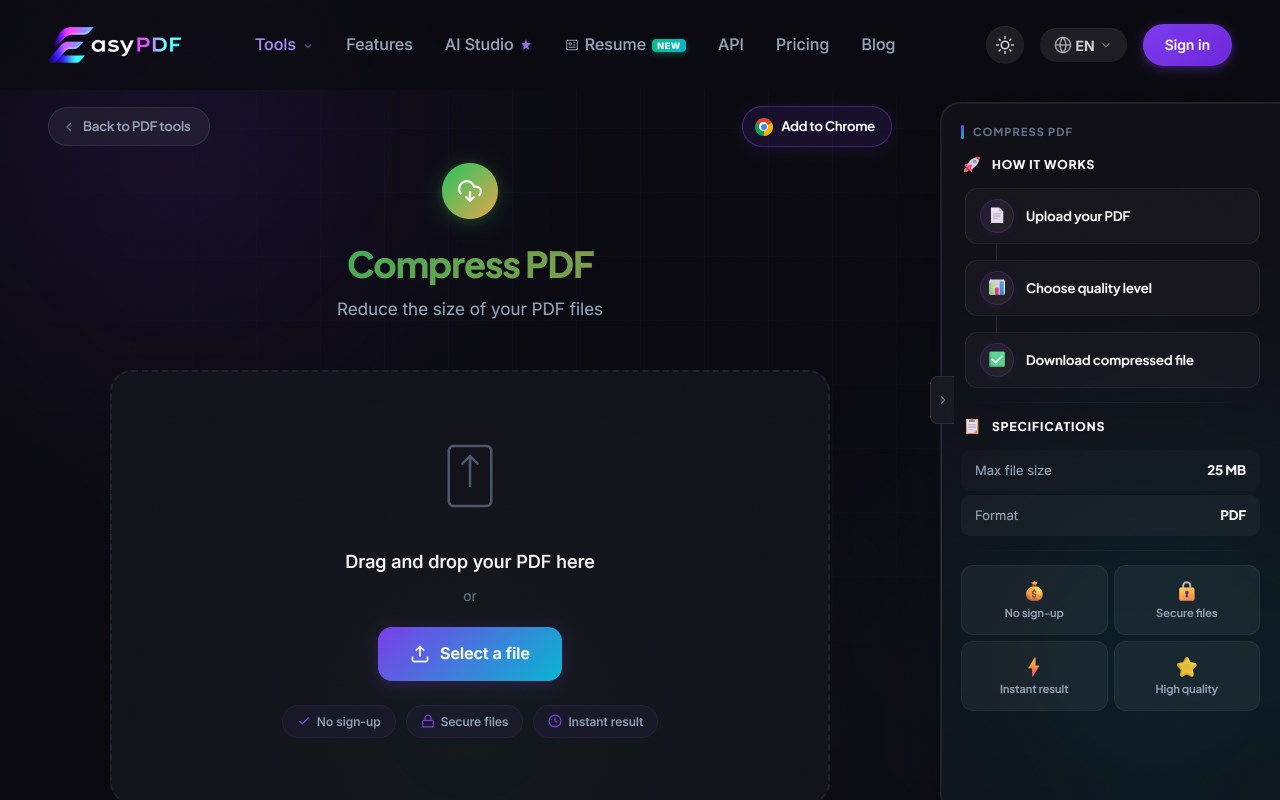
- Compress PDF: shrink a file so it fits an email or an upload form.
- Sign PDF: draw, type or import a signature and place it on the page.
- Translate PDF: get the document in another language with its layout (account required).
- More tools on easypdf.fr: merge, split, rotate, organize, protect, unlock, watermark, page numbers, OCR and conversions.
HOW IT WORKS
1. Right-click a link to a .pdf file and pick one of the four EasyPDF entries. The PDF is fetched with your own browser session, so files behind a login work too, and the tool opens with it.
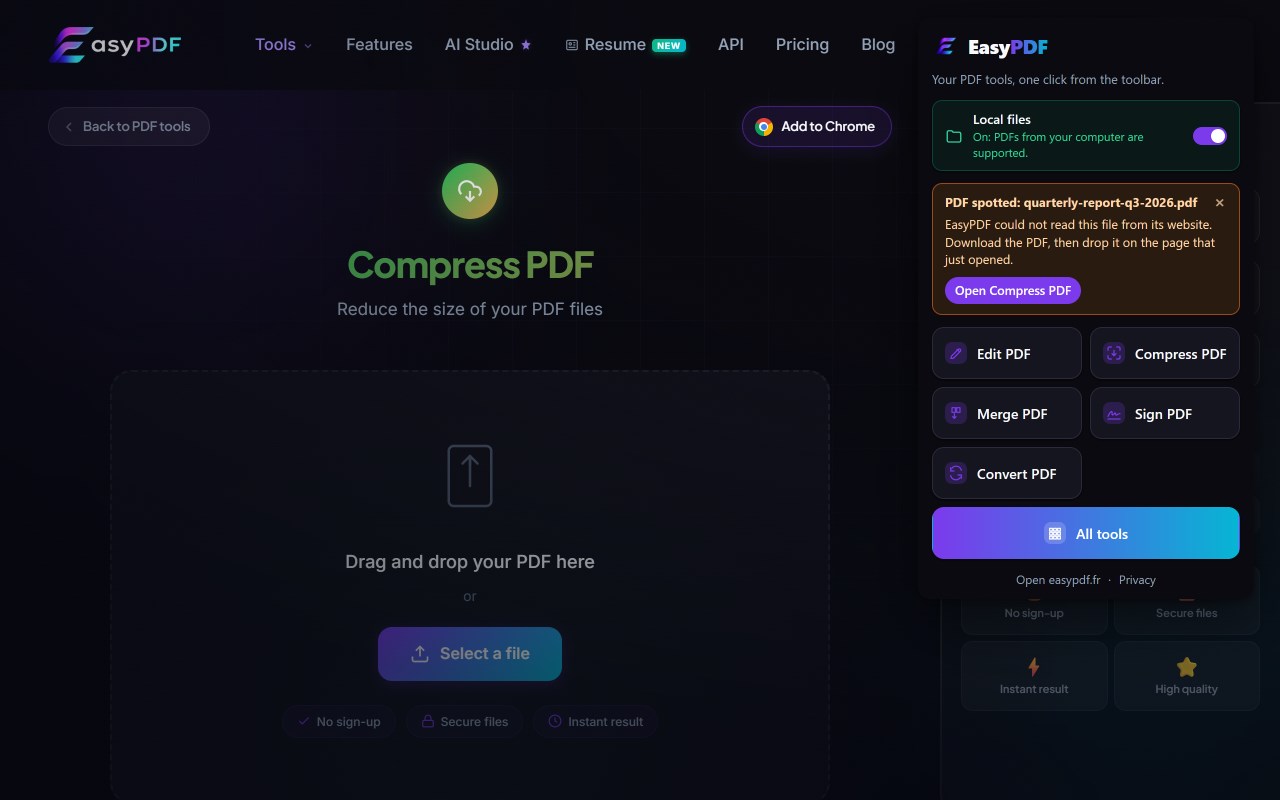
2. Reading a PDF in Edge? Click the EasyPDF icon in the toolbar: the popup offers the same four actions for the PDF open in the tab.
3. PDF saved on your computer? Turn on "Allow access to file URLs" for EasyPDF once (the popup shows the switch and opens the right settings page), then open local PDFs the same way.
4. The toolbar popup also opens any tool directly.
The site opens in your language when easypdf.fr is translated into it: English, French, Spanish, German, Italian, Portuguese, Dutch, Polish, Turkish, Indonesian, Vietnamese, Japanese and Hindi.
PRIVACY, IN PLAIN WORDS
- No analytics, no tracking, no ads inside the extension.
- It never reads the pages you visit. The only file it touches is the PDF you point at, and only when you click.
- A PDF on another site than the page you are on needs your permission: Edge asks once for that site.
- The file goes straight to the EasyPDF tab. Processing then happens on EasyPDF servers over HTTPS, and files are deleted automatically: right after processing for most tools, within 48 hours at most for temporary copies.
PRICING
Installing the extension costs nothing. On easypdf.fr the tools include an allowance at no cost (for example 25 MB per file); beyond it you can pay for one file or take a monthly plan.
EasyPDF is not affiliated with Adobe or Microsoft.
EasyPDF: Edit, Compress, Sign PDF 是做什么的
EasyPDF: Edit, Compress, Sign PDF 是一款面向 Edge 的效率工具类扩展,主要用来管住注意力、屏蔽干扰站点、记录时间。官方对它的介绍是:Edit, compress, merge, sign and convert PDF right in your browser. Fonts preserved, no account needed, done in seconds.在微软 Edge 加载项商店上,它当前版本 1.1.4,约 9 名用户。
适合什么人用
从功能定位看,EasyPDF: Edit, Compress, Sign PDF 更适合想专注工作学习、减少无效刷网页的用户。如果你平时只是偶尔遇到相关需求,用浏览器自带功能也能凑合;但如果这件事每天都发生,装一个专门处理它的扩展通常比手动操作省事得多。
怎么安装 EasyPDF: Edit, Compress, Sign PDF
- 打开微软 Edge 加载项商店上的官方页面;
- 点「添加到浏览器」并确认权限提示;
- 装好后在扩展列表里固定图标,方便随时开关。
本站只做索引与介绍,安装包来自官方商店。如果商店页面提示当前地区不可用,说明该扩展未在你所在区域上架。
常见问题
EasyPDF: Edit, Compress, Sign PDF 是免费的吗?
EasyPDF: Edit, Compress, Sign PDF 在微软 Edge 加载项商店免费提供下载。它是浏览器扩展,装上就能直接用,不需要注册账号。
EasyPDF: Edit, Compress, Sign PDF 安全吗?
它只申请了 0 项权限,范围比较克制,没有申请「读取所有网站数据」这种大权限。
EasyPDF: Edit, Compress, Sign PDF 支持哪些浏览器?
当前收录的版本来自微软 Edge 加载项商店,适用于 Edge。同一个扩展在其他商店可能有对应版本,但功能与版本号不一定相同。
怎么卸载 EasyPDF: Edit, Compress, Sign PDF?
在扩展管理页找到 EasyPDF: Edit, Compress, Sign PDF,点移除即可。它在本地保存的设置会一起清掉,不会残留数据。
权限清单 来自 manifest.json 原文
接口权限 3
activeTabcontextMenusstorage