
DistractBlocker EN
DistractBlocker · EEdge MV3
Connects to the DistractBlocker desktop app to block sites right inside Chrome, and add sites to your Block Profiles from any page.
<all_urls>),意味着它可以读取你在任意站点的页面内容,包括已登录的页面。这是许多扩展正常工作的必要条件,但也值得你确认来源可信。
截图


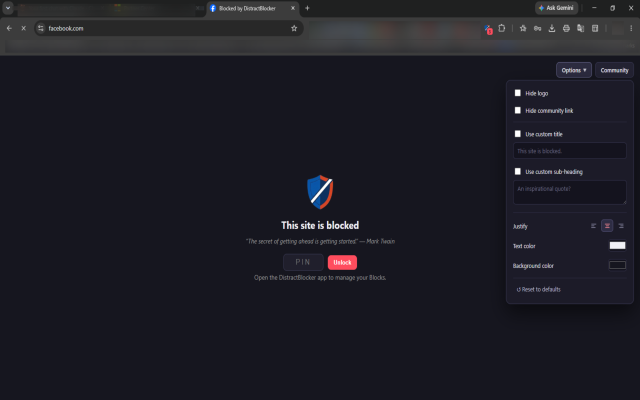
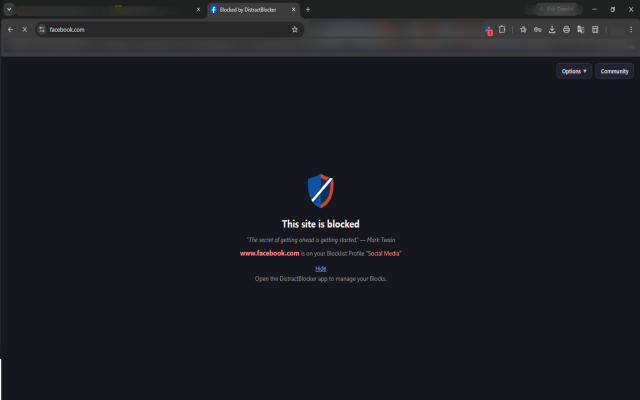
简介
DistractBlocker connects to the DistractBlocker desktop app on your PC to block distracting websites directly inside Edge — no need to keep switching between apps.
Features:
- Instantly blocks any site added to your Block Profiles
- Add the current page to a Block Profile in one click, right from the toolbar popup
- Shows how many sites are currently being blocked
- Works together with Strict Mode, Timer Locks, and Frozen Locks set in the desktop app
- Keyword-based blocking on any page you visit
Requires the DistractBlocker desktop app to be installed and running on the same computer — this extension is the browser-side companion, not a standalone product.
DistractBlocker does not collect, sell, or transmit any of your browsing data anywhere. Everything stays on your own computer — see the Privacy Policy for details.
DistractBlocker 是做什么的
DistractBlocker 是一款面向 Edge 的效率工具类扩展,主要用来管住注意力、屏蔽干扰站点、记录时间。官方对它的介绍是:Connects to the DistractBlocker desktop app to block sites right inside Chrome, and add sites to your Block Profiles from any page.在微软 Edge 加载项商店上,它当前版本 1.2.1,约 3 名用户。
适合什么人用
从功能定位看,DistractBlocker 更适合想专注工作学习、减少无效刷网页的用户。如果你平时只是偶尔遇到相关需求,用浏览器自带功能也能凑合;但如果这件事每天都发生,装一个专门处理它的扩展通常比手动操作省事得多。需要注意的是它作用于所有网站,装上后建议先观察一两天,确认不影响常用站点的正常使用。
怎么安装 DistractBlocker
- 打开微软 Edge 加载项商店上的官方页面;
- 点「添加到浏览器」并确认权限提示;
- 装好后在扩展列表里固定图标,方便随时开关。
本站只做索引与介绍,安装包来自官方商店。如果商店页面提示当前地区不可用,说明该扩展未在你所在区域上架。
常见问题
DistractBlocker 是免费的吗?
DistractBlocker 在微软 Edge 加载项商店免费提供下载。它是浏览器扩展,装上就能直接用,不需要注册账号。
DistractBlocker 安全吗?
它只申请了 0 项权限,范围比较克制,没有申请「读取所有网站数据」这种大权限。
DistractBlocker 支持哪些浏览器?
当前收录的版本来自微软 Edge 加载项商店,适用于 Edge。同一个扩展在其他商店可能有对应版本,但功能与版本号不一定相同。
怎么卸载 DistractBlocker?
在扩展管理页找到 DistractBlocker,点移除即可。它在本地保存的设置会一起清掉,不会残留数据。
权限清单 来自 manifest.json 原文
站点访问(可选) 1
<all_urls>
接口权限 8
alarmsdeclarativeNetRequestidlenativeMessagingnotificationsstoragetabswebNavigation