
Design Mode - Page's Rich Text Editor EN
Bermet · EEdge MV3
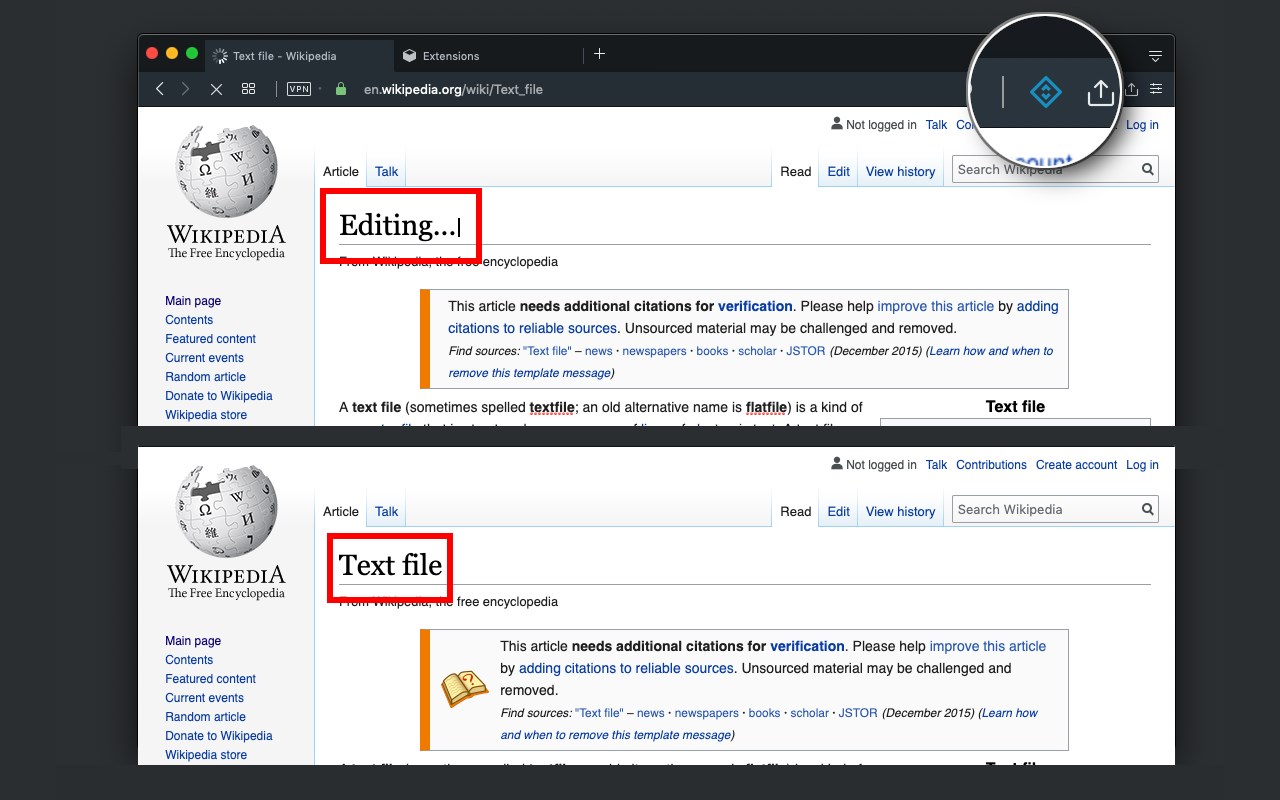
Edit any page's content by switching to design mode, where you can modify the content and drag images around like a Word Editor
截图
简介
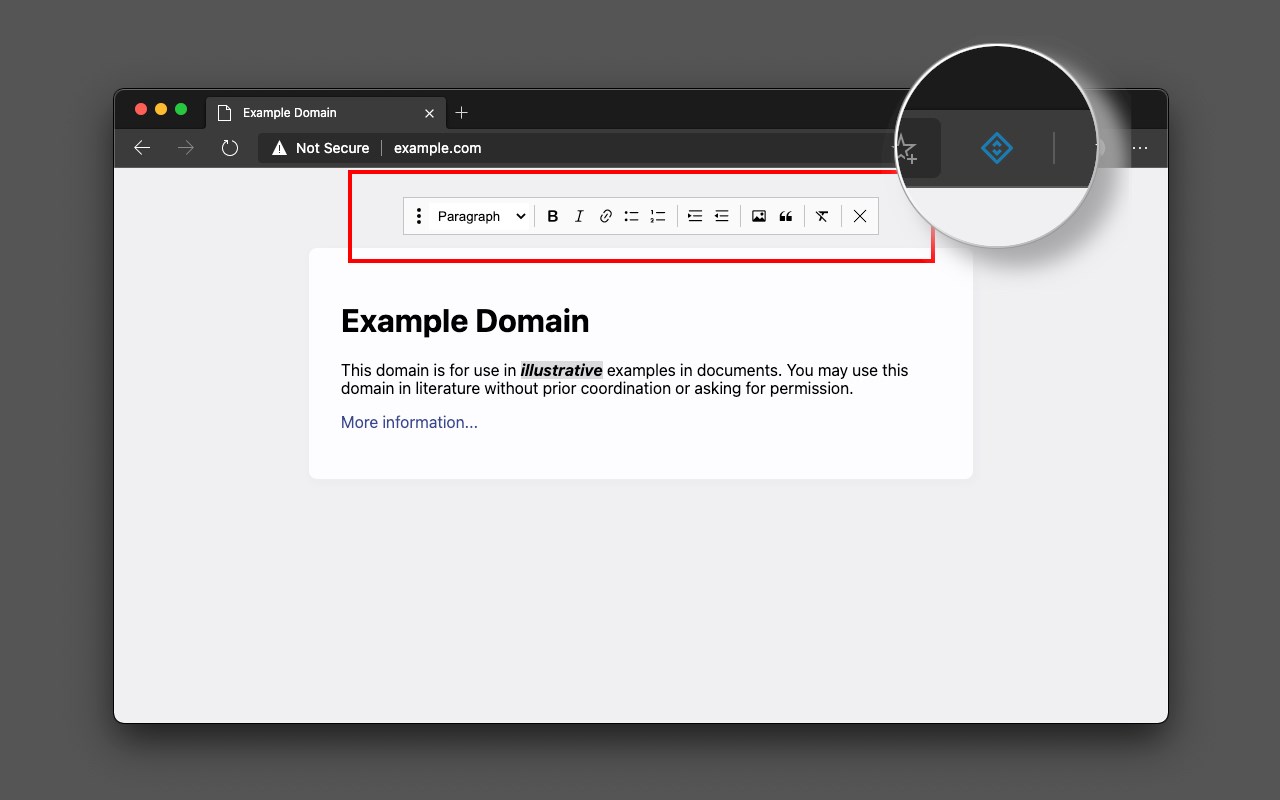
This extension modifies the current page's attributes to act like a content edible document (Similar to MS Word, or Open Office). This allows the user to:
1. Edit the page content
2. Drag and drop assets
3. Remove elements that cause chaos on the page
4. Insert
, , and heading elements.
5. Convert font styling to bold or italic.
6. Add a link to the selected text.
7. Insert bulleted and numbered lists.
8. Increase and decrease indentation.
9. Insert an image.
10. Convert selected text to a blockquote.
11. Turn spellcheck on and off.
12. Remove formatting.With this extension, you can edit the entire document and when it is ready, toggle back to the read-only mode (normal operation mode). The modified document can be printed or saved like any page.
Usage Instruction:
1. To enable the extension, press the toolbar button once. When the document is editable, the toolbar button is blue, and you will get a desktop notification
2. To switch back to the normal mode, press the toolbar button one more time. In the normal mode, the toolbar color is gray.Notes:
1. You can save the modified document in HTML or MHTML or print it. To save in MHTML you will need to install an extension.
2. To change the formatting of a text into bold, select the desired section, and press Ctrl + B or Command + B. For italics, press Ctrl + I or Command + I. Alternatively, the extension inserts a helper toolbar so that you can access the rich text editing tools from a floating panel.
Design Mode - Page's Rich Text Editor 是做什么的
Design Mode - Page's Rich Text Editor 是一款面向 Edge 的实用工具类扩展,主要用来解决浏览器里某类具体的小问题。官方对它的介绍是:Edit any page's content by switching to design mode, where you can modify the content and drag images around like a Word Editor在微软 Edge 加载项商店上,它当前版本 0.2.3,约 487 名用户。
适合什么人用
从功能定位看,Design Mode - Page's Rich Text Editor 更适合想补上浏览器原生缺失功能的用户。如果你平时只是偶尔遇到相关需求,用浏览器自带功能也能凑合;但如果这件事每天都发生,装一个专门处理它的扩展通常比手动操作省事得多。
怎么安装 Design Mode - Page's Rich Text Editor
- 打开微软 Edge 加载项商店上的官方页面;
- 点「添加到浏览器」并确认权限提示;
- 装好后在扩展列表里固定图标,方便随时开关。
本站只做索引与介绍,安装包来自官方商店。如果商店页面提示当前地区不可用,说明该扩展未在你所在区域上架。
常见问题
Design Mode - Page's Rich Text Editor 是免费的吗?
Design Mode - Page's Rich Text Editor 在微软 Edge 加载项商店免费提供下载。它是浏览器扩展,装上就能直接用,不需要注册账号。
Design Mode - Page's Rich Text Editor 安全吗?
它只申请了 0 项权限,范围比较克制,没有申请「读取所有网站数据」这种大权限。
Design Mode - Page's Rich Text Editor 支持哪些浏览器?
当前收录的版本来自微软 Edge 加载项商店,适用于 Edge。同一个扩展在其他商店可能有对应版本,但功能与版本号不一定相同。
怎么卸载 Design Mode - Page's Rich Text Editor?
在扩展管理页找到 Design Mode - Page's Rich Text Editor,点移除即可。它在本地保存的设置会一起清掉,不会残留数据。
权限清单 来自 manifest.json 原文
接口权限 4
activeTabnotificationsscriptingstorage
其他商店也有这款
同一款扩展在不同浏览器下的版本,权限与更新节奏可能不同