
Cursor Zoom EN
SimpleExtensions · EEdge MV3
Cursor-following magnifier for Google Slides
截图
简介
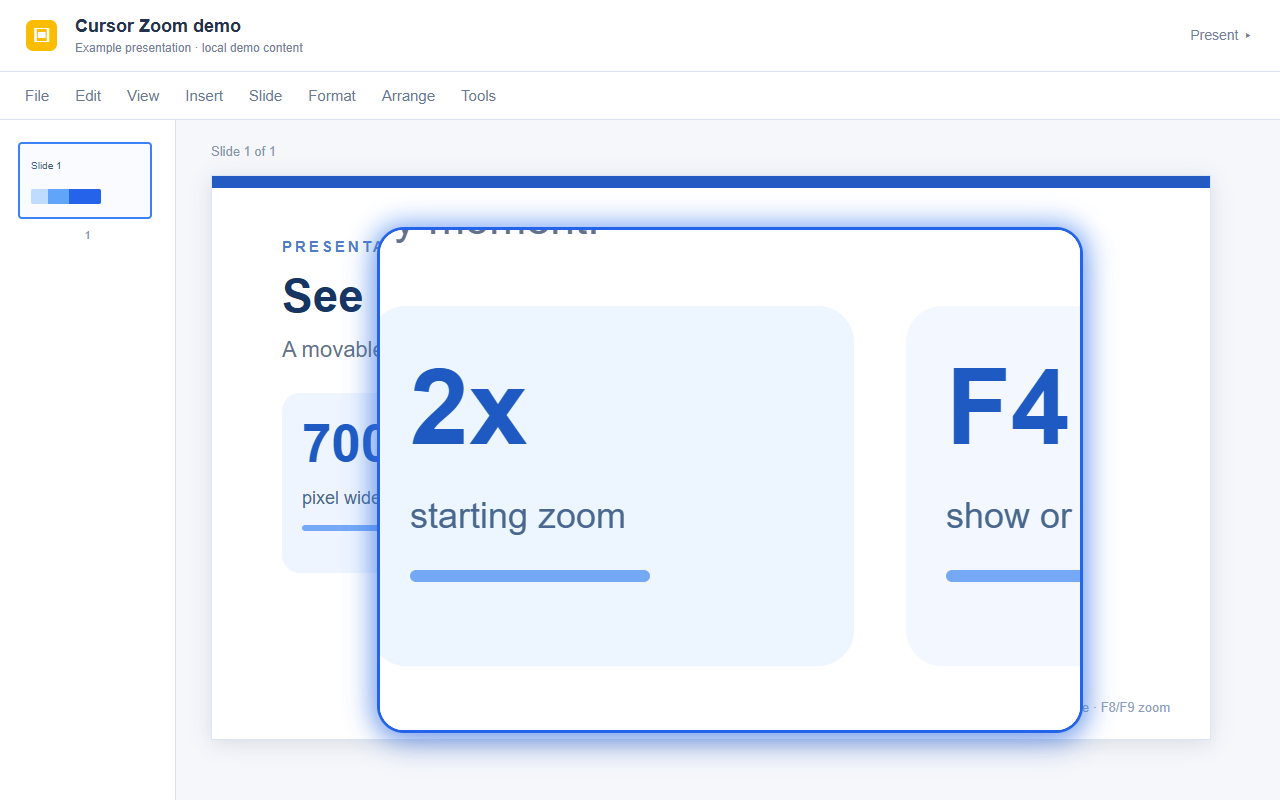
Cursor Zoom is a focused accessibility and productivity extension made specifically for Google Slides on docs.google.com/presentation pages. It adds a cursor-following magnifier that enlarges the area around your pointer without changing the browser’s overall zoom level or requiring a separate zoom window. Instead of scaling the entire page, it creates a movable lens that follows your mouse and shows a magnified view of the content directly beneath and around it. This makes it useful for examining small slide details, checking interface controls, following pointer movement more precisely, and working in presentations with greater visual clarity.
The extension is intentionally narrow in scope and concentrates on one job: giving Google Slides users a live magnification tool inside the page itself. It runs automatically on supported Slides pages as a content script, so there is no separate popup, options page, account system, or external integration involved in the package description. Once active on a presentation page, it listens for keyboard shortcuts and mouse movement so you can quickly toggle the lens and change the zoom level while staying in your current workflow.
A central part of its behavior is the floating lens overlay. The lens has a large viewing area, up to 700 by 500 pixels, while still adapting if the browser window is smaller. It uses a rounded frame and a visible outline so the magnified region stands out clearly from the rest of the page. The rest of the page remains at its normal size, which helps preserve context while giving you a focused enlarged view exactly where you need it. Because the lens follows the cursor, the experience stays natural as you move across slides, menus, toolbars, and editing controls.
The package also shows that the extension uses a live page cloning approach to build the magnified view. Rather than enlarging a static screenshot once, it clones the current document body into the lens and transforms that copied content based on the mouse position and selected zoom level. This helps the magnifier reflect the current structure of the Google Slides page. To improve visual accuracy further, it includes logic to synchronize canvas elements from the original page into the cloned snapshot, which is especially important for preserving rendered content that may not transfer cleanly through cloning alone.
Keyboard control is a major part of the design. Press F4 to show or hide the magnifier. Use F8 to increase the zoom level and F9 to decrease it. The available zoom presets range from 0.5x up to 5x, with a default level of 2x. These shortcuts allow for quick adjustments during editing, reviewing, or presenting, without needing to open menus or stop what you are doing. The implementation also avoids repeated activation from holding a key down, supporting more predictable control.
The extension is built to stay responsive inside a dynamic Google Slides environment. It updates the lens as the cursor moves and repositions it when the page is scrolled or resized. It also watches for document changes so the magnified snapshot can refresh after interface updates. When the page is hidden, unloaded, or left entirely, the extension removes the overlay and resets its active behavior.
Key Features:
- Cursor-following magnifier designed specifically for Google Slides presentation pages.
- Floating lens overlay with a large view area of up to 700 × 500 pixels.
- Keyboard shortcuts for fast control: F4 to toggle, F8 to zoom in, and F9 to zoom out.
- Adjustable zoom presets from 0.5x to 5x, with 2x as the default level.
- Live page cloning inside the lens to reflect the current Google Slides interface.
- Canvas synchronization to help preserve rendered visual content in the magnified view.
- Automatic refresh and repositioning during mouse movement, scrolling, resizing, and page changes.
How It Works:
1. Open a Google Slides presentation page on docs.google.com/presentation.
2. The extension loads automatically into that page and waits for pointer movement and shortcut input.
3. Press F4 to enable the magnifier and create the floating lens overlay.
4. Move your cursor around the page and the lens follows it, enlarging the surrounding area while the rest of the page stays unchanged.
5. Press F8 to increase magnification or F9 to reduce it through the preset zoom levels.
6. As the page updates, the extension refreshes its internal snapshot and keeps the magnified content aligned with the current view.
7. Toggle the feature off or leave the page to remove the lens and clear its active observers and timers.
Privacy: - No personal data collected.
Cursor Zoom 是做什么的
Cursor Zoom 是一款面向 Edge 的实用工具类扩展,主要用来解决浏览器里某类具体的小问题。官方对它的介绍是:Cursor-following magnifier for Google Slides在微软 Edge 加载项商店上,它当前版本 1.6,约 3 名用户。
适合什么人用
从功能定位看,Cursor Zoom 更适合想补上浏览器原生缺失功能的用户。如果你平时只是偶尔遇到相关需求,用浏览器自带功能也能凑合;但如果这件事每天都发生,装一个专门处理它的扩展通常比手动操作省事得多。
怎么安装 Cursor Zoom
- 打开微软 Edge 加载项商店上的官方页面;
- 点「添加到浏览器」并确认权限提示;
- 装好后在扩展列表里固定图标,方便随时开关。
本站只做索引与介绍,安装包来自官方商店。如果商店页面提示当前地区不可用,说明该扩展未在你所在区域上架。
常见问题
Cursor Zoom 是免费的吗?
Cursor Zoom 在微软 Edge 加载项商店免费提供下载。它是浏览器扩展,装上就能直接用,不需要注册账号。
Cursor Zoom 安全吗?
它只申请了 0 项权限,范围比较克制,没有申请「读取所有网站数据」这种大权限。
Cursor Zoom 支持哪些浏览器?
当前收录的版本来自微软 Edge 加载项商店,适用于 Edge。同一个扩展在其他商店可能有对应版本,但功能与版本号不一定相同。
怎么卸载 Cursor Zoom?
在扩展管理页找到 Cursor Zoom,点移除即可。它在本地保存的设置会一起清掉,不会残留数据。
权限清单 来自 manifest.json 原文
未解析到权限条目。