
Copy as Hyperlink EN
John Navas · EEdge MV3
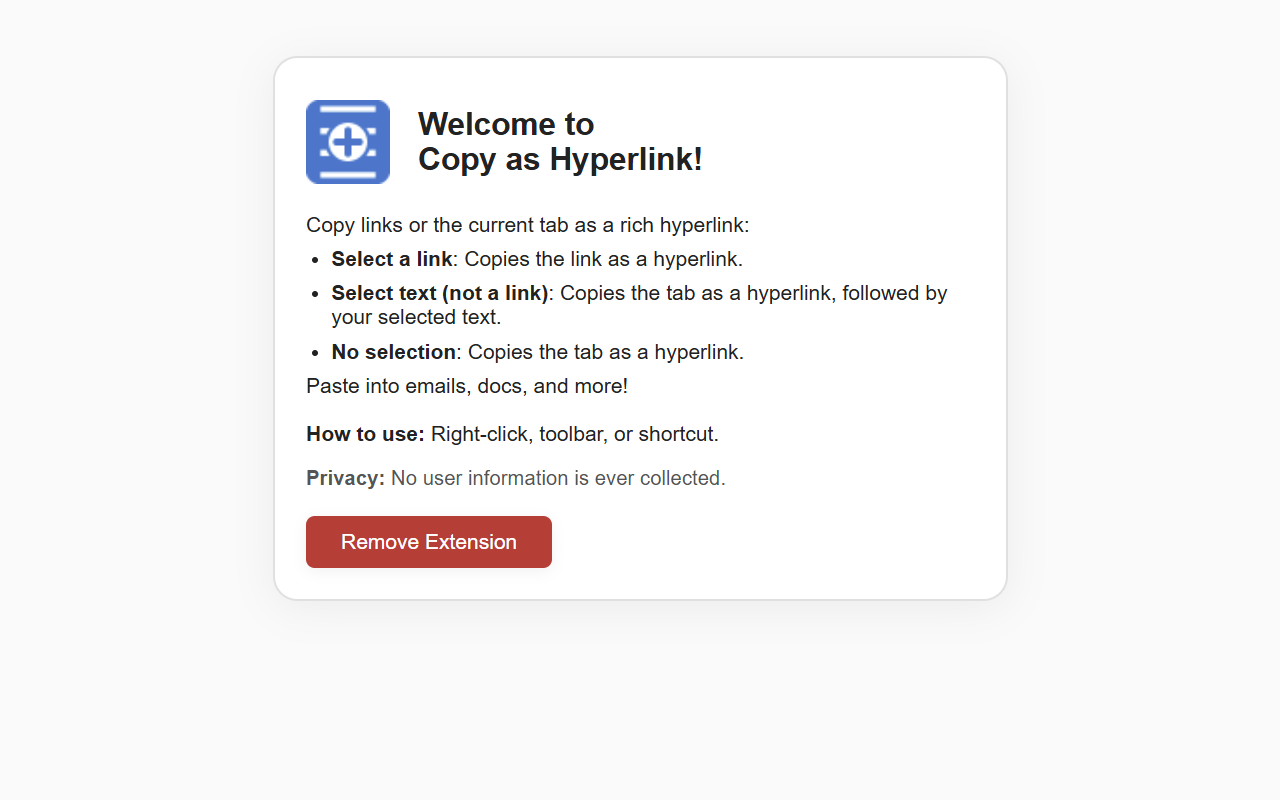
Copy links or tabs as rich hyperlinks—select a link, text, or nothing to copy a clickable title and URL to your clipboard.
截图
简介
Quickly copy any link or tab as a clickable hyperlink—perfect for emails, docs, and more!
Copy as Hyperlink lets you instantly copy a selected link, or—if you select non-link text or nothing at all—the current tab’s title and URL as a rich text hyperlink. Paste into Gmail®, Google Docs™, Outlook®, or any app that supports rich text.
FEATURES
- Smart 3-Part Copy Logic:
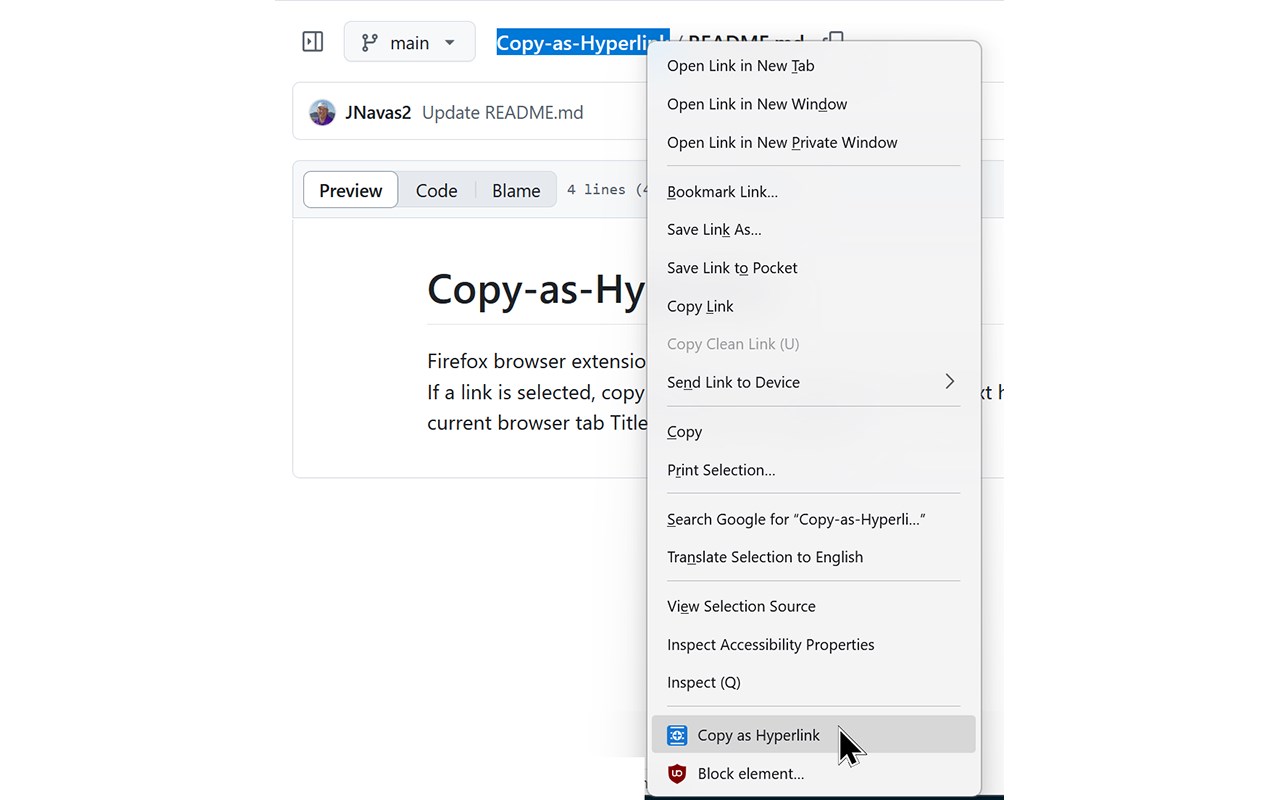
1. Copy Selected Link: Select a link and copy it as a clickable hyperlink.
2. Copy Tab + Selected Text: Select non-link text—copies the tab as a hyperlink, followed by your selected text.
3. Copy Tab as Hyperlink: No selection? Instantly copy the current tab’s title and URL as a rich hyperlink.
- Rich Text & Plain Text:
Paste as a hyperlink in rich text editors, or as a plain URL in simple editors.
- Multiple Activation Methods:
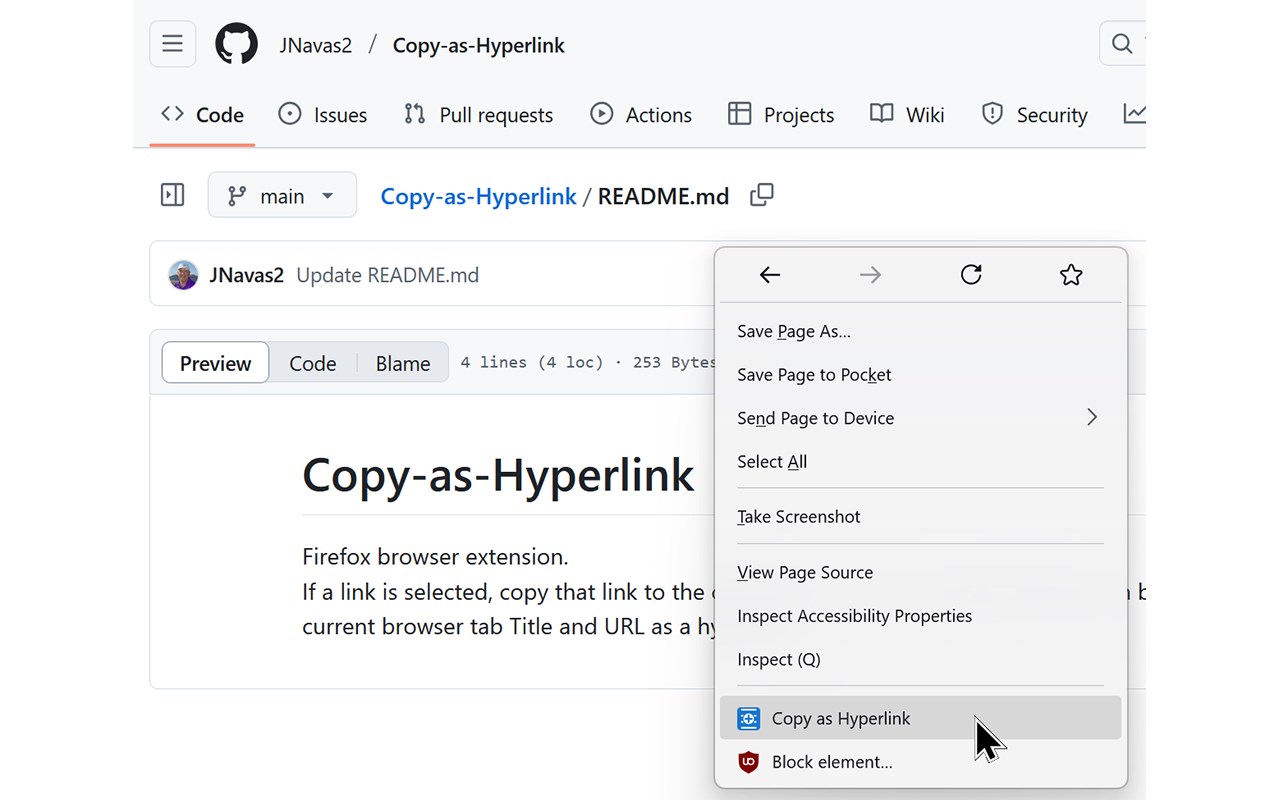
- Context Menu: Right-click and choose "Copy as Hyperlink".
- Toolbar Button: Click the extension icon.
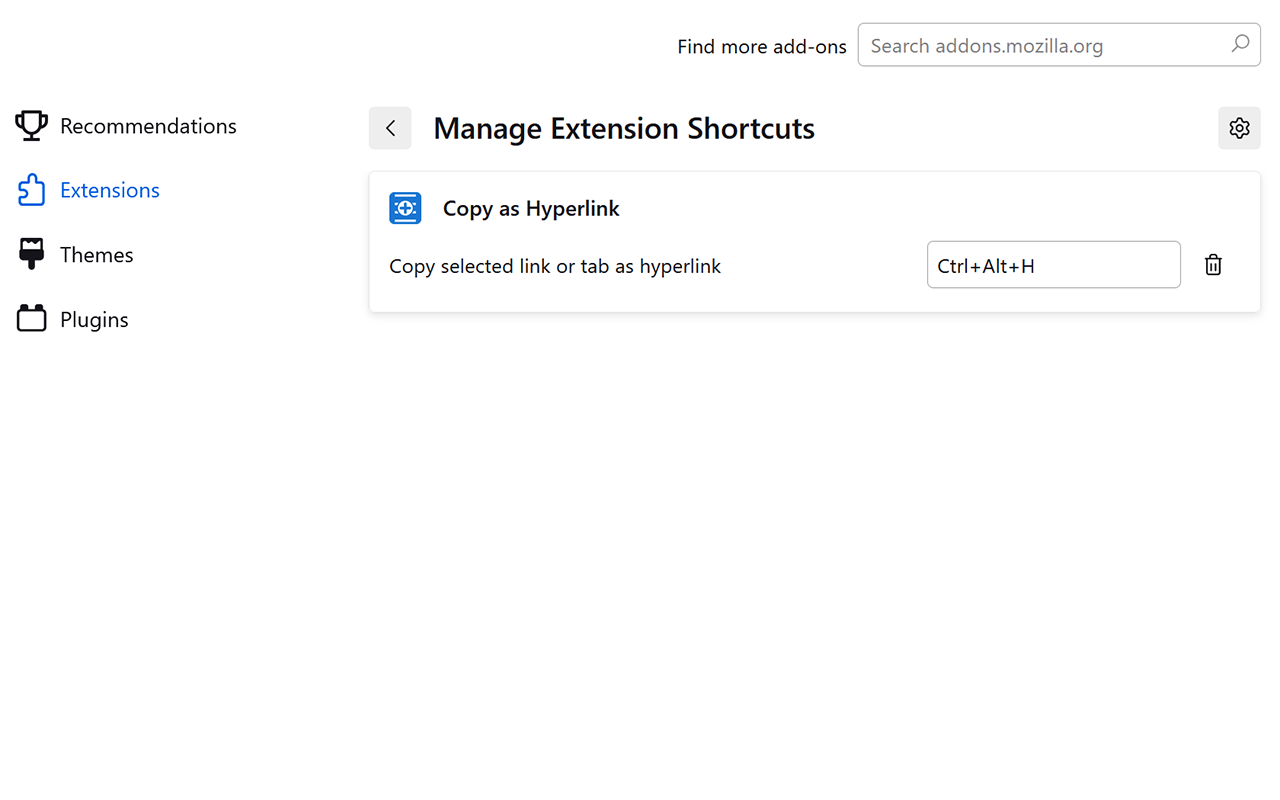
- Keyboard Shortcut: Customizable in browser’s extension shortcuts.
- Privacy-First:
No data is ever collected or transmitted—everything happens locally in your browser.
HOW TO USE
- Right-click anywhere on a page and select "Copy as Hyperlink".
- Click the extension icon in the browser toolbar.
- Use a keyboard shortcut—set your own in browser’s Extensions > Keyboard shortcuts.
FAQ
Where does the extension work?
On any page where you can select a link, text, or use the context menu.
What if my app doesn’t support rich text?
The extension will paste the plain URL as a fallback.
How do I remove the extension?
Go to browser Extensions and remove Copy as Hyperlink.
SUPPORT & FEEDBACK
Questions, bug reports, or suggestions?
Open a GitHub® Issue: https://github.com/JNavas2/Copy-as-Hyperlink/issues
PRIVACY
No user information is ever collected, stored, or transmitted. All processing happens locally in your browser.
Enjoy fast, privacy-friendly hyperlink copying!
All trademarks are the property of their respective owners.
Copy as Hyperlink 是做什么的
Copy as Hyperlink 是一款面向 Edge 的效率工具类扩展,主要用来管住注意力、屏蔽干扰站点、记录时间。官方对它的介绍是:Copy links or tabs as rich hyperlinks—select a link, text, or nothing to copy a clickable title and URL to your clipboard.在微软 Edge 加载项商店上,它当前版本 1.1.0,约 155 名用户。
适合什么人用
从功能定位看,Copy as Hyperlink 更适合想专注工作学习、减少无效刷网页的用户。如果你平时只是偶尔遇到相关需求,用浏览器自带功能也能凑合;但如果这件事每天都发生,装一个专门处理它的扩展通常比手动操作省事得多。
怎么安装 Copy as Hyperlink
- 打开微软 Edge 加载项商店上的官方页面;
- 点「添加到浏览器」并确认权限提示;
- 装好后在扩展列表里固定图标,方便随时开关。
本站只做索引与介绍,安装包来自官方商店。如果商店页面提示当前地区不可用,说明该扩展未在你所在区域上架。
常见问题
Copy as Hyperlink 是免费的吗?
Copy as Hyperlink 在微软 Edge 加载项商店免费提供下载。它是浏览器扩展,装上就能直接用,不需要注册账号。
Copy as Hyperlink 安全吗?
它只申请了 0 项权限,范围比较克制,没有申请「读取所有网站数据」这种大权限。
Copy as Hyperlink 支持哪些浏览器?
当前收录的版本来自微软 Edge 加载项商店,适用于 Edge。同一个扩展在其他商店可能有对应版本,但功能与版本号不一定相同。
怎么卸载 Copy as Hyperlink?
在扩展管理页找到 Copy as Hyperlink,点移除即可。它在本地保存的设置会一起清掉,不会残留数据。
权限清单 来自 manifest.json 原文
接口权限 3
activeTabcontextMenusscripting
其他商店也有这款
同一款扩展在不同浏览器下的版本,权限与更新节奏可能不同