Captr Screen & Tab Recorder EN
Rao Blaze · EEdge MV3
Fast, free 60 FPS & 4K screen and tab video recorder (MP4/WebM) with instant screenshot capture. No watermarks, 100% private.
<all_urls>),意味着它可以读取你在任意站点的页面内容,包括已登录的页面。这是许多扩展正常工作的必要条件,但也值得你确认来源可信。
截图
简介
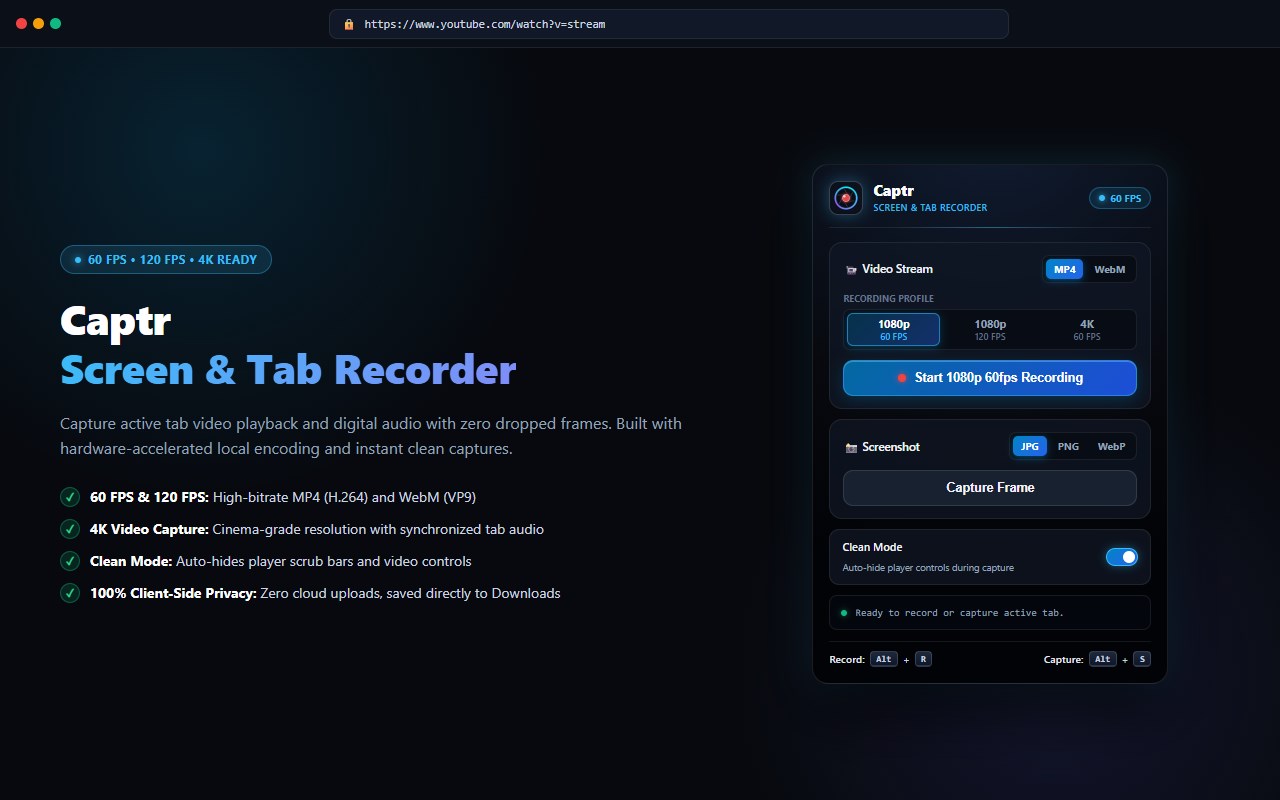
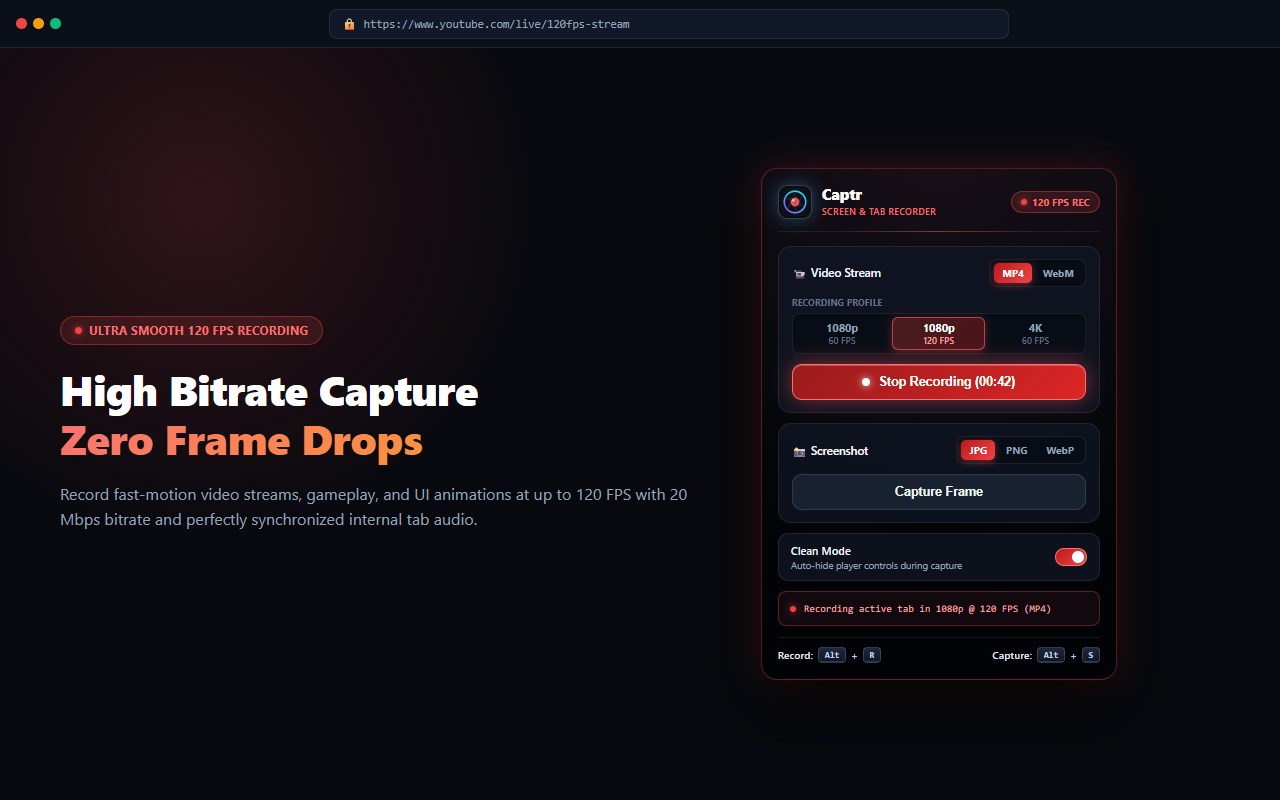
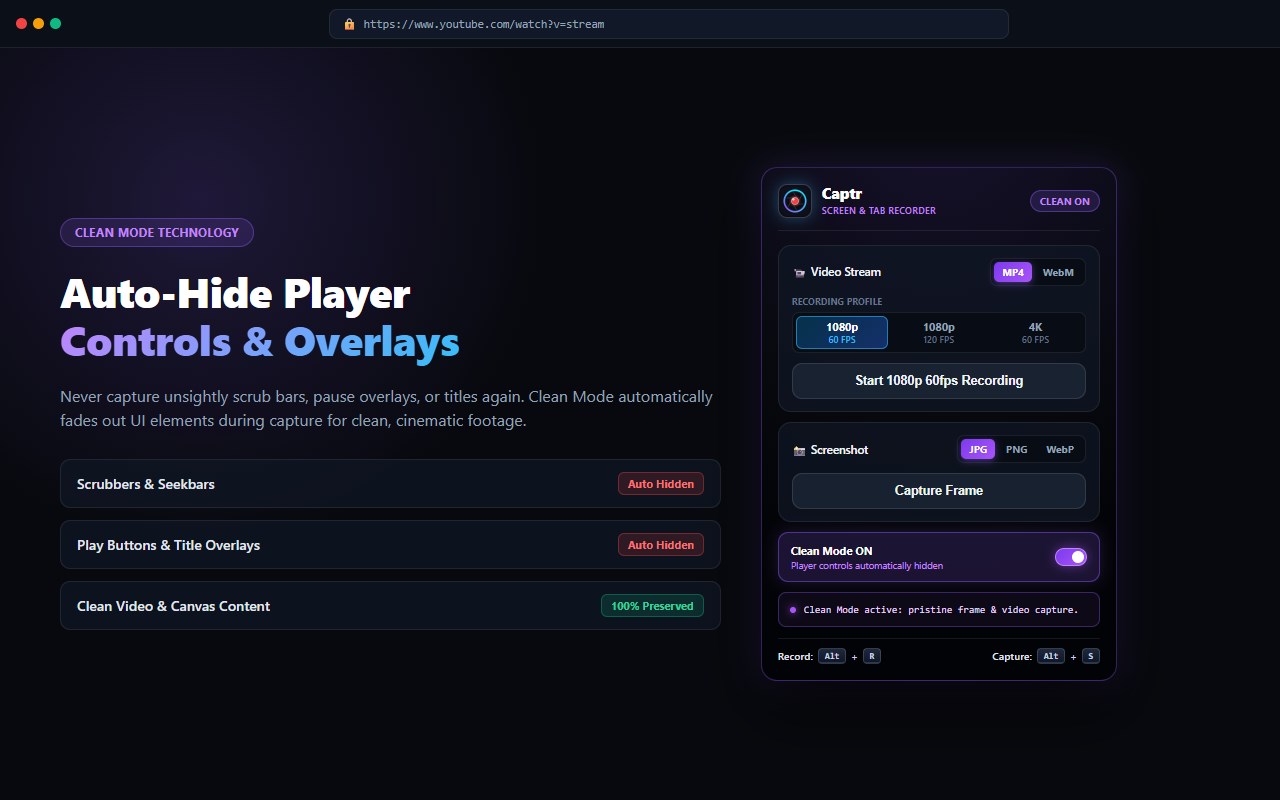
Record high-frame-rate tab video streams in 60 FPS, 120 FPS, and 4K directly to MP4 or WebM with synchronized browser audio. Capture high-resolution screenshots without watermarks, time limits, or external server processing.
Captr is a dedicated browser extension designed for developers, video editors, content creators, and educators who need clean, reliable screen captures without third-party accounts, subscription gates, or cloud uploads.
---
KEY CAPABILITIES
High-FPS Video Recording
- Select between 1080p at 60 FPS, 1080p at 120 FPS, and 4K at 60 FPS.
- Export directly to MP4 (H.264 video with AAC audio) for native compatibility in Adobe Premiere, Final Cut Pro, and DaVinci Resolve.
- Export to WebM (VP9 video with Opus audio) for lightweight web delivery.
- Synchronized tab audio capture without microphone bleed or environmental noise.
Clean Mode Player Overlay Filtering
- Automatically conceals media player scrub bars, play buttons, progress overlays, and video titles during recording or screenshot capture.
- Produces clean, presentation-ready media assets from any HTML5 video player without manual DOM manipulation.
Instant Frame & Tab Screenshots
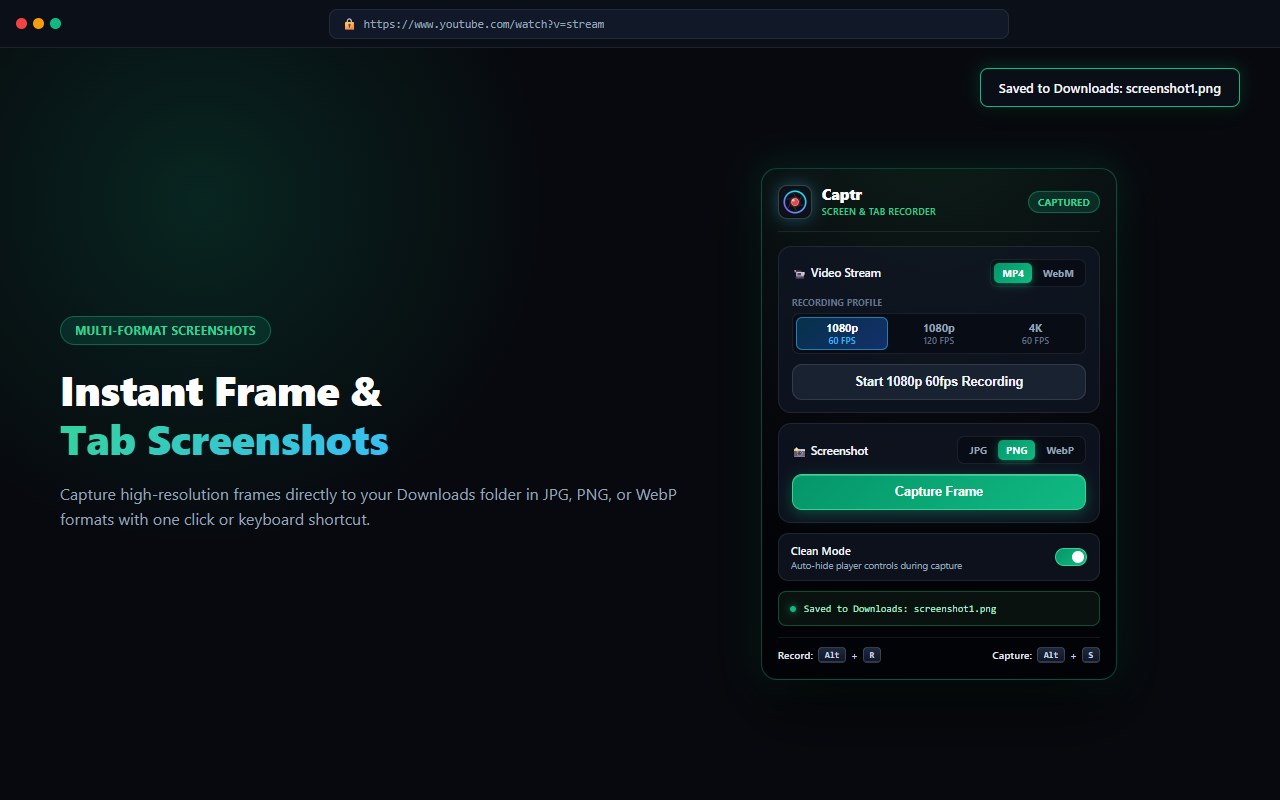
- Capture high-resolution still frames from video streams or web pages in a single keystroke.
- Export in JPG, PNG, or WebP formats based on your compression requirements.
- Operates during full-screen playback without dropping out of full-screen view.
Streamlined 2-Key Shortcuts
- Alt + R: Start or stop tab video recording.
- Alt + S: Capture an instant frame screenshot.
- Shortcuts can be customized anytime via edge://extensions/shortcuts.
---
BUILT FOR RELIABILITY AND PRIVACY
- Zero Watermarks: No promotional branding or overlays added to your files.
- No Duration Limits: Record for as long as your local storage allows.
- 100% Client-Side Processing: Video encoding and image rendering run entirely within your local browser environment. No audio, video, or user data is transmitted to external servers.
- No Account Required: Install and begin recording immediately. No email, registration, or cloud sign-in required.
- Modern Manifest V3 Architecture: Built to the latest Chromium extension security standards with minimal, auditable permissions.
---
COMMON WORKFLOWS
- Content Production: Capture B-roll clips, web references, and frame stills with clean MP4 output.
- Software Development & QA: Document UI bugs, rendering glitches, and CSS transitions at 60 or 120 FPS.
- Education & Training: Record browser walkthroughs, technical demos, and slide presentations.
- Gameplay & Motion Design: Record smooth motion graphics and web-based games with zero frame stutter.
---
FREQUENTLY ASKED QUESTIONS
Does Captr impose recording time limits or watermarks?
No. All recordings and screenshots are completely watermark-free, with no artificial time restrictions.
Where are recordings and captures saved?
Files download directly to your browser's default Downloads directory as standard MP4, WebM, JPG, PNG, or WebP files.
How does Clean Mode work?
Clean Mode injects a targeted stylesheet that fades out media player user interface components (such as play controls, time displays, and scrubber bars) during the capture cycle, preserving the underlying video content.
Can I capture tab audio without microphone input?
Yes. Captr captures internal digital audio directly from the active browser tab, providing clean audio without room echo or microphone interference.
---
Install Captr to start capturing high-performance tab video and screenshots directly in your browser.
Captr Screen & Tab Recorder 是做什么的
Captr Screen & Tab Recorder 是一款面向 Edge 的实用工具类扩展,主要用来解决浏览器里某类具体的小问题。官方对它的介绍是:Fast, free 60 FPS & 4K screen and tab video recorder (MP4/WebM) with instant screenshot capture. No watermarks, 100% private.在微软 Edge 加载项商店上,它当前版本 2.0.2,约 1 名用户。
适合什么人用
从功能定位看,Captr Screen & Tab Recorder 更适合想补上浏览器原生缺失功能的用户。如果你平时只是偶尔遇到相关需求,用浏览器自带功能也能凑合;但如果这件事每天都发生,装一个专门处理它的扩展通常比手动操作省事得多。需要注意的是它作用于所有网站,装上后建议先观察一两天,确认不影响常用站点的正常使用。
怎么安装 Captr Screen & Tab Recorder
- 打开微软 Edge 加载项商店上的官方页面;
- 点「添加到浏览器」并确认权限提示;
- 装好后在扩展列表里固定图标,方便随时开关。
本站只做索引与介绍,安装包来自官方商店。如果商店页面提示当前地区不可用,说明该扩展未在你所在区域上架。
常见问题
Captr Screen & Tab Recorder 是免费的吗?
Captr Screen & Tab Recorder 在微软 Edge 加载项商店免费提供下载。它是浏览器扩展,装上就能直接用,不需要注册账号。
Captr Screen & Tab Recorder 安全吗?
它只申请了 0 项权限,范围比较克制,没有申请「读取所有网站数据」这种大权限。
Captr Screen & Tab Recorder 支持哪些浏览器?
当前收录的版本来自微软 Edge 加载项商店,适用于 Edge。同一个扩展在其他商店可能有对应版本,但功能与版本号不一定相同。
怎么卸载 Captr Screen & Tab Recorder?
在扩展管理页找到 Captr Screen & Tab Recorder,点移除即可。它在本地保存的设置会一起清掉,不会残留数据。
权限清单 来自 manifest.json 原文
站点访问(可选) 1
<all_urls>
接口权限 6
activeTabdownloadsoffscreenscriptingstoragetabCapture