
Barcode & QR Code Scanner EN
yushulx · EEdge MV3
Scan barcodes and QR codes from images, PDFs, and camera using Dynamsoft SDK or open-source ZXing-WASM
<all_urls>),意味着它可以读取你在任意站点的页面内容,包括已登录的页面。这是许多扩展正常工作的必要条件,但也值得你确认来源可信。
截图
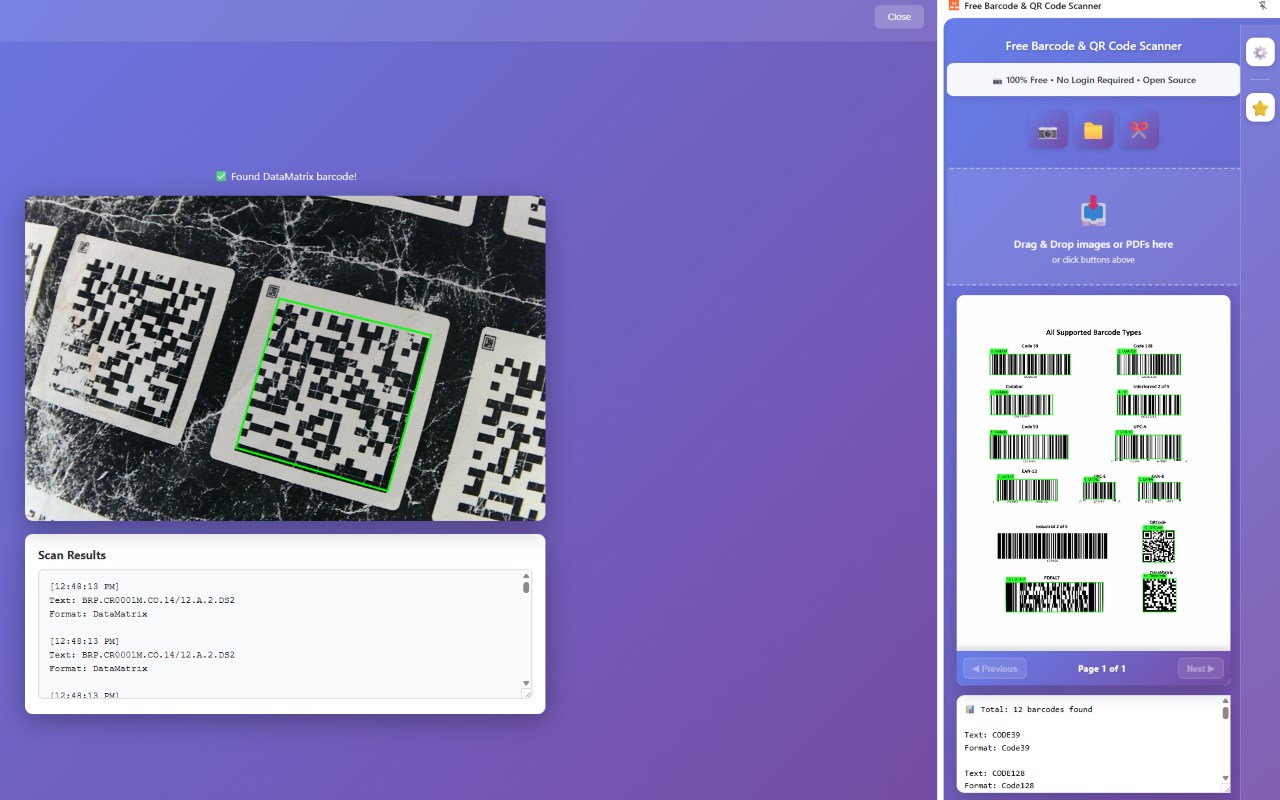
简介
Features
✅ Camera Scanning - Real-time barcode detection using your device camera with live overlay annotations
✅ Screenshot Capture - Select and scan any area on your screen with drag-to-select
✅ Image Upload - Scan barcodes from PNG, JPEG images
✅ Drag & Drop - Simply drag images or PDFs into the side panel
✅ Context Menu - Right-click on any image to scan barcodes directly
✅ PDF Support - Multi-page PDF barcode scanning with page navigation and visual annotations
✅ Multiple Formats - Supports QR Code, Code 128, Code 39, EAN, UPC, and more
✅ 💯 100% FREE FOREVER - No license required, no login needed, no trials, no hidden costs
✅ Side Panel UI - Modern, responsive interface that doesn't interrupt browsing
✅ Settings - Customizable options with floating icon toggle
✅ Privacy-First - All processing happens locally in your browser
Barcode & QR Code Scanner 是做什么的
Barcode & QR Code Scanner 是一款面向 Edge 的效率工具类扩展,主要用来管住注意力、屏蔽干扰站点、记录时间。官方对它的介绍是:Scan barcodes and QR codes from images, PDFs, and camera using Dynamsoft SDK or open-source ZXing-WASM在微软 Edge 加载项商店上,它当前版本 3.0.0,约 68 名用户。
适合什么人用
从功能定位看,Barcode & QR Code Scanner 更适合想专注工作学习、减少无效刷网页的用户。如果你平时只是偶尔遇到相关需求,用浏览器自带功能也能凑合;但如果这件事每天都发生,装一个专门处理它的扩展通常比手动操作省事得多。需要注意的是它作用于所有网站,装上后建议先观察一两天,确认不影响常用站点的正常使用。
怎么安装 Barcode & QR Code Scanner
- 打开微软 Edge 加载项商店上的官方页面;
- 点「添加到浏览器」并确认权限提示;
- 装好后在扩展列表里固定图标,方便随时开关。
本站只做索引与介绍,安装包来自官方商店。如果商店页面提示当前地区不可用,说明该扩展未在你所在区域上架。
常见问题
Barcode & QR Code Scanner 是免费的吗?
Barcode & QR Code Scanner 在微软 Edge 加载项商店免费提供下载。它是浏览器扩展,装上就能直接用,不需要注册账号。
Barcode & QR Code Scanner 安全吗?
它只申请了 0 项权限,范围比较克制,没有申请「读取所有网站数据」这种大权限。
Barcode & QR Code Scanner 支持哪些浏览器?
当前收录的版本来自微软 Edge 加载项商店,适用于 Edge。同一个扩展在其他商店可能有对应版本,但功能与版本号不一定相同。
怎么卸载 Barcode & QR Code Scanner?
在扩展管理页找到 Barcode & QR Code Scanner,点移除即可。它在本地保存的设置会一起清掉,不会残留数据。
权限清单 来自 manifest.json 原文
站点访问(可选) 1
<all_urls>
接口权限 6
activeTabcontextMenuscookiesscriptingsidePanelstorage