
Auto Action Selector EN
Noyo · EEdge MV3
Automate Q&A and autofill with notifications, and synced site profiles.
<all_urls>),意味着它可以读取你在任意站点的页面内容,包括已登录的页面。这是许多扩展正常工作的必要条件,但也值得你确认来源可信。
截图
简介
Auto Action Selector
What It Does
____________________________________________
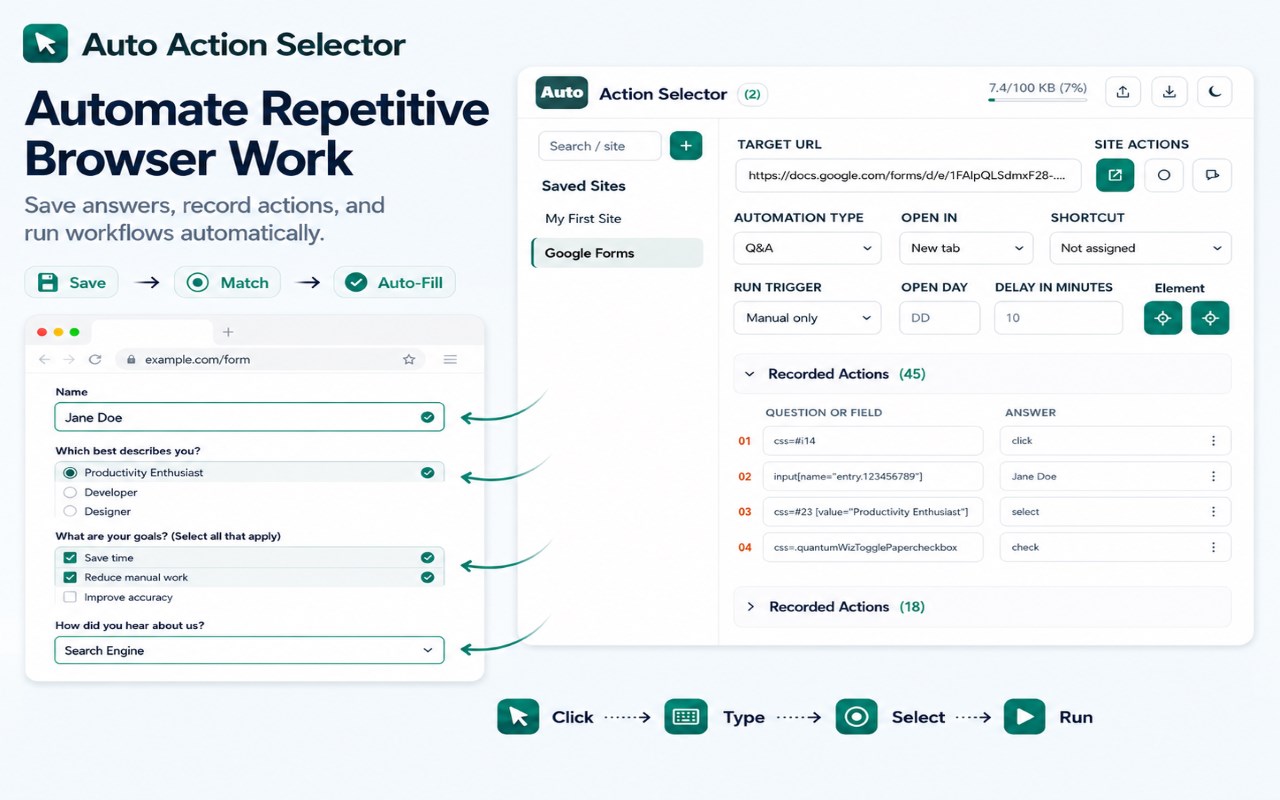
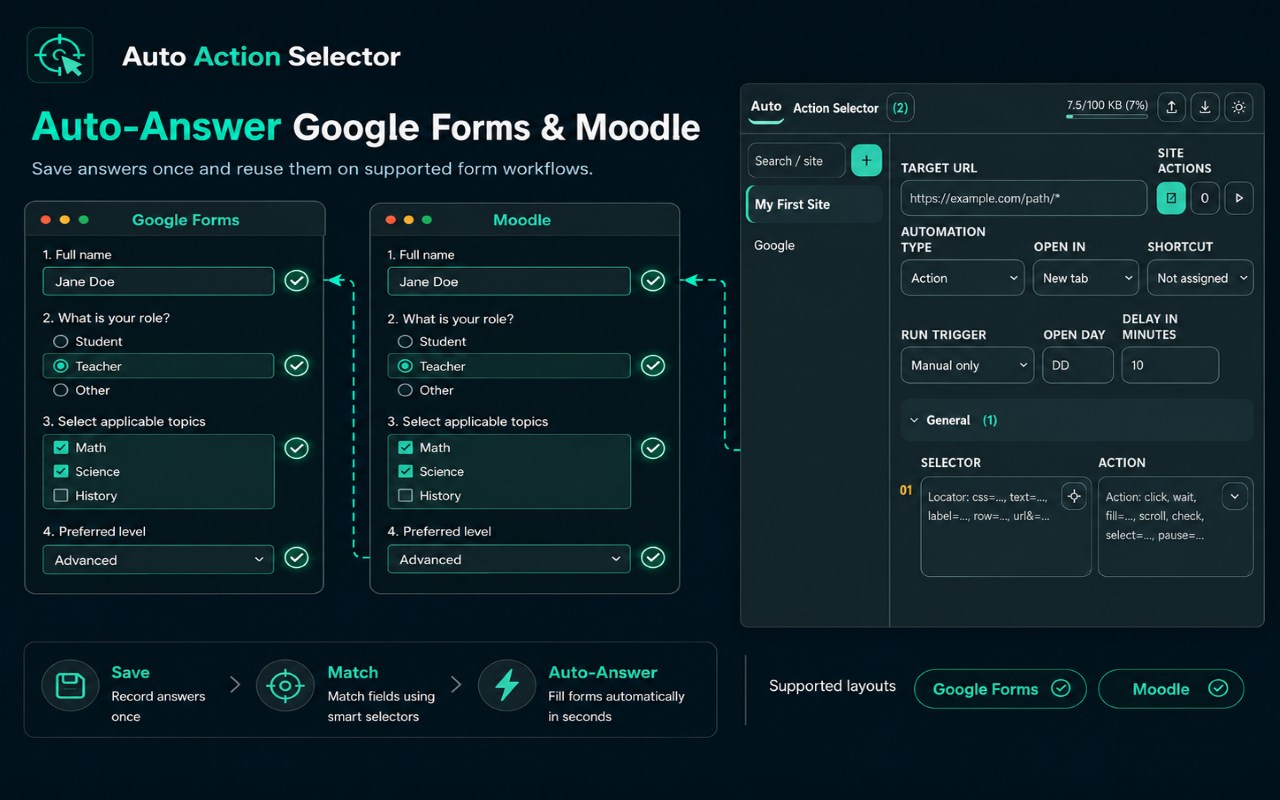
• Q&A Auto-Fill: Matches saved questions and field labels with stored answers to automatically complete supported forms and quizzes.
• Supported Platforms: Works with Google Forms, Microsoft Forms, Moodle quizzes, and supported table-question pages.
• Automatic Mode Detection: Detects supported Q&A pages and selects the appropriate filling or action workflow.
• Record & Replay Actions: Automates clicks, typing, keyboard actions, dropdowns, checkboxes, scrolling, URL navigation, delays, and manual pauses.
• Flexible Scheduling: Run workflows manually, monthly on a selected day, every N days, or when a specified page element appears.
• Smart Site Launching: Opens saved sites in new tabs or windows and reuses matching existing tabs whenever possible.
• Tab Monitoring: Monitors open sites and can reopen the original URL and replay recorded actions when a page navigates away.
• Visual Tools: Highlight saved answers, find repeated text on the current page, and locate saved answers associated with the current page.
• Task Management & Notifications: Manage scheduled runs, handle sign-in requests, resume paused workflows, and receive desktop notifications.
• Dashboard & Sync: Manage site profiles, saved answers, workflows, shortcuts, schedules, settings, JSON backups, and supported browser synchronization.
• Temporary Answers: Store session-only answers without adding them permanently. Temporary answers are cleared when a new session starts and are excluded from backups and synchronization.
• Sensitive Data Protection: Excludes password, one-time-code, and payment fields from answer saving and action recording.
How to Use
____________________________________________
• Save Answers: Right-click an answer and save it as Temporary (Ctrl+Shift+S) or Permanent Q&A (Ctrl+Shift+P).
• Auto-Fill: Press Ctrl+Shift+A or select Run Action from the page context menu.
• Highlight Answers: Press Ctrl+Shift+H or select Highlight Saved Answers.
• Find Repeated Text: Use Find Repeat Text to highlight duplicate text on the current page.
• Find Saved Answers: Use Find Repeat Answer to highlight saved answers associated with the current page.
• Record Workflows: Select a site in the dashboard, choose Action mode, record your steps, then stop and save the workflow.
• Set Automation: Choose Manual, Monthly, Every N Days, or When Element Appears. Configure the relevant schedule, element selector, and startup delay.
• Monitor Sites: Open a matching site tab and enable Monitor to automatically return to the saved page and replay actions when the URL changes.
• Manage Everything: Use the dashboard to edit sites, groups, answers, actions, shortcuts, schedules, task settings, and JSON backups.
Use Cases
____________________________________________
• Repetitive Forms & Quizzes: Reuse saved responses on supported form and quiz platforms.
• Data Entry: Automatically fill recurring questions, fields, and selections using stored answers.
• Workflow Testing: Record and replay consistent, repeatable website interactions.
• Browser Automation: Automate repeated clicks, typing, navigation, and other multi-step website tasks.
• Scheduled Tasks: Automatically run saved workflows monthly, at recurring day intervals, or when specific page elements appear.
• Monitored Sessions: Reopen the original page and replay recorded actions when a monitored tab navigates away.
• Temporary Work: Store session-only answers without permanently adding them to saved Q&A data.
Auto Action Selector 是做什么的
Auto Action Selector 是一款面向 Edge 的效率工具类扩展,主要用来管住注意力、屏蔽干扰站点、记录时间。官方对它的介绍是:Automate Q&A and autofill with notifications, and synced site profiles.在微软 Edge 加载项商店上,它当前版本 1.3.8,约 58 名用户。
适合什么人用
从功能定位看,Auto Action Selector 更适合想专注工作学习、减少无效刷网页的用户。如果你平时只是偶尔遇到相关需求,用浏览器自带功能也能凑合;但如果这件事每天都发生,装一个专门处理它的扩展通常比手动操作省事得多。需要注意的是它作用于所有网站,装上后建议先观察一两天,确认不影响常用站点的正常使用。
怎么安装 Auto Action Selector
- 打开微软 Edge 加载项商店上的官方页面;
- 点「添加到浏览器」并确认权限提示;
- 装好后在扩展列表里固定图标,方便随时开关。
本站只做索引与介绍,安装包来自官方商店。如果商店页面提示当前地区不可用,说明该扩展未在你所在区域上架。
常见问题
Auto Action Selector 是免费的吗?
Auto Action Selector 在微软 Edge 加载项商店免费提供下载。它是浏览器扩展,装上就能直接用,不需要注册账号。
Auto Action Selector 安全吗?
它只申请了 0 项权限,范围比较克制,没有申请「读取所有网站数据」这种大权限。
Auto Action Selector 支持哪些浏览器?
当前收录的版本来自微软 Edge 加载项商店,适用于 Edge。同一个扩展在其他商店可能有对应版本,但功能与版本号不一定相同。
怎么卸载 Auto Action Selector?
在扩展管理页找到 Auto Action Selector,点移除即可。它在本地保存的设置会一起清掉,不会残留数据。
权限清单 来自 manifest.json 原文
站点访问(可选) 1
<all_urls>
接口权限 8
alarmscontextMenusnotificationsscriptingstoragesystem.displaytabswebNavigation